Features
    Reference to Video
    Image to Video
    Text to Video
    AI Sound Effect Generator
    AI Image Generator
    Vidu Q3
    Vidu Claw
    Templates
    Pricing
    Vidu CPP
    API Platform
    Resources
    Help Center
    Tutorial
    Blog
    Language
    Try Vidu

    Reference to Video

    Create videos that align with reference subjects, such as characters, objects, and scenes.
    视频封面

    Create Without Limits — Reference to Video

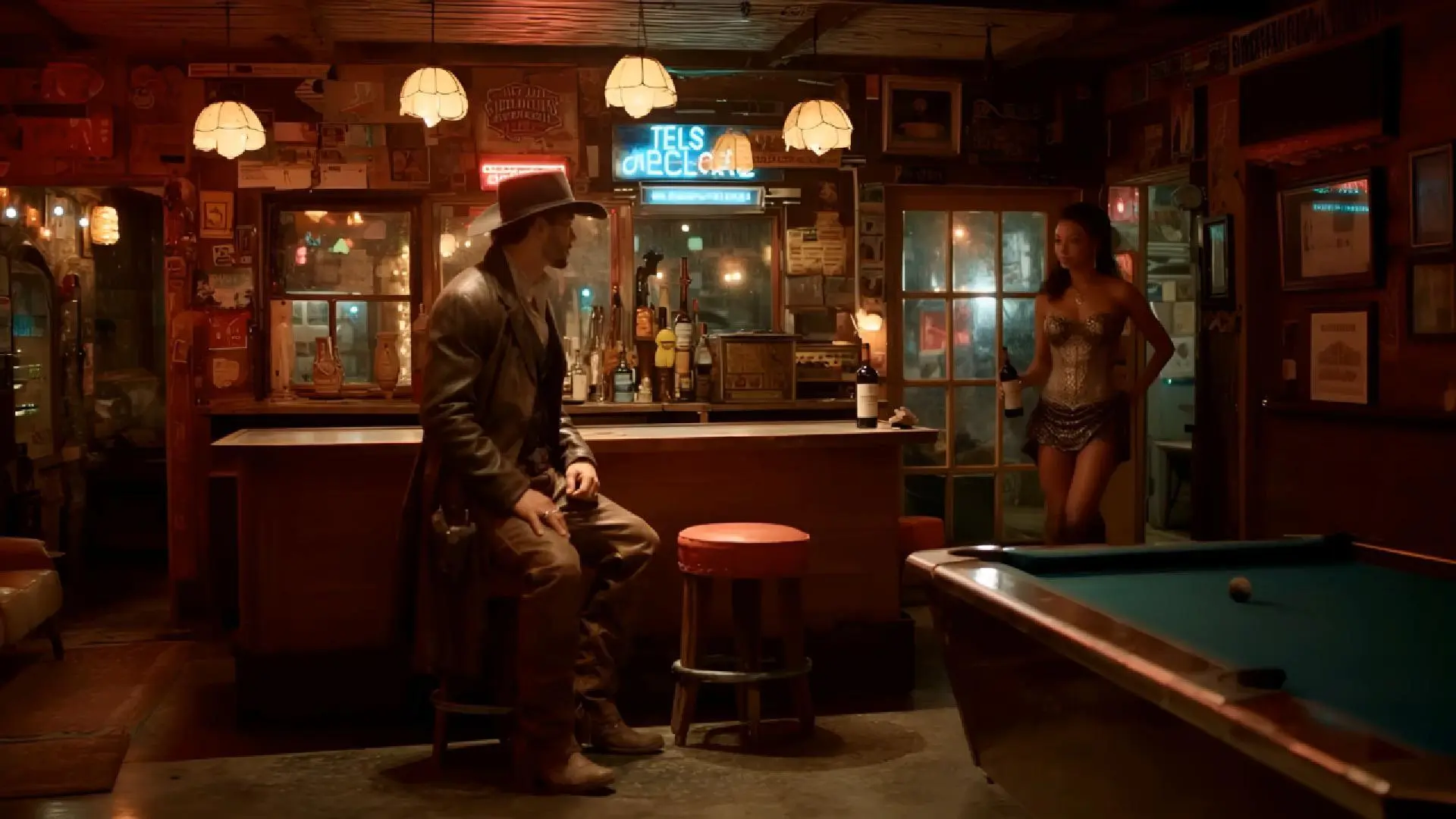
    cowboy
    @Cowboy
    @Cowboysits at the bar in
    bar
    @Bar
    @Bar
    A
    lady
    @Lady
    @Ladyenters from the right with a bottle of wine
    and walks up to him. The camera pushes in...
    视频封面

    Same reference, new worlds

    Place your subject in different scenes or with different props — all while keeping it consistent.
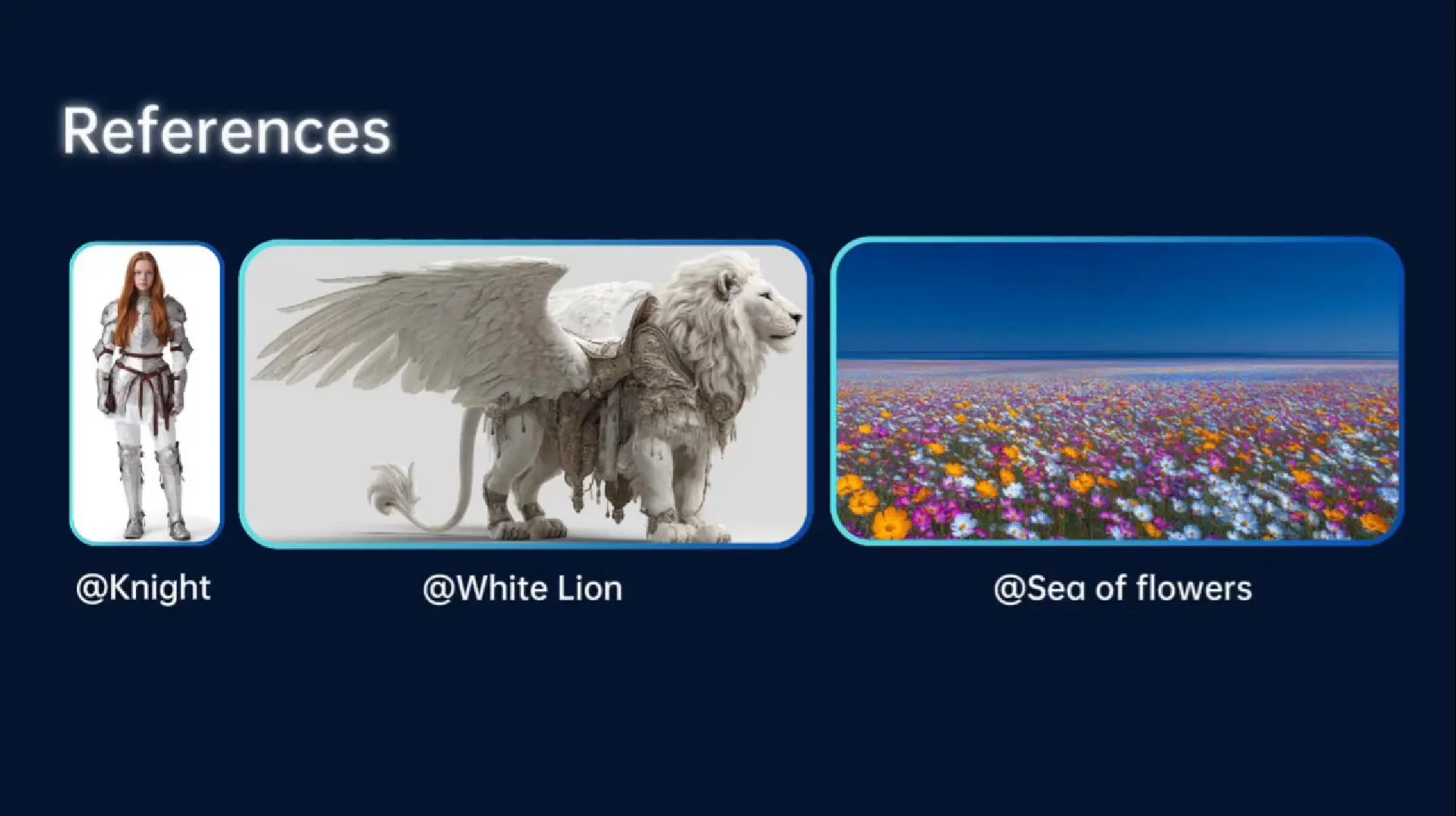
    视频封面

    Same scene, new reference

    Swap characters in a single scene to explore different storytelling angles.
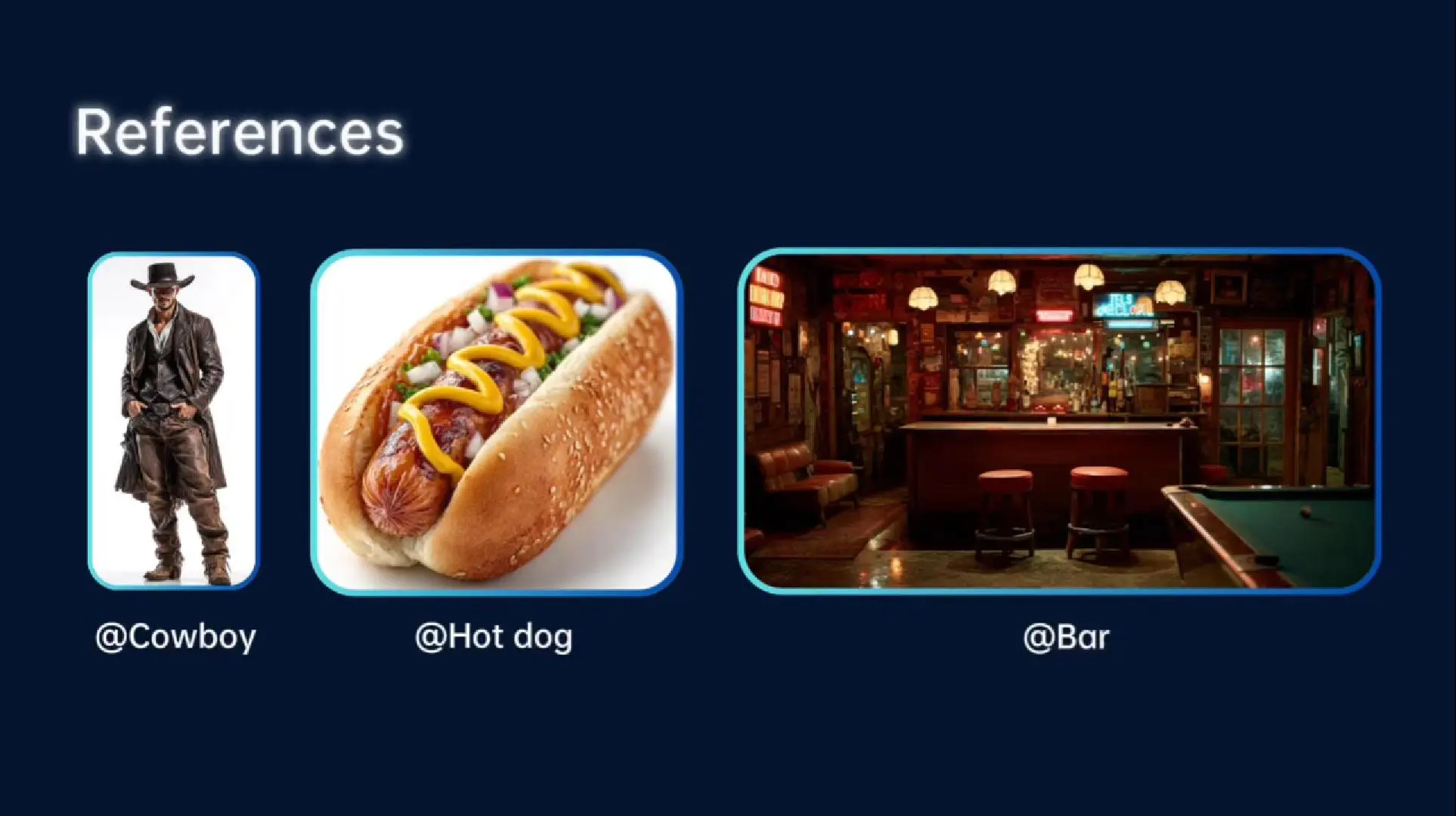
    视频封面

    More references, more creativity

    Upload up to 7 references at once to create videos with more characters and storylines.
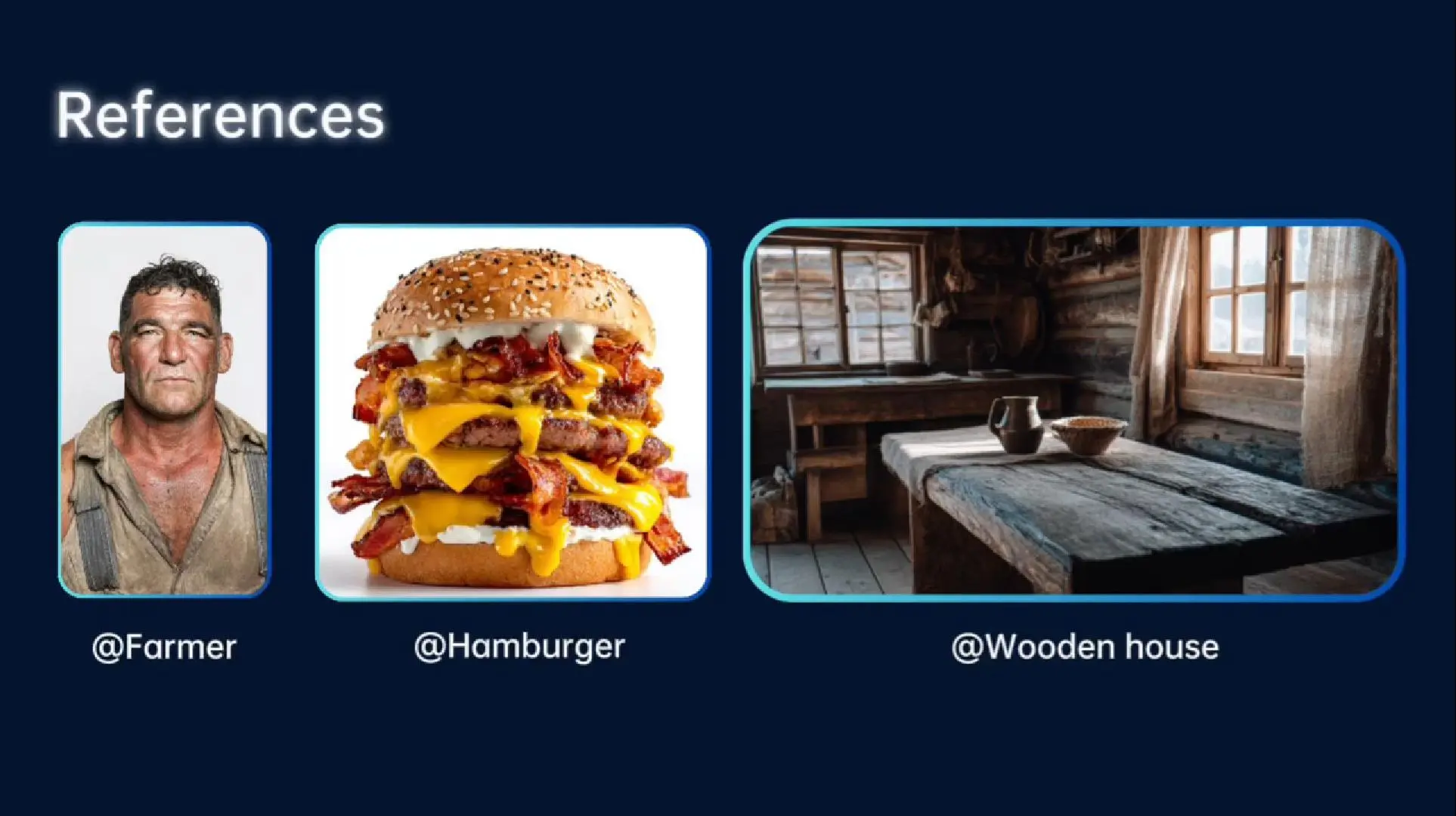
    视频封面

    Use Cases of Reference to Video

    视频封面

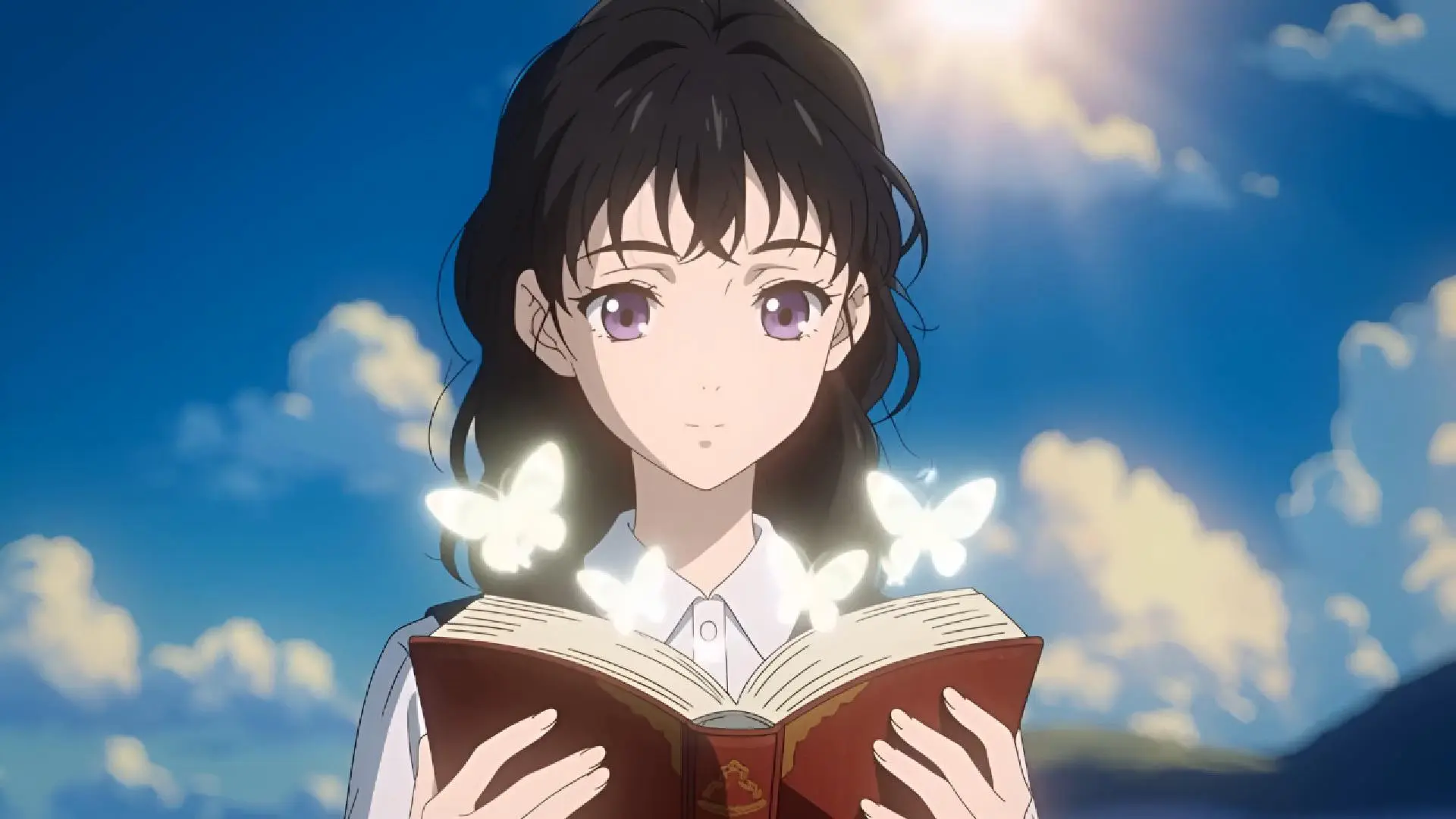
    Personal IP Animation

    Use your original character or artwork as a reference to generate consistent animations.

    视频封面

    Narrative Shorts

    Maintain character and scene consistency across multiple shots to support storytelling.
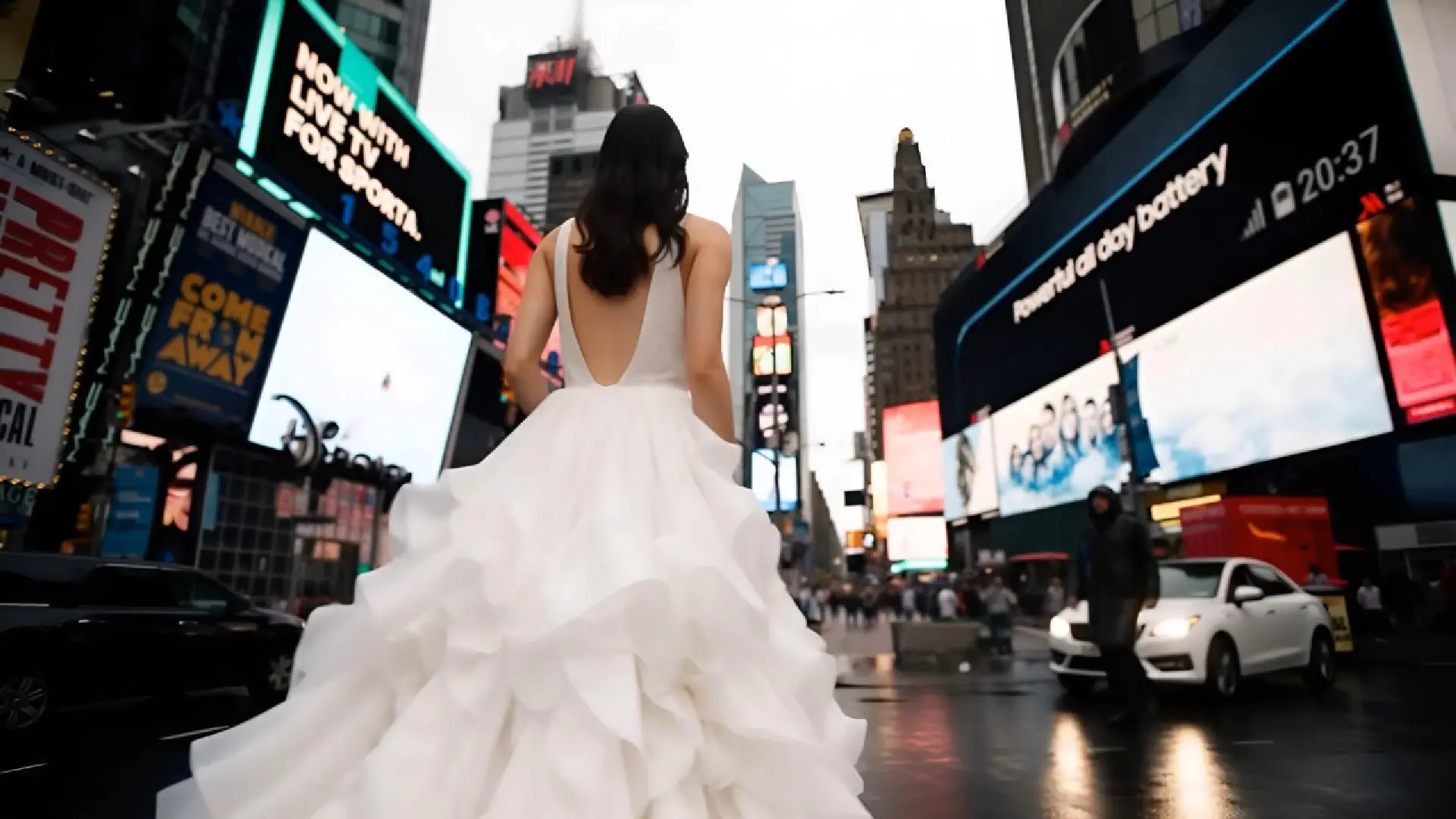
    视频封面

    Advertising

    Use reference images to animate products while keeping brand visuals consistent.

    视频封面

    Fun Creations

    Animate pets, memes, or playful doodles for entertaining and imaginative videos.

    How to Use Vidu's Reference to Video
    Select Reference to Video

    Select Reference to Video

    Go to the Vidu website, click Try Vidu, and choose Reference to Video. Upload 1 to 7 references from your images or from the references you saved.

    1
    Enter text prompt

    Enter text prompt

    Write down your prompt on how you want the character or object to animate with consistency. Customize your video by setting resolution, aspect ratio, and more.

    2
    Create and Download

    Create and Download

    Click the "Create" button and wait for Vidu to generate the video. After it's ready, you can preview and download it.

    3
    Create and Download

    Create and Download

    Click the "Create" button and wait for Vidu to generate the video. After it's ready, you can preview and download it.

    3
    Select Reference to Video

    Select Reference to Video

    Go to the Vidu website, click Try Vidu, and choose Reference to Video. Upload 1 to 7 references from your images or from the references you saved.

    1
    Enter text prompt

    Enter text prompt

    Write down your prompt on how you want the character or object to animate with consistency. Customize your video by setting resolution, aspect ratio, and more.

    2
    Create and Download

    Create and Download

    Click the "Create" button and wait for Vidu to generate the video. After it's ready, you can preview and download it.

    3
    Select Reference to Video

    Select Reference to Video

    Go to the Vidu website, click Try Vidu, and choose Reference to Video. Upload 1 to 7 references from your images or from the references you saved.

    1

    FAQs About Vidu Reference to Video

    What is Vidu's Reference to Video?
    Vidu's Reference to Video feature is a capability that allows users to generate AI-powered videos by providing up to 7 reference images and then using prompts to create a video that maintains excellent consistency with the references provided.
    How to use My Reference?
    Select Reference to Video, then click Reference and upload a three-view image of your character or object. Add a name and tag, check the description, and adjust if needed. To generate videos with your references, type @ in the input box to insert your reference, enter your prompt, and click Create.
    What's the difference between Reference to Video and Image to Video?
    Image to Video lets you animate static images. In contrast, Reference to Video allows you to upload multiple images (up to 7) as references to generate videos with consistent characters or objects. It's ideal for maintaining subject consistency, merging visual styles, and creating more cohesive, story-driven content.
    AI Sound Effect Generator CTA Background

    Vidu Reference to Video

    What you imagine is what Vidu.

    GET STARTED
    Reference to VideoImage to VideoText to VideoAI Sound Effect GeneratorTemplatesAI Image GeneratorVidu Q3
    AI TOOLS
    AI Video GeneratorAI Animation GeneratorAI Image AnimatorAI Video Ad GeneratorAI Hug GeneratorAI Kissing GeneratorView All
    For Enterprise
    API Platform
    COMPANY
    Contact Us: support@vidu.comCreative Partner Program
    Copyright © 2025 Vidu®
    Terms of UsePrivacy Policy