AI Image to Video
Turn images into smooth videos with AI image to video. Upload your image, define how it should move, and Vidu generates cinematic videos with natural motion, consistent details, and professional quality in seconds.
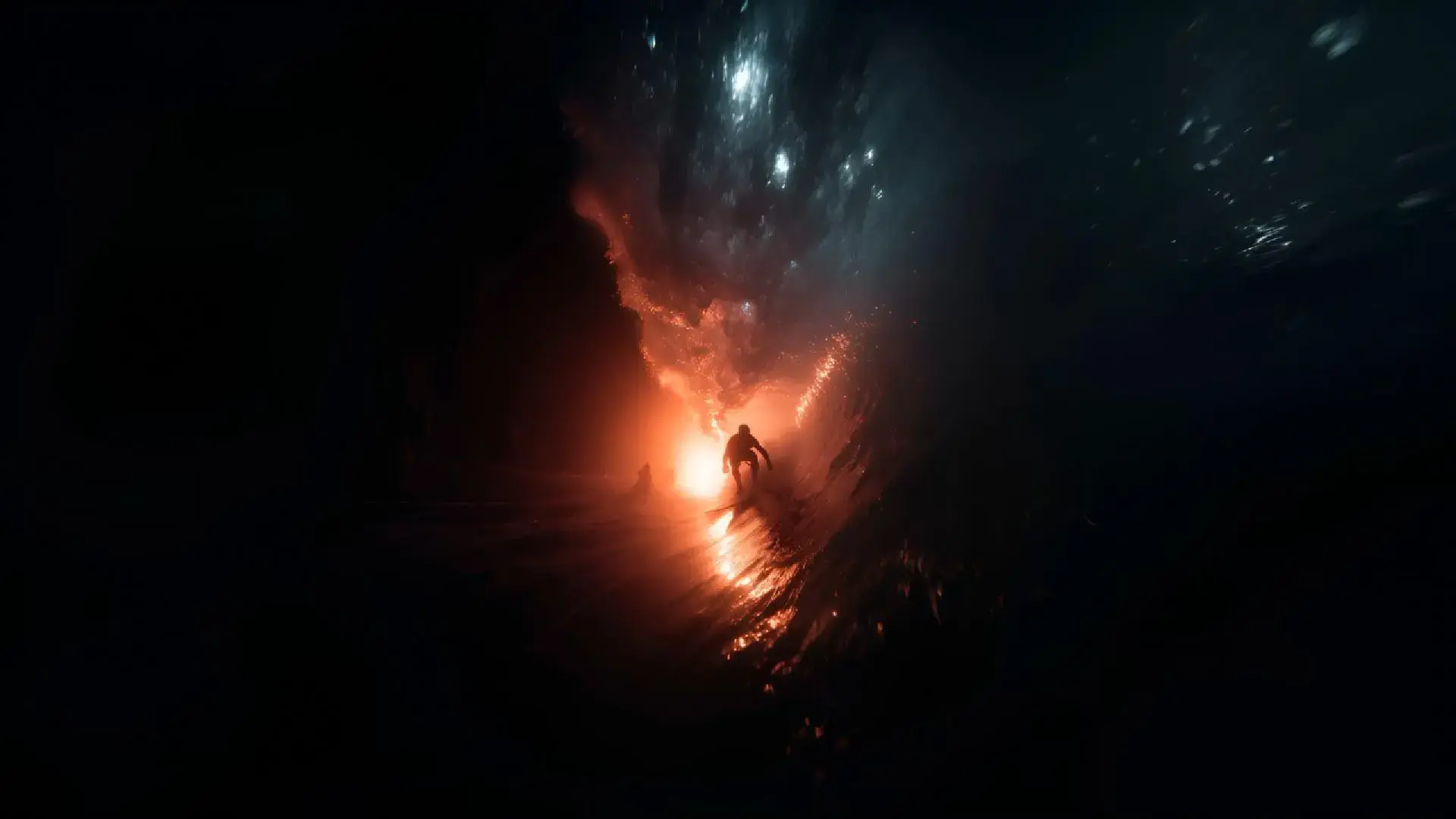
First & Last Frames Control
Define the first and last frames and let image to video turn your image into a smooth video. The motion between frames flows naturally and all elements stay in place. It works with any type of image, from photos to drawings and digital art.
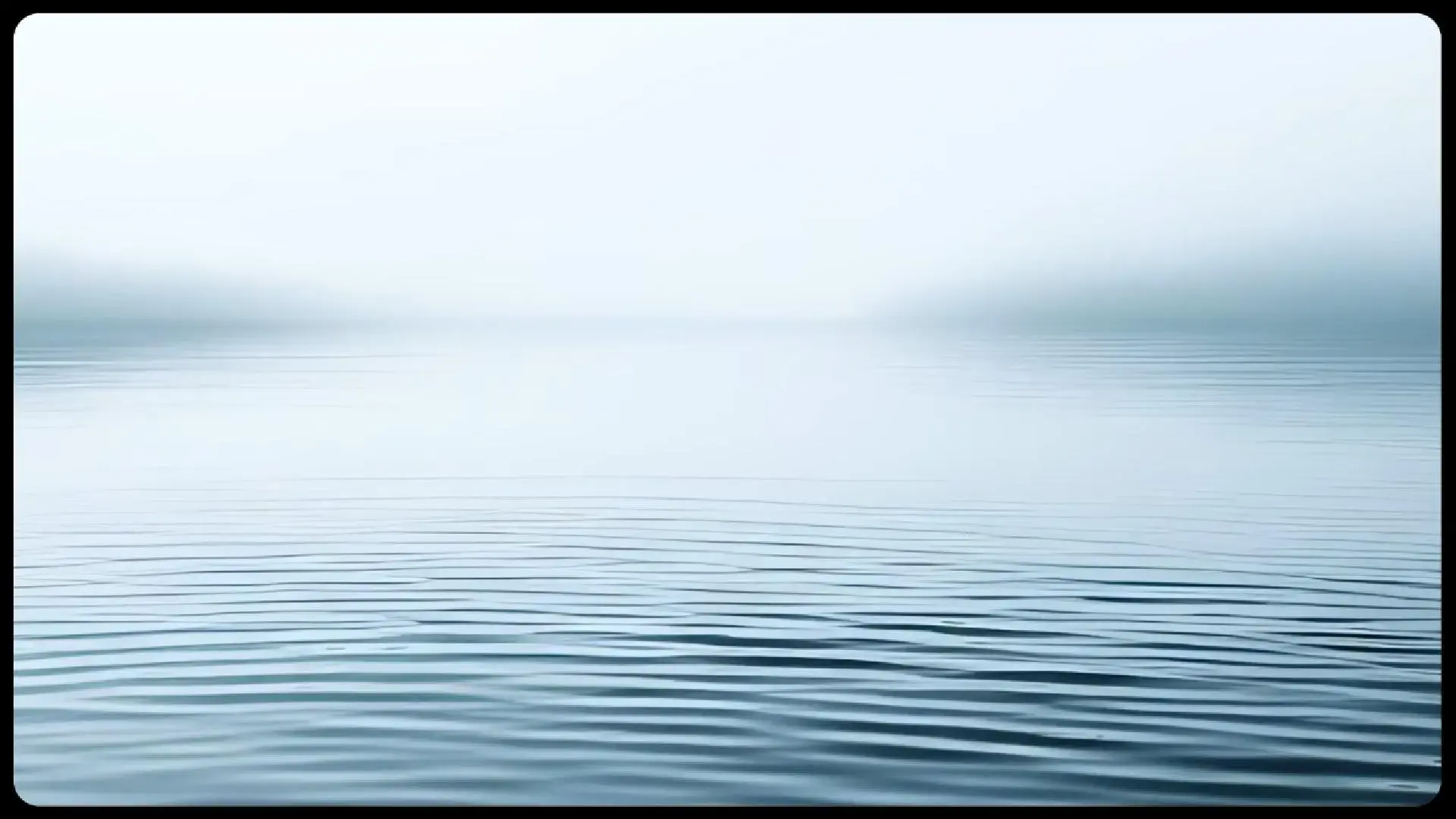
Next-Level Image to Video
Cinematic HD Quality
See your images in sharp detail with bright, vivid colors. Each frame feels like a real movie scene, clear and immersive.
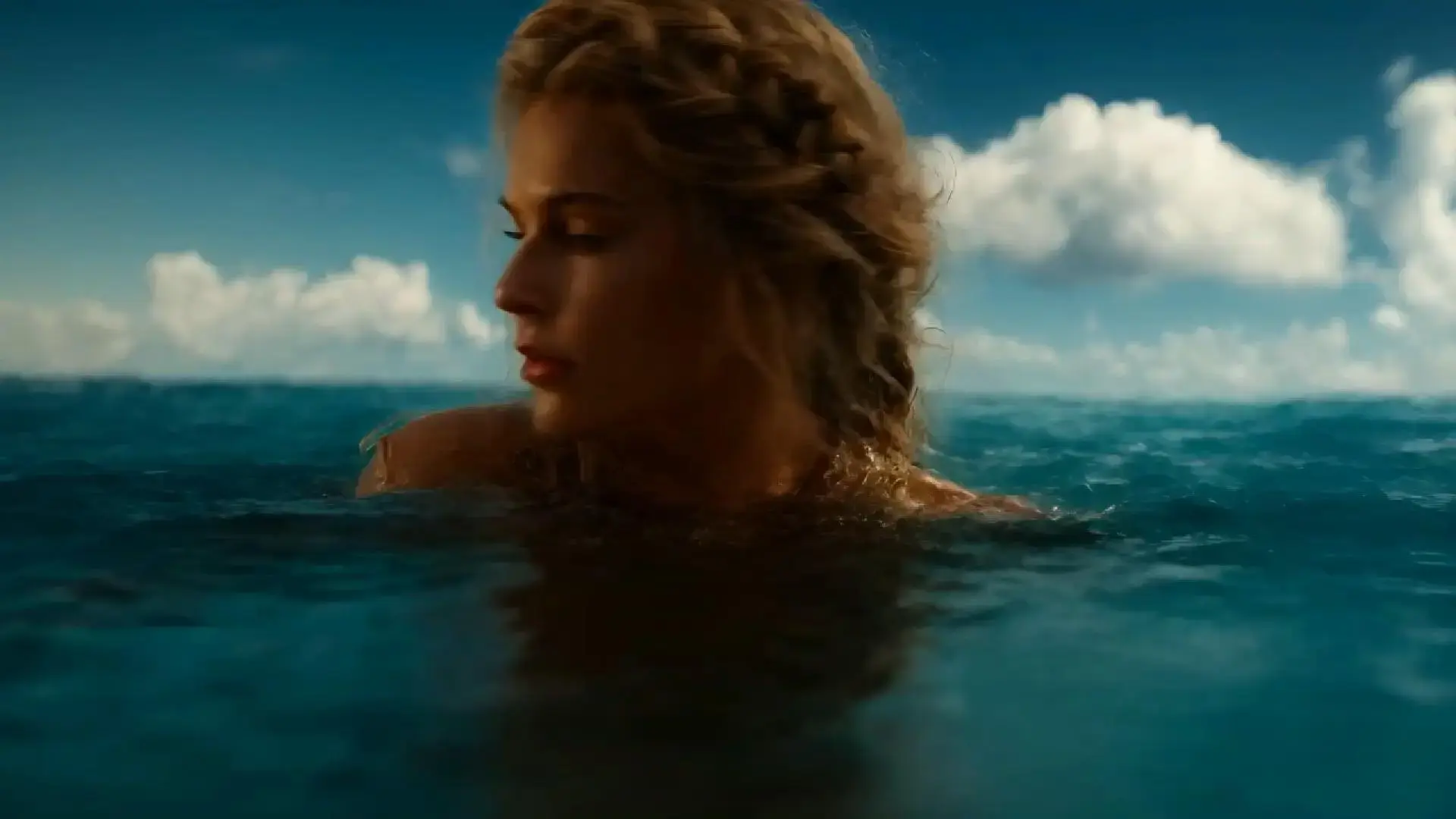
Dynamic Motion, Any Animation Style
Pick from different animation styles and make your images move naturally. Convert images to video online free with Vidu. All motion flows smoothly, whether small or dramatic.
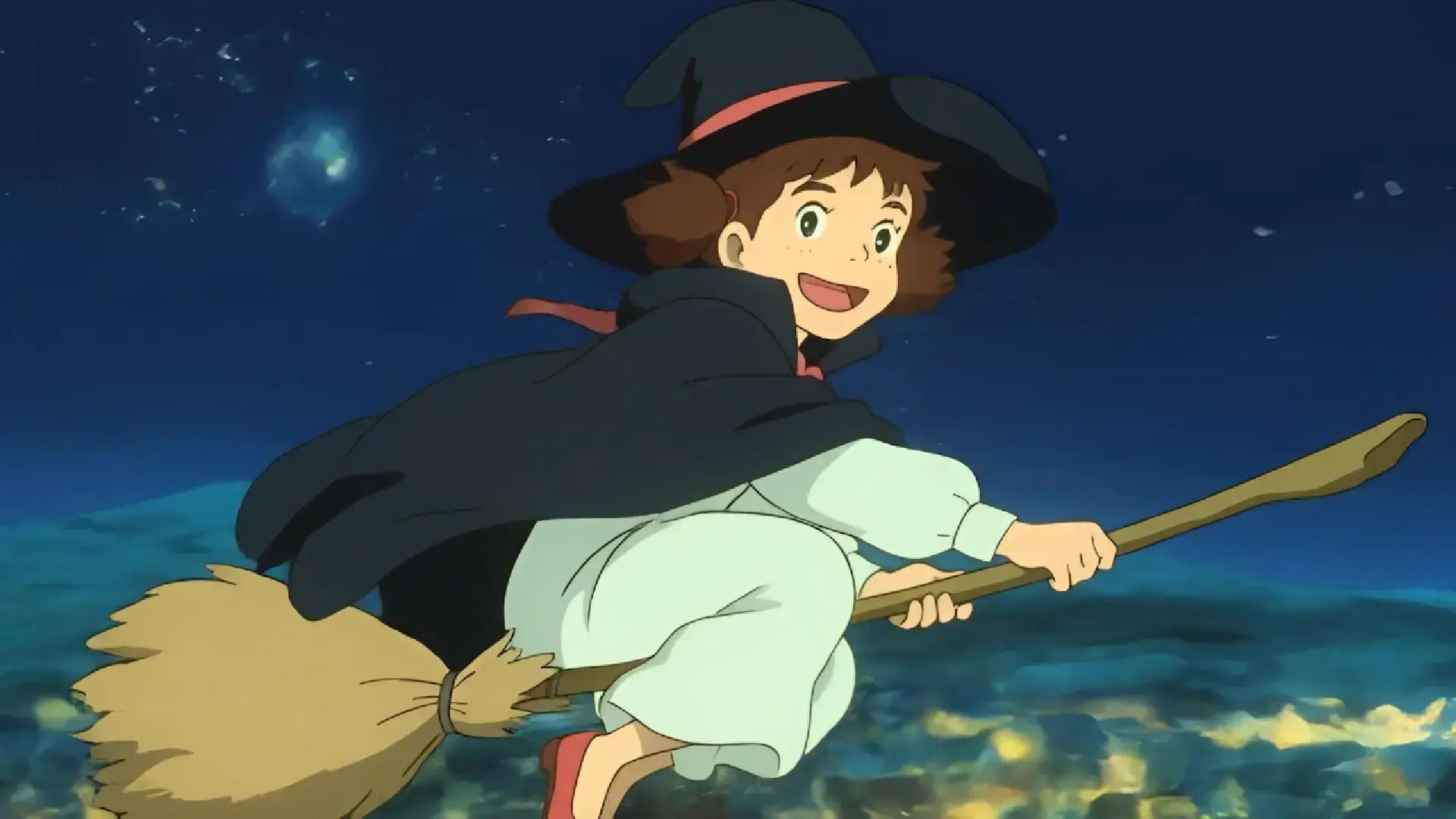
Expressive, High-Dynamic Motion
Movements flow smoothly, from subtle gestures to bold shifts. Every action connects naturally, keeping the scene lively and easy to follow.
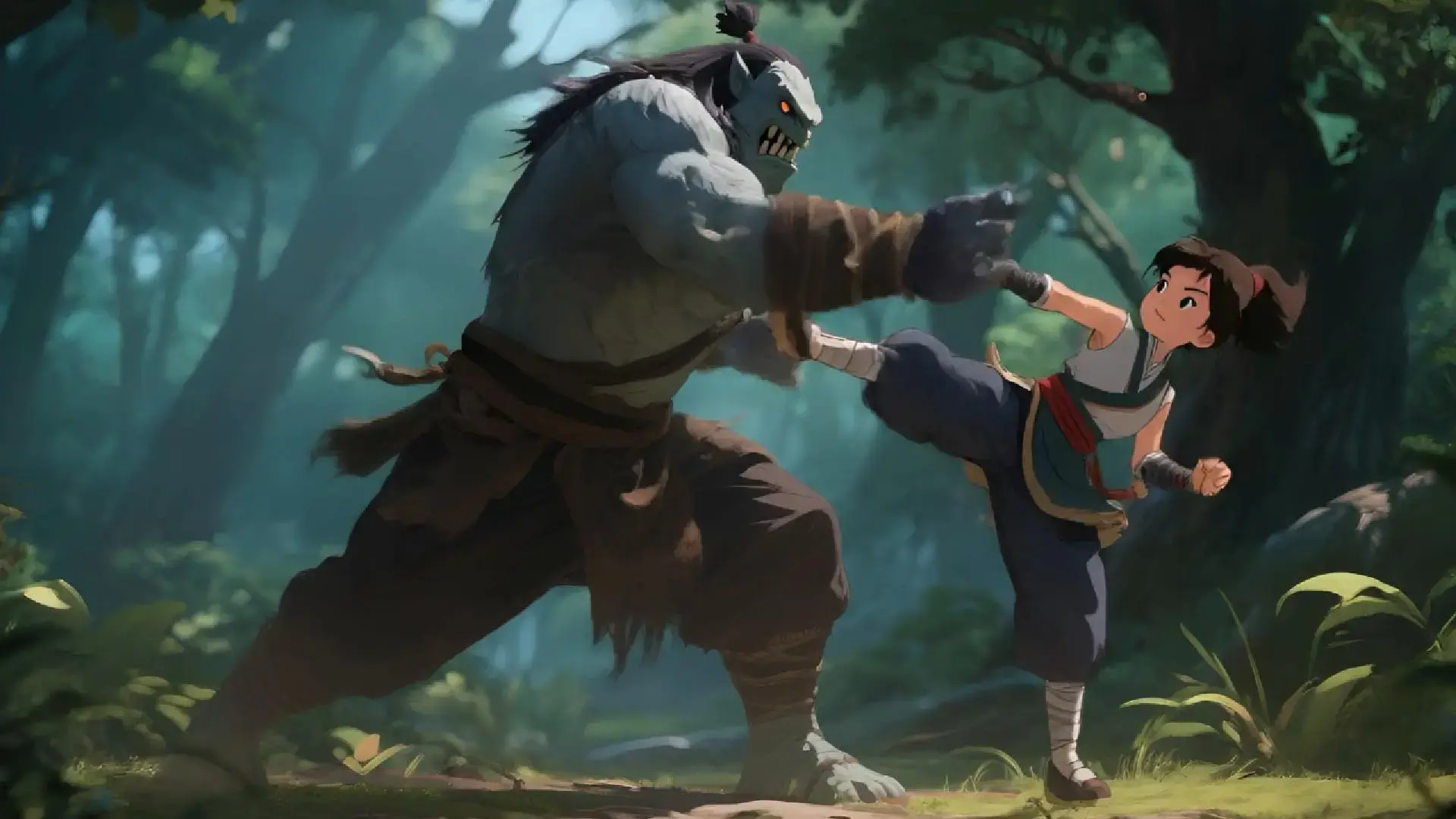
Cinematic HD Quality
See your images in sharp detail with bright, vivid colors. Each frame feels like a real movie scene, clear and immersive.
Dynamic Motion, Any Animation Style
Pick from different animation styles and make your images move naturally. Convert images to video online free with Vidu. All motion flows smoothly, whether small or dramatic.
Expressive, High-Dynamic Motion
Movements flow smoothly, from subtle gestures to bold shifts. Every action connects naturally, keeping the scene lively and easy to follow.
Image to Video in Various Styles
Turn any image into a video in the style you want. Use photos, anime, sketches, or paintings. Vidu keeps the look the same and makes the motion smooth.
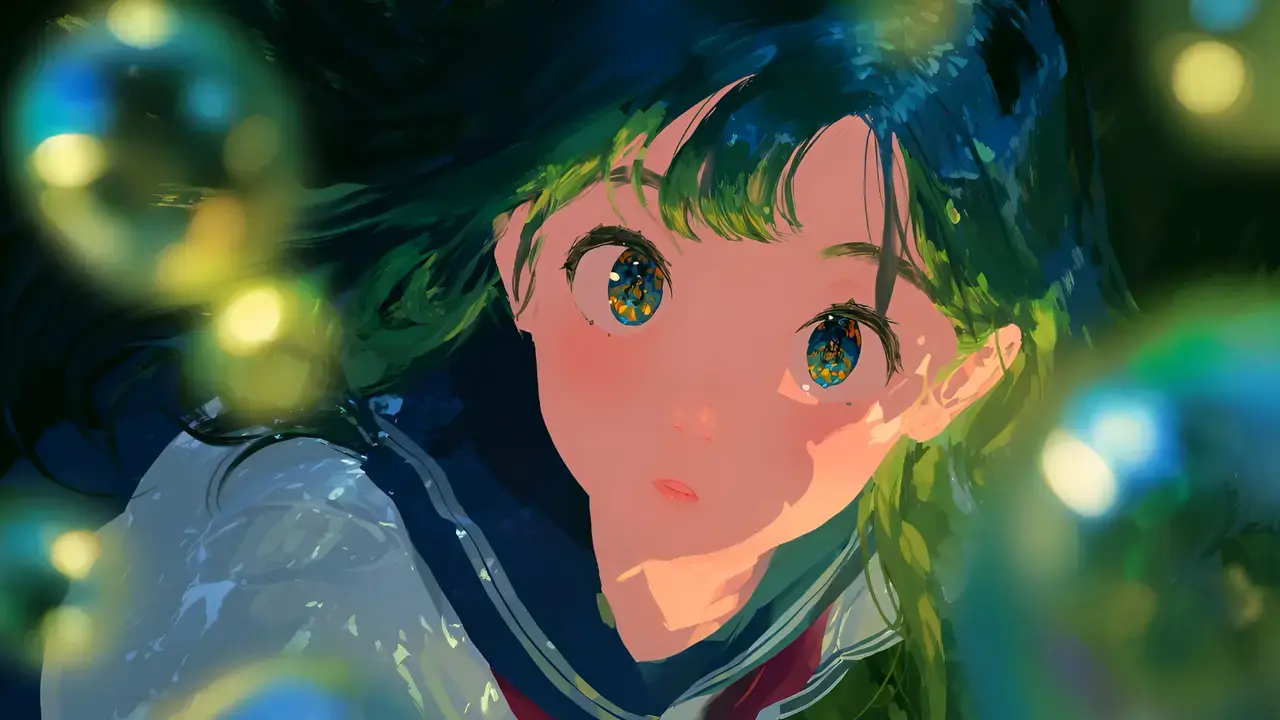
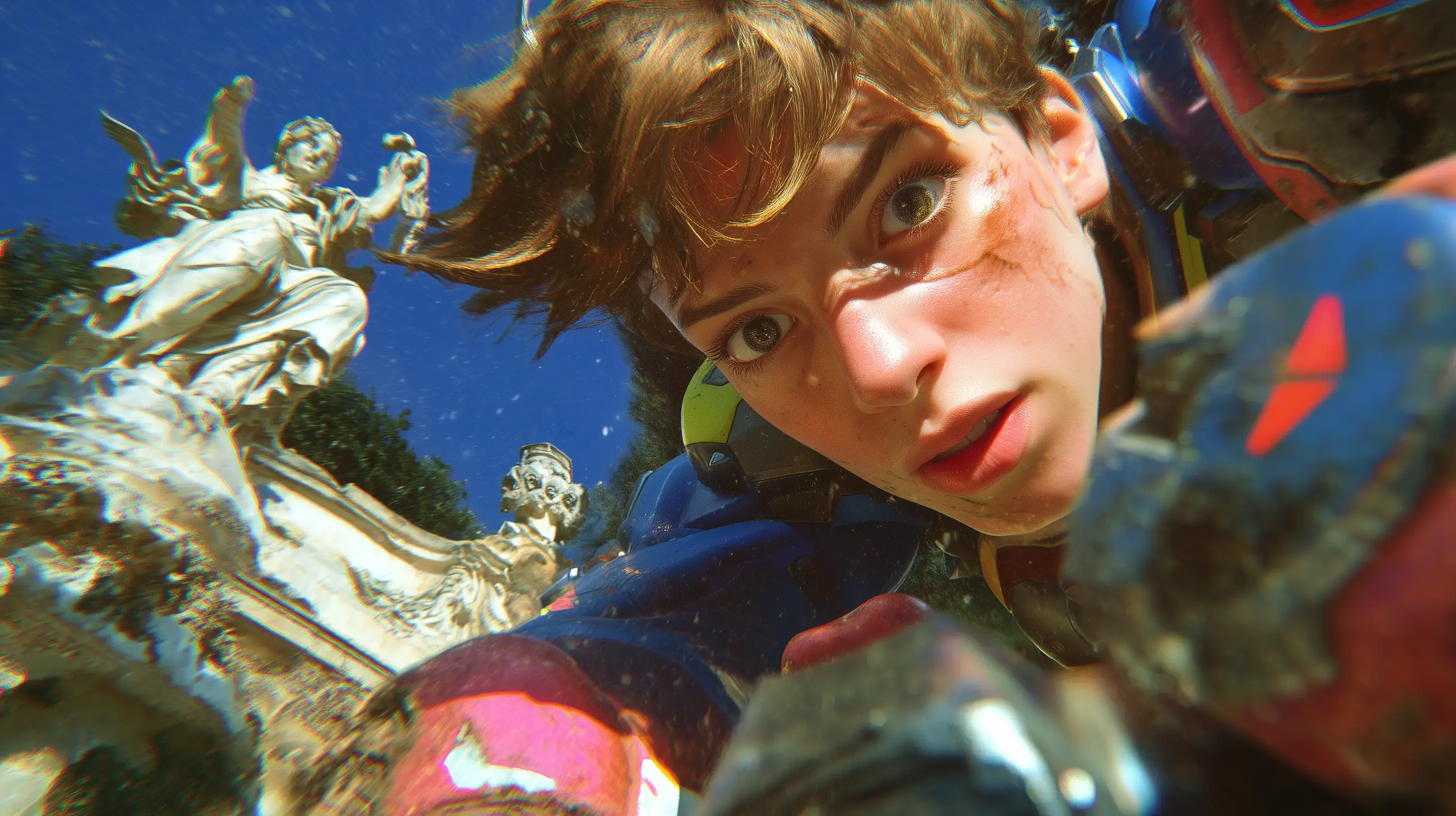
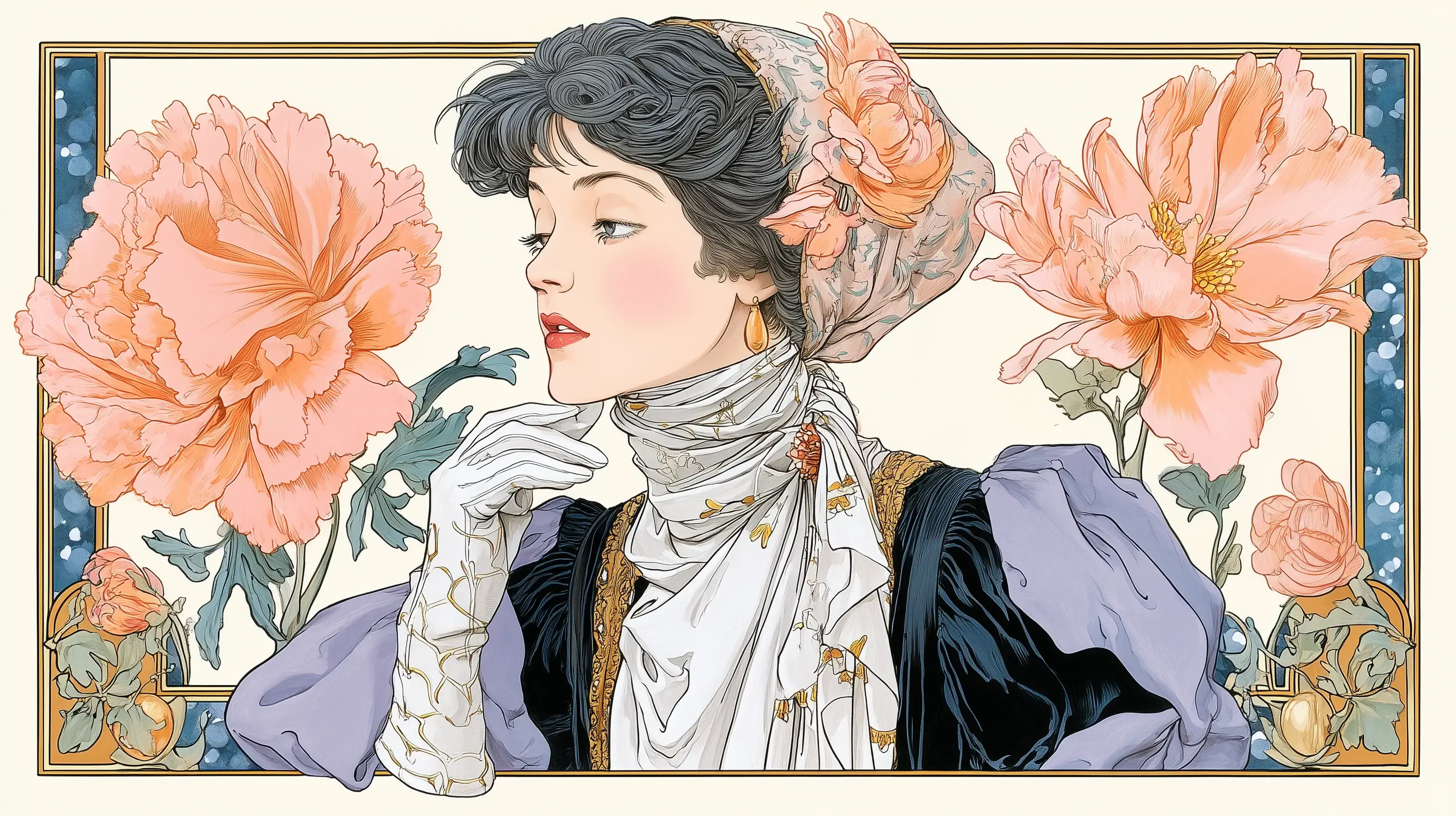
Turn Images into Videos for Any Purpose
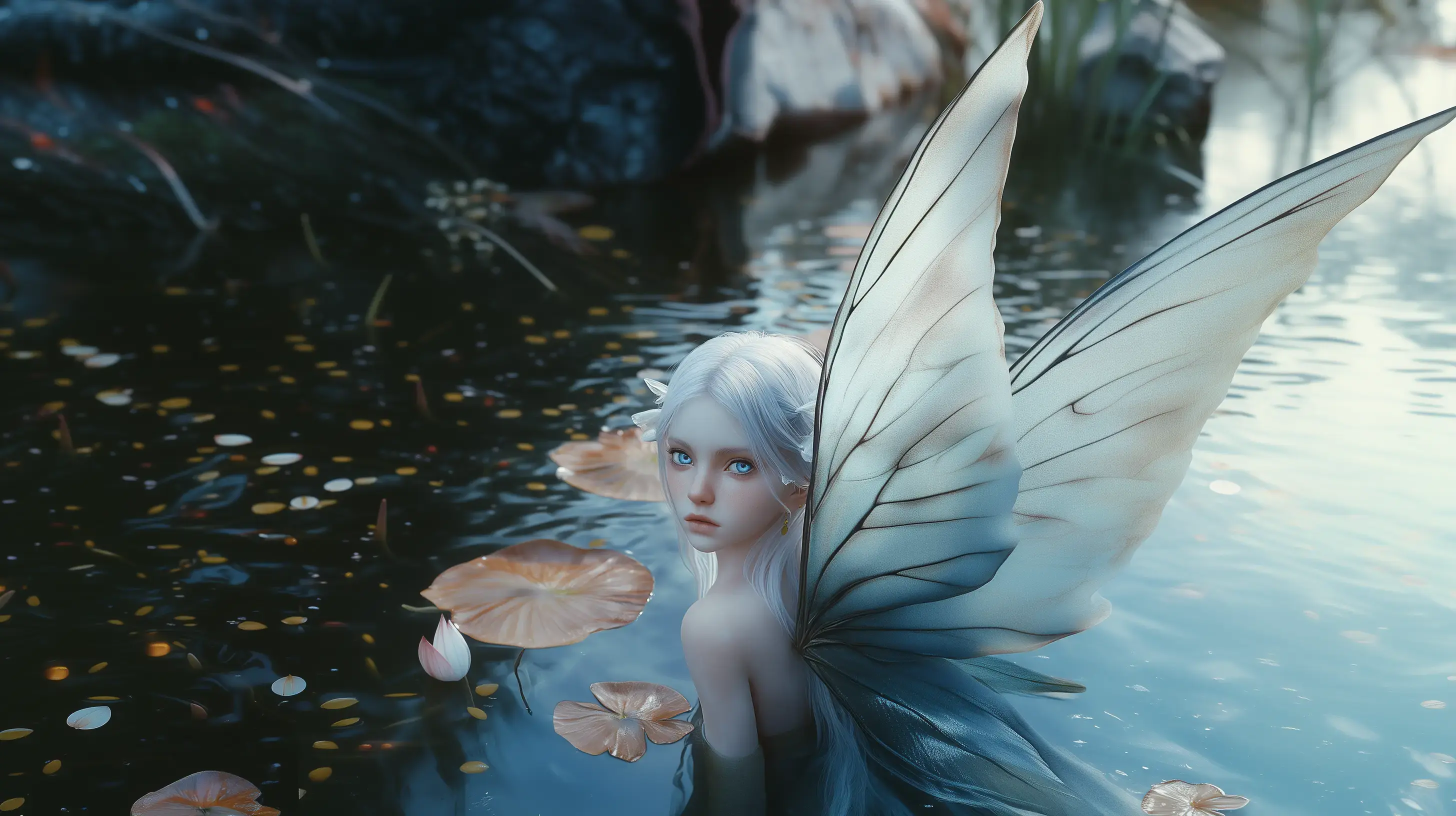
Create Professional Shorts
Turn your concept art, mood boards, or character designs into short cinematic videos. Vidu keeps visuals consistent and stylish while telling a clear story. Perfect for filmmakers, animators, and creative teams.
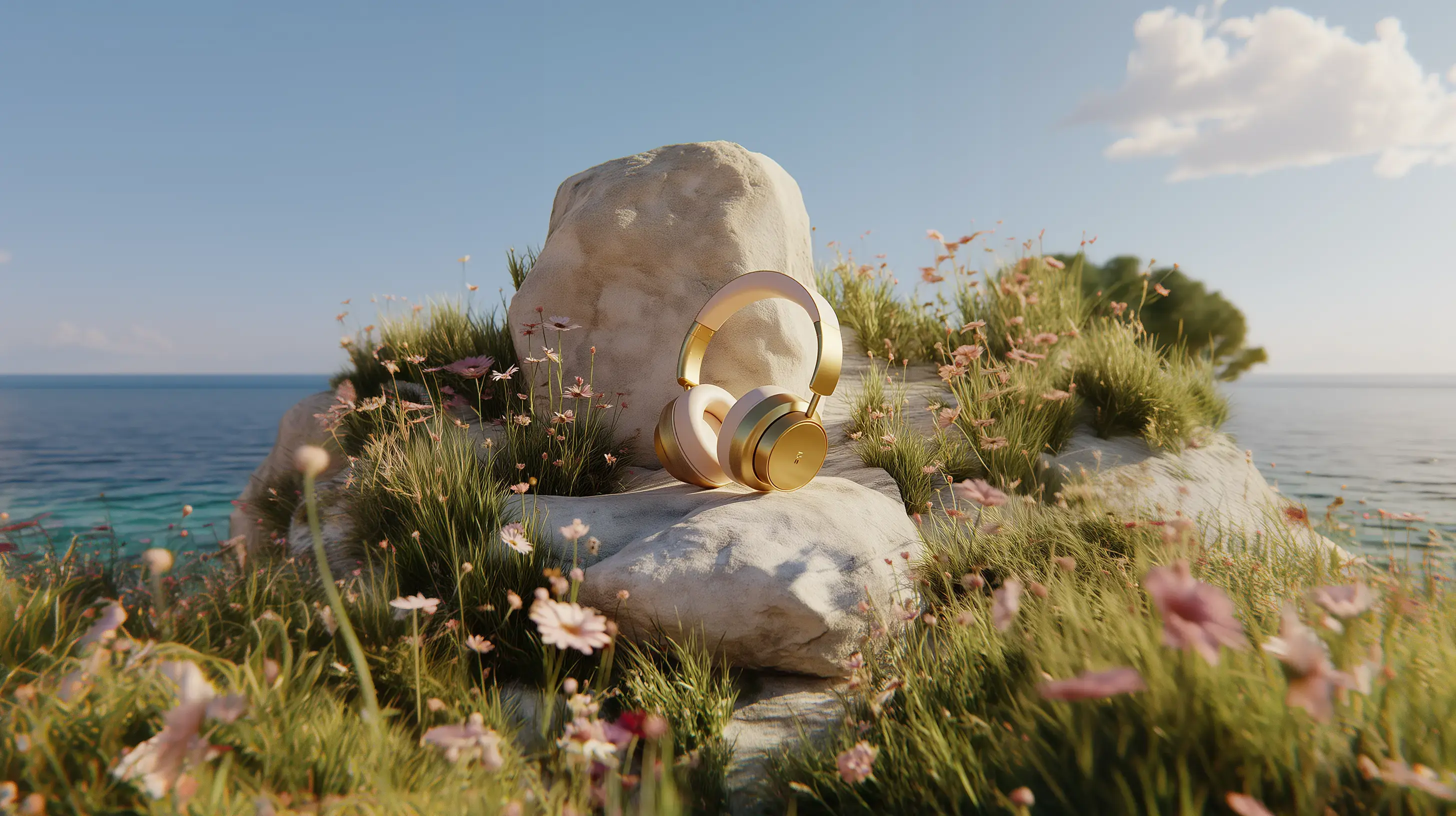
Create Product Videos
Bring product photos to life with smooth motion and simple cinematic transitions. Turn a single product image into a video that grabs attention and works well for online stores or ads.
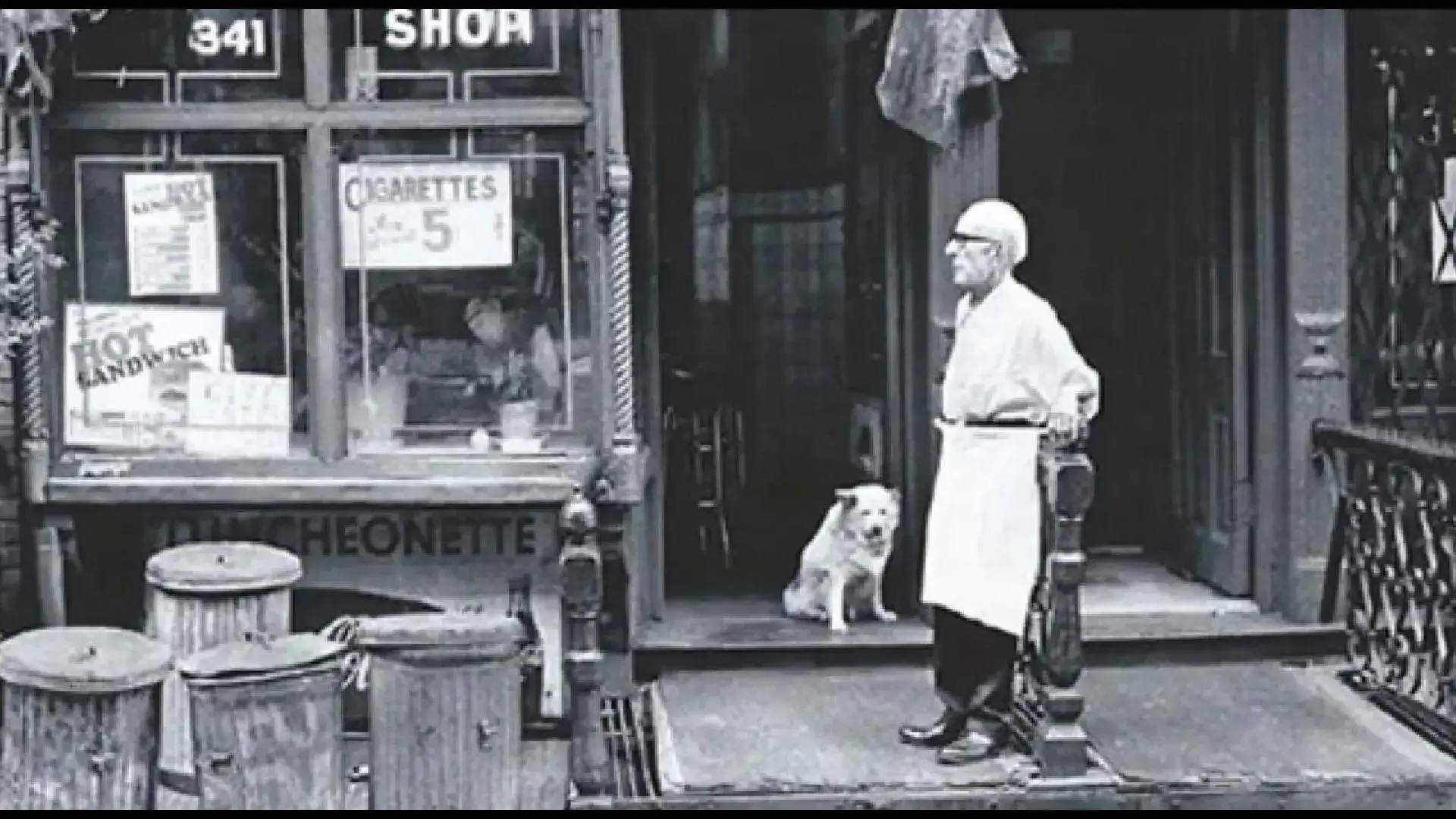
Revive Old Memories
Animate vintage or family photos with gentle, lifelike motion. Vidu adds emotion to old moments, making them perfect for storytelling or personal gifts.
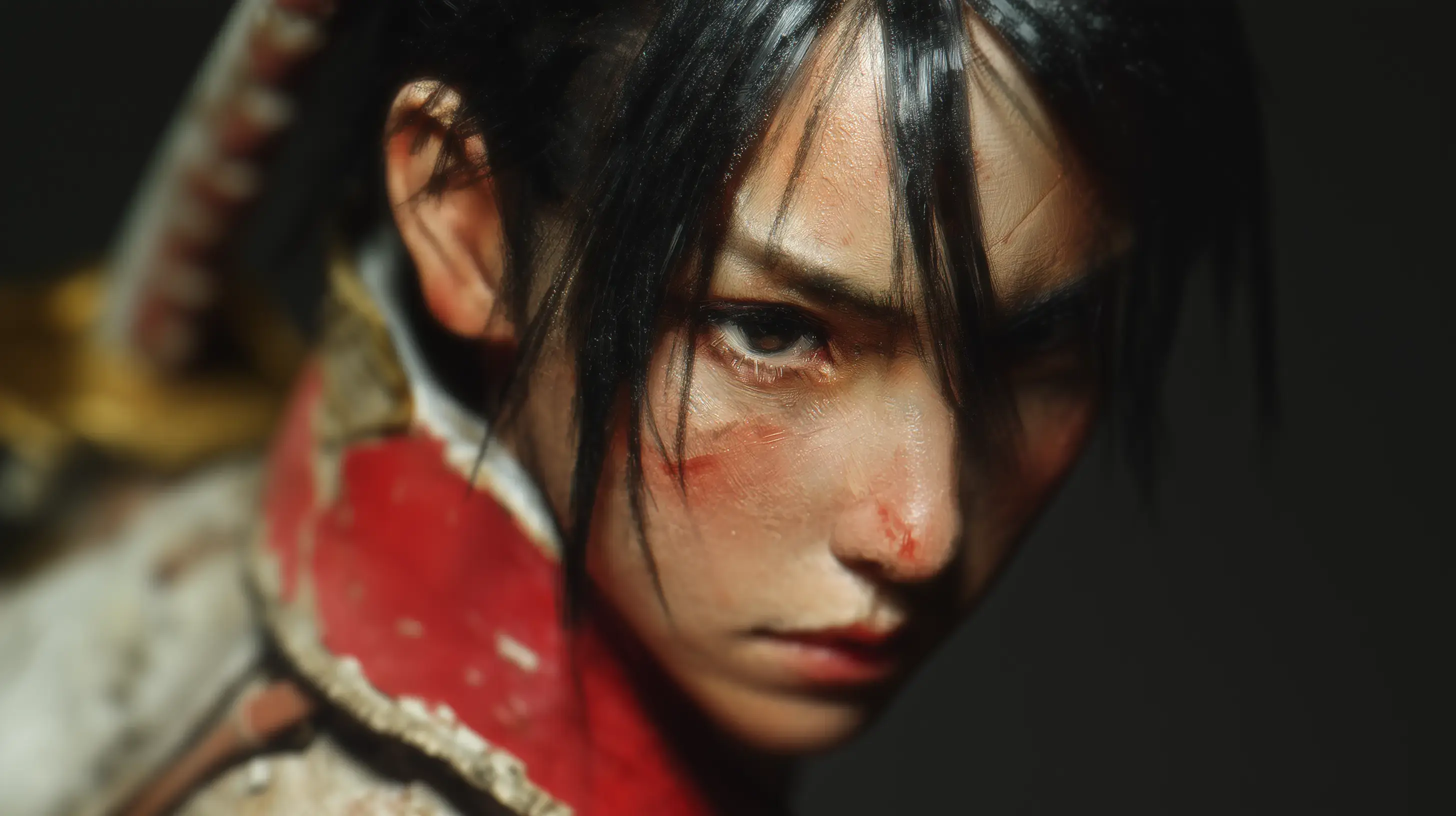
Stand Out on Social Media
Turn selfies, portraits, or digital art into videos that catch the eye. Convert images to video AI free no sign up with Vidu. Make Reels, TikToks, or Stories that feel alive and stand out from static posts.
Common Image to Video Mistakes and How to Improve Results
How to Convert an Image to Video
Choose Image to Video
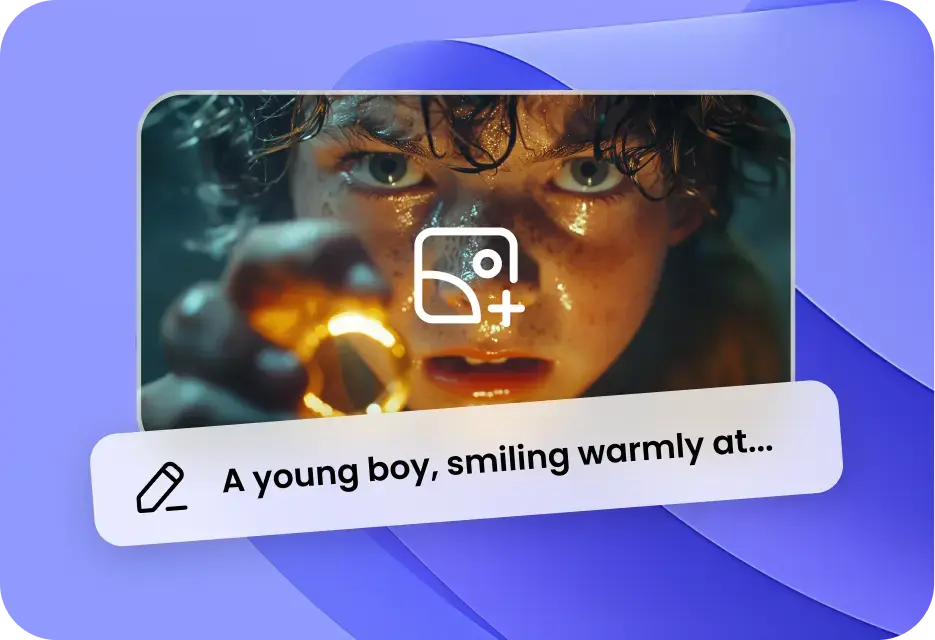
Click 'Try Vidu' to open the dashboard. Select 'Image to Video' and upload your first image as the starting frame. You can also add a second image as the ending frame if you want.
1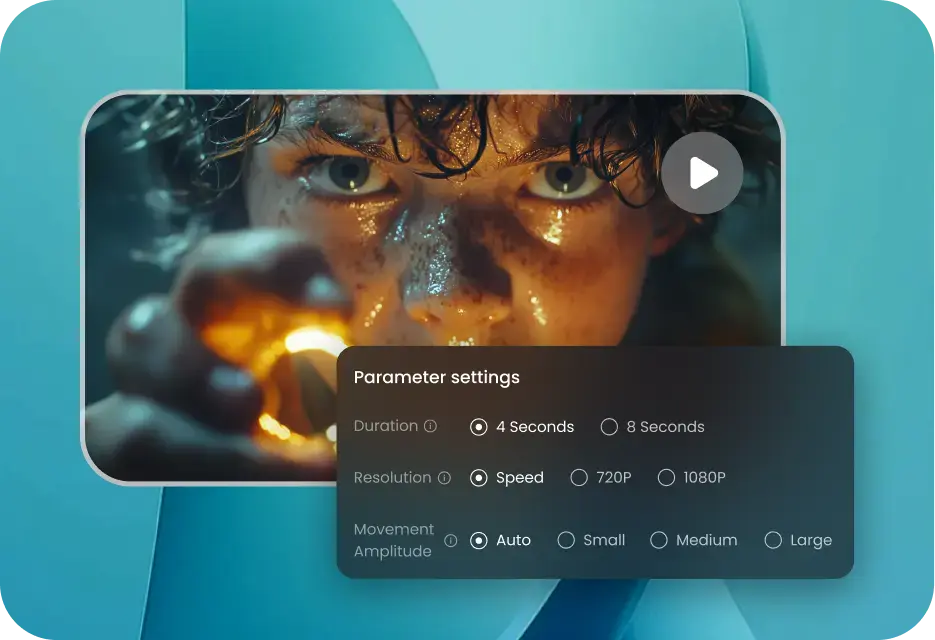
Write a Prompt for Image to Video Maker
Type a prompt that describes how you want the video to look. Check the User Guide to see tips on using the photo-to-video tool.
2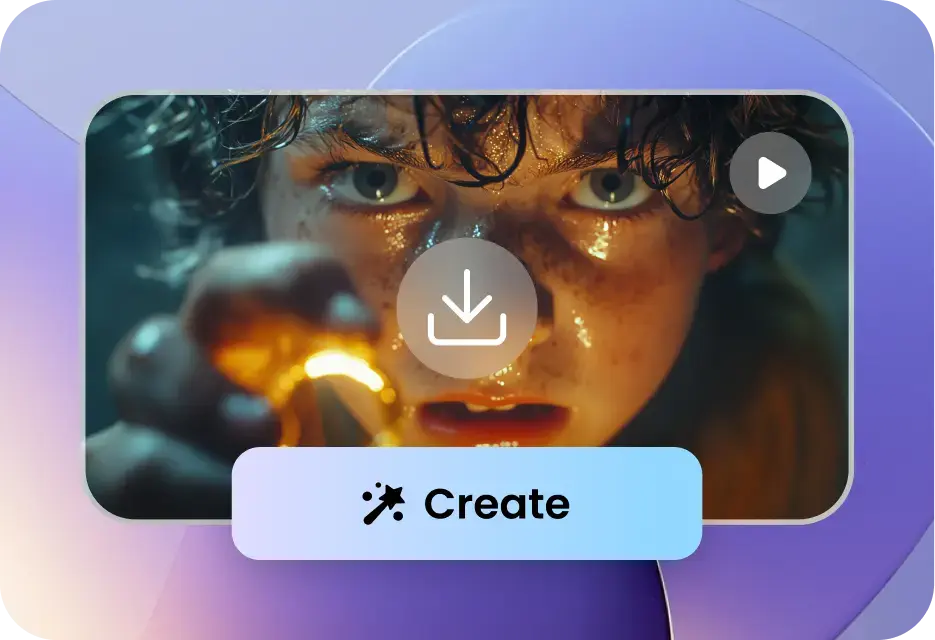
Adjust Settings for Final Video Output
Set the duration, resolution, and movement amount for your video. If you want more than one video, use the slider in Amount. Then click Create to make your video.
3Adjust Settings for Final Video Output
Set the duration, resolution, and movement amount for your video. If you want more than one video, use the slider in Amount. Then click Create to make your video.
3Choose Image to Video
Click 'Try Vidu' to open the dashboard. Select 'Image to Video' and upload your first image as the starting frame. You can also add a second image as the ending frame if you want.
1Write a Prompt for Image to Video Maker
Type a prompt that describes how you want the video to look. Check the User Guide to see tips on using the photo-to-video tool.
2Adjust Settings for Final Video Output
Set the duration, resolution, and movement amount for your video. If you want more than one video, use the slider in Amount. Then click Create to make your video.
3Choose Image to Video
Click 'Try Vidu' to open the dashboard. Select 'Image to Video' and upload your first image as the starting frame. You can also add a second image as the ending frame if you want.
1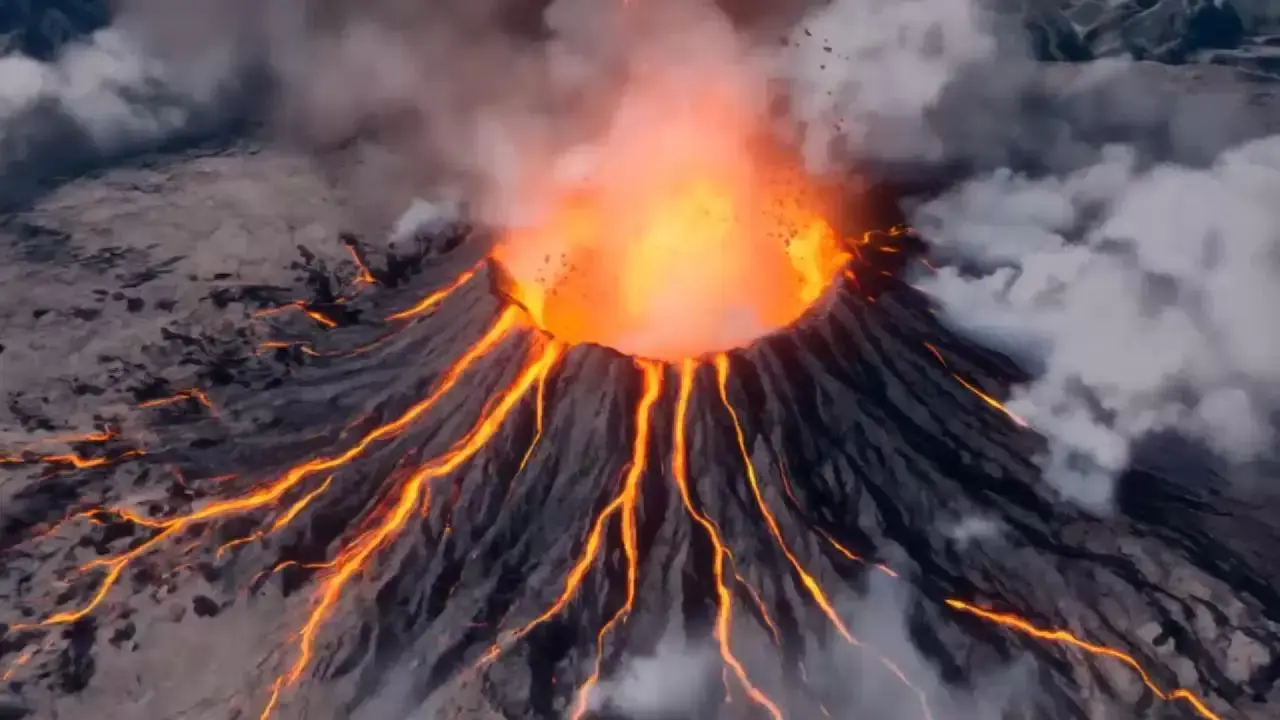

FAQs about Image to Video Feature
