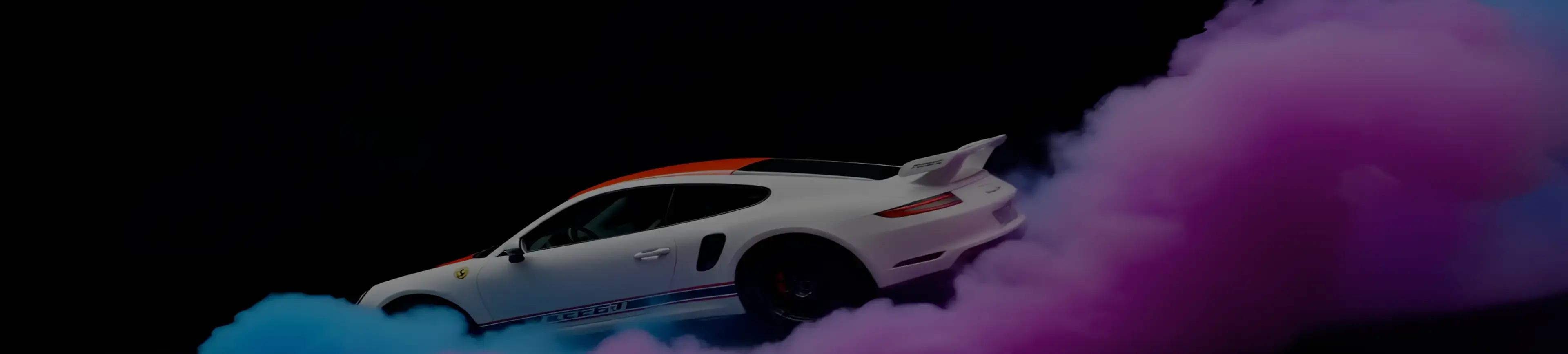
AI Text to Video
Turn your ideas into videos with AI text to video. Type your prompt, and get a complete video with smooth motion and consistent scenes. No editing. No retries.
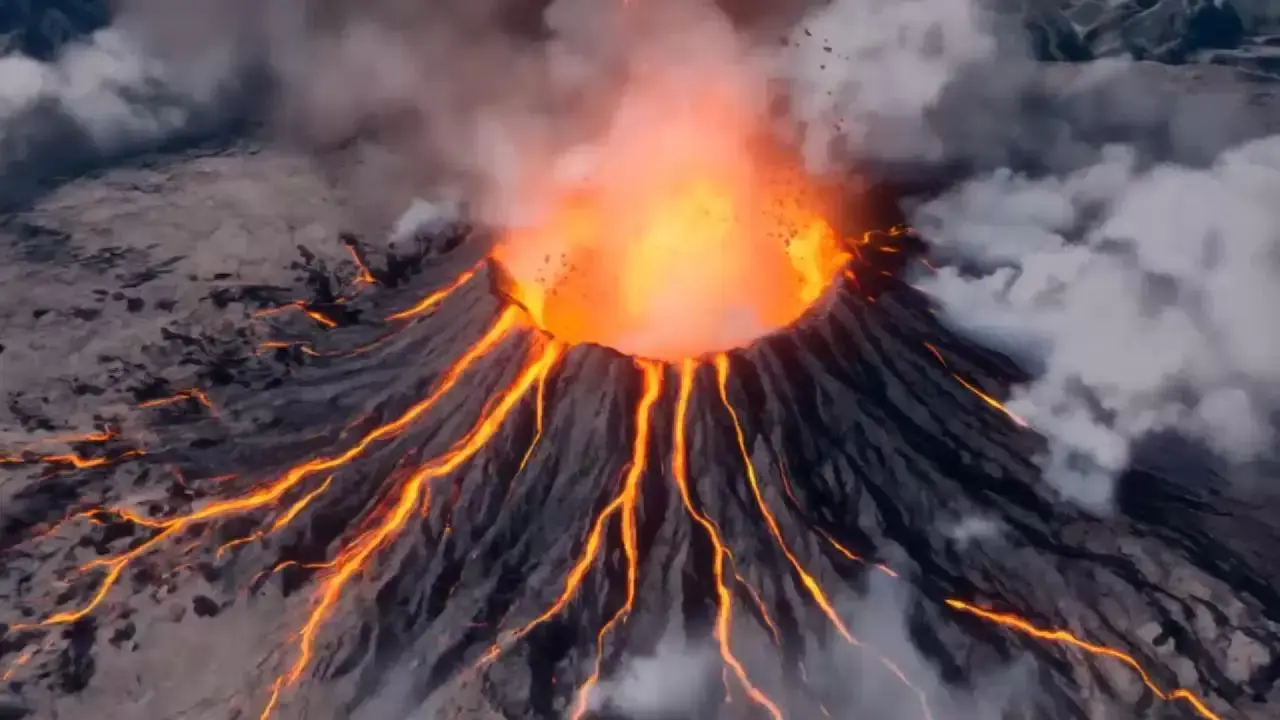
Lightning-Fast Text to Video Generation
Create videos from text with AI text to video. Type what you want to see, like a scene, mood, or camera move, and the AI builds a full video with multiple shots, smooth motion, and sound like voices and music. It keeps scenes consistent and delivers a ready-to-use video in seconds.
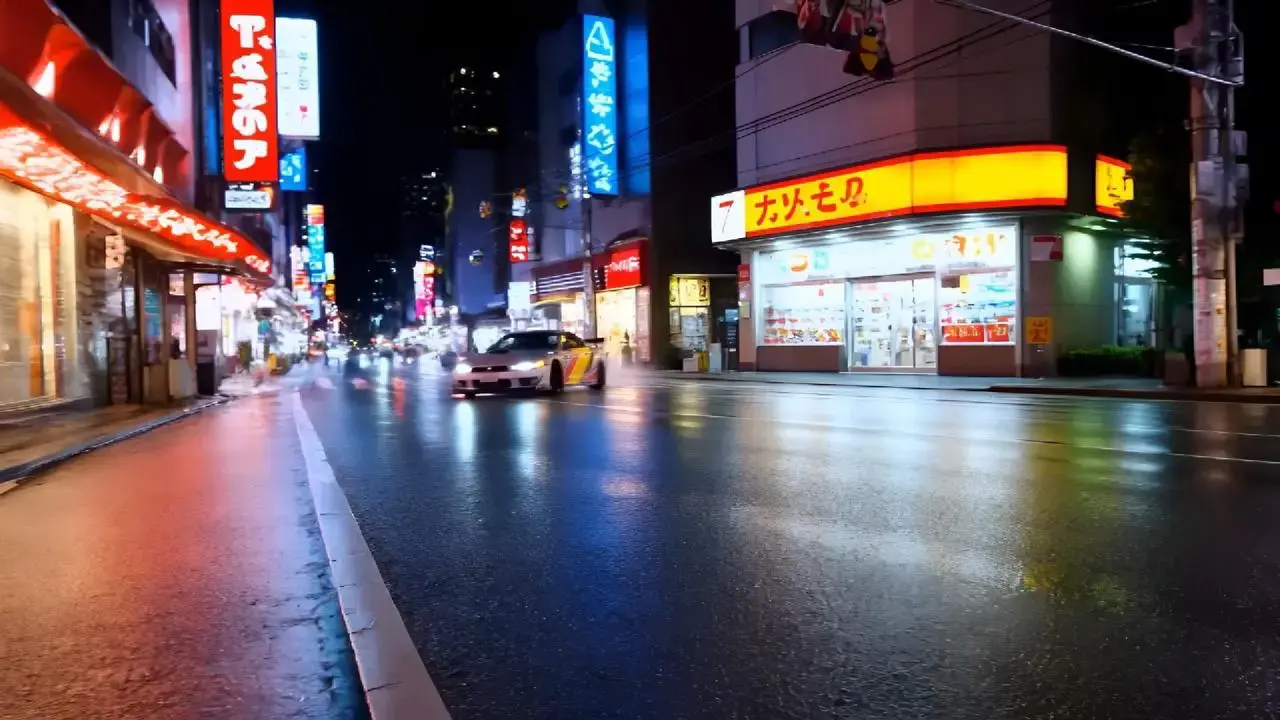
Text to Video with Exceptional 2D Animation
Vidu is a next-gen text to video solution, delivering beautifully stable visuals and natural character movements. As a powerful AI animation tool, it generates crisp, detailed frames that bring your ideas to life with cinematic clarity. Especially for 2D styles, Vidu is more than just a video generator — it's your creative animation partner.
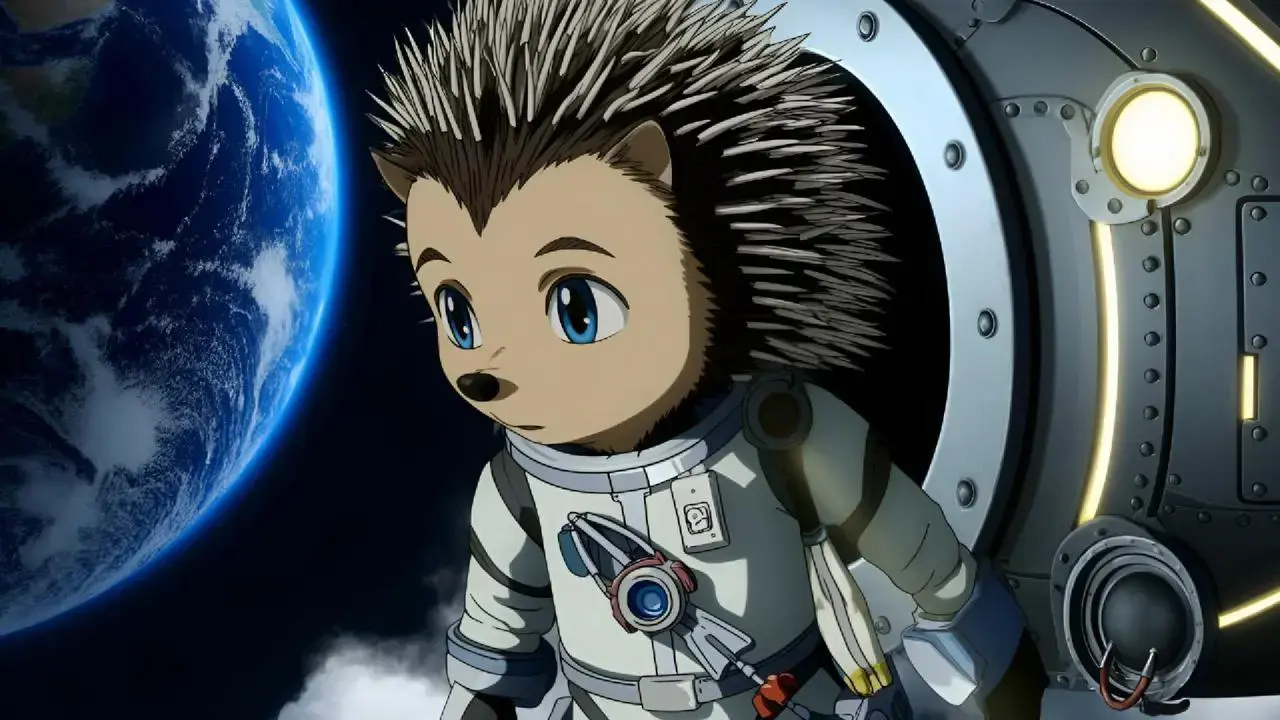
Natural Motion and Realistic Animation
Enjoy smooth, lifelike animation in every frame. Vidu excels at generating natural body movements and camera dynamics, ensuring your text-to-video creations feel fluid and immersive. It's perfect for everything from character animations to cinematic sequences.
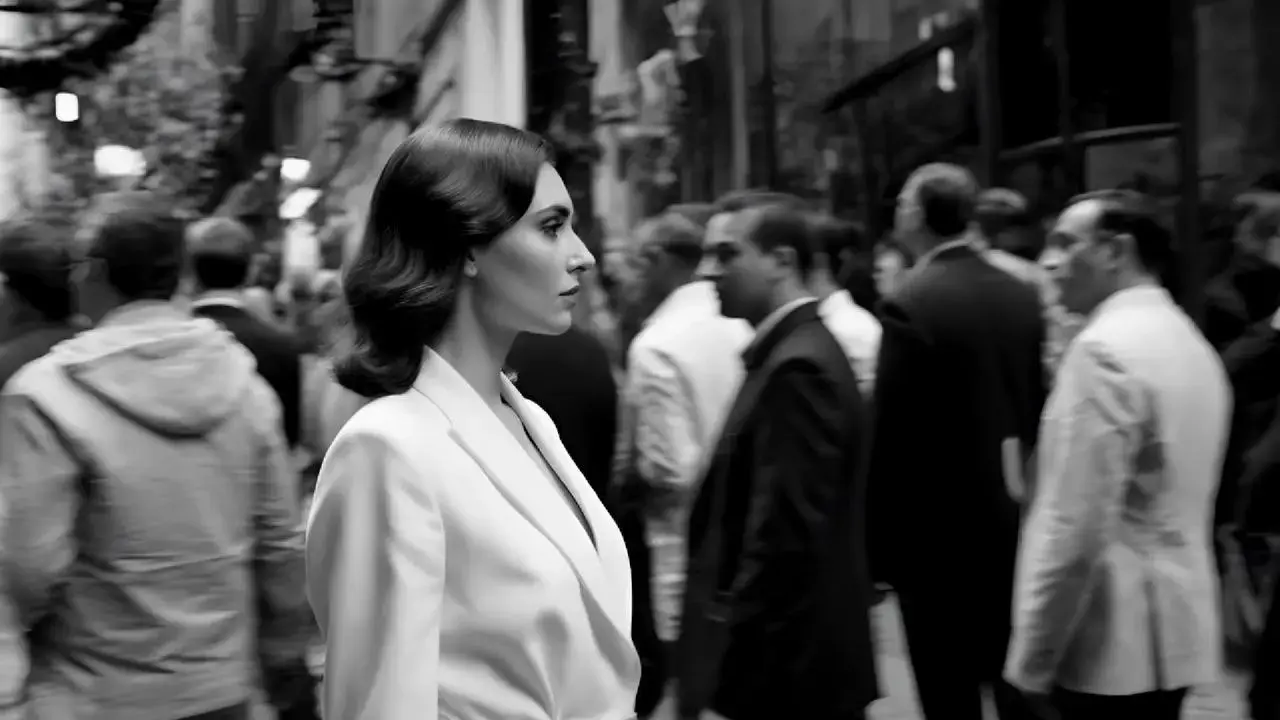
Stunning Visual Aesthetics in Text-to-Video Output
Vidu elevates your video output with impressive visual quality. Our AI text to video generator captures fine details, realistic textures, and a strong sense of depth, transforming simple text into visually compelling video content. It's not just text to video, it's art in motion.
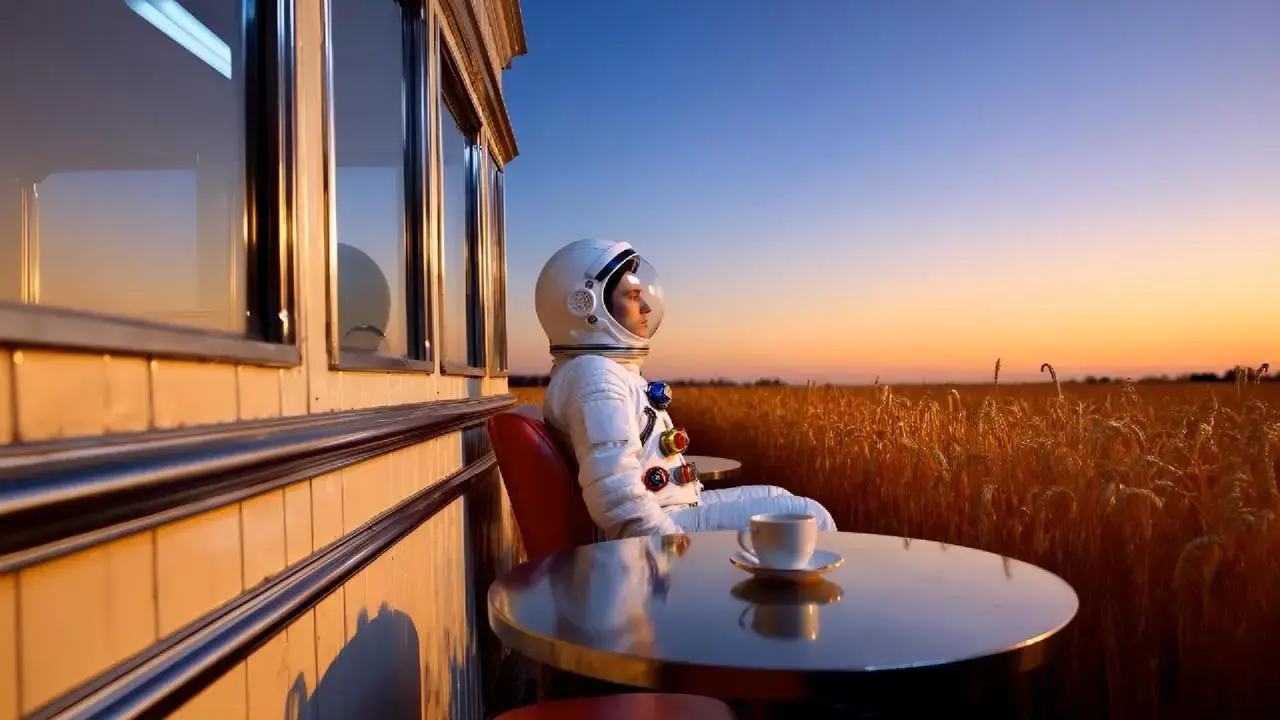
A Simple Prompt Formula
Turn any idea into a clear, structured prompt for better AI video results. Follow this simple formula to create more consistent, cinematic videos every time.
Subject
Pick who or what you want in the video, like "a young woman" or "a red sports car". Add small details like clothing, color, or style so it looks right.
Action
Say what is happening, like "walking on the street", "driving fast", or "talking to the camera". Clear actions make the video feel smooth.
Camera
Choose how the shot looks, like "close-up", "wide shot", or "slow pan". You can also say how the camera moves, like "follow from behind".
Scene
Set the place, like "sunset beach", "busy city street", or "modern office with soft light". This helps the video feel real.
Style
Pick a style like "cinematic", "anime", or "realistic". You can also add mood like "warm", "dark" or "soft light".
How to Generate Video from Text
Choose Text to Video
Click the Try Vidu button in the top right corner and select Text to Video. It's an easy way to try an AI text to video generator free and start creating right away. You can also click Explore or open the Template page to get ideas.
1
Enter Text Prompt
Type your text prompt in the input box and describe what you want to see, like style or camera angles. A clear video from text prompt will give you better results.
2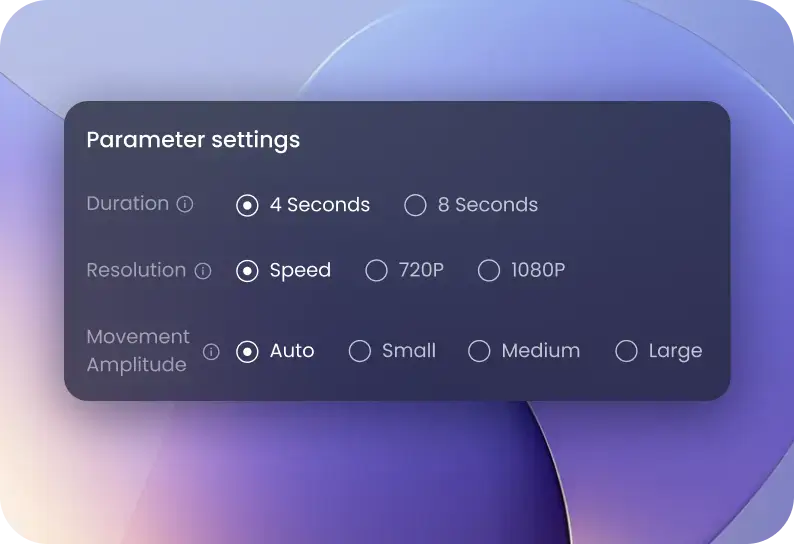
Create a Video with Text
Before you generate, adjust the settings. You can change style, number of videos, or aspect ratio. Then click Create to start.
3Create a Video with Text
Before you generate, adjust the settings. You can change style, number of videos, or aspect ratio. Then click Create to start.
3Choose Text to Video
Click the Try Vidu button in the top right corner and select Text to Video. It's an easy way to try an AI text to video generator free and start creating right away. You can also click Explore or open the Template page to get ideas.
1Enter Text Prompt
Type your text prompt in the input box and describe what you want to see, like style or camera angles. A clear video from text prompt will give you better results.
2Create a Video with Text
Before you generate, adjust the settings. You can change style, number of videos, or aspect ratio. Then click Create to start.
3Choose Text to Video
Click the Try Vidu button in the top right corner and select Text to Video. It's an easy way to try an AI text to video generator free and start creating right away. You can also click Explore or open the Template page to get ideas.
1FAQs about Text to Video Feature