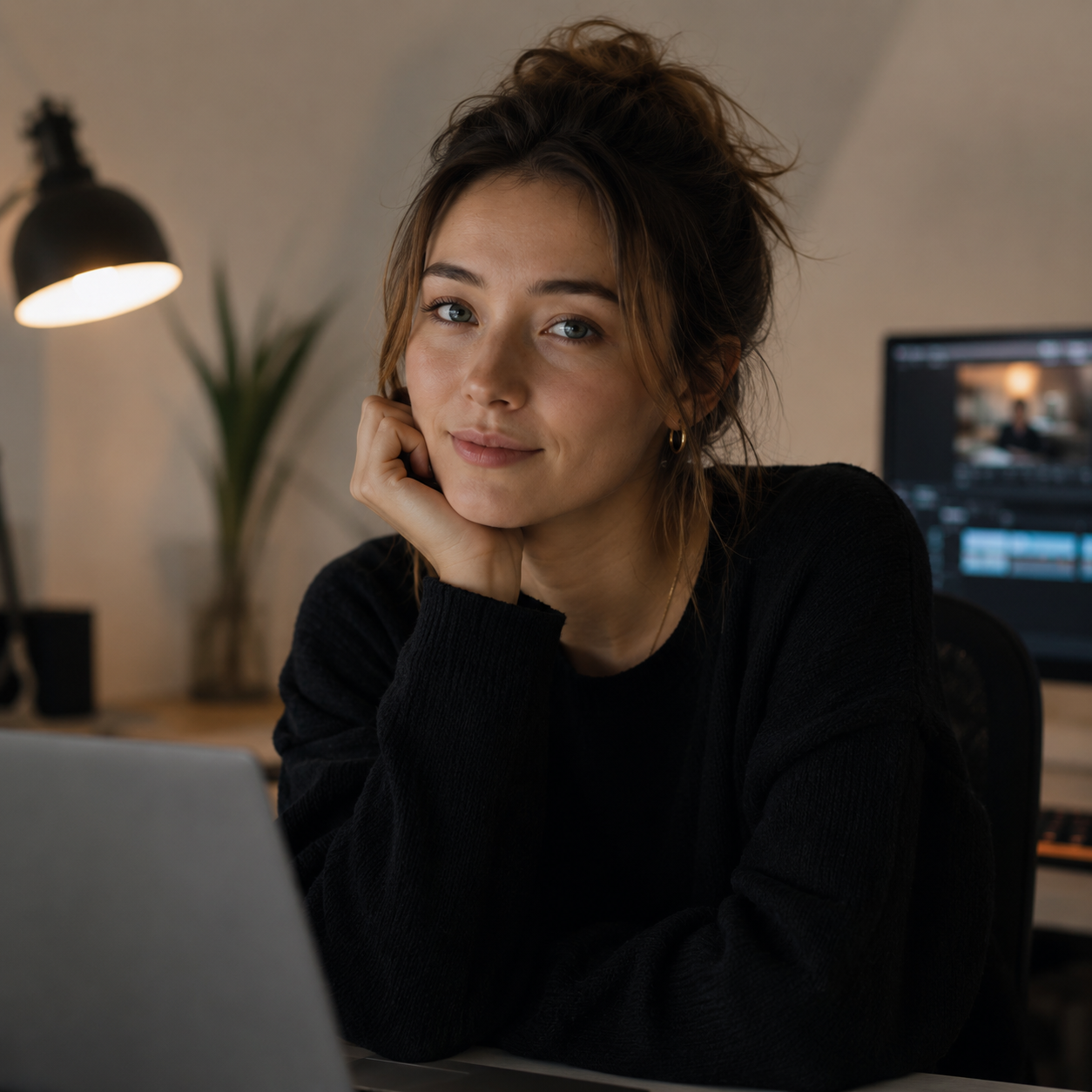
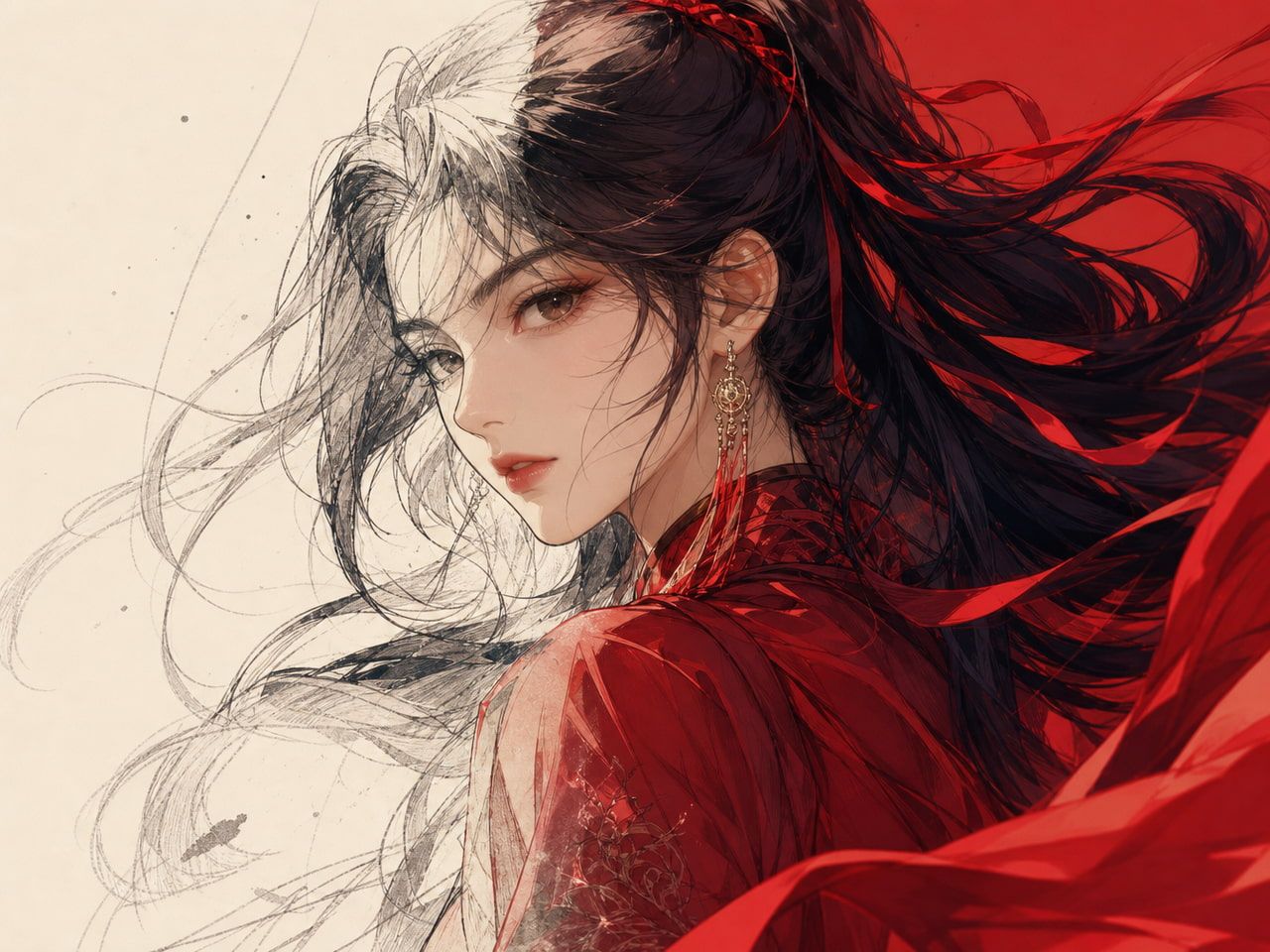
What Image to Animation AI Does
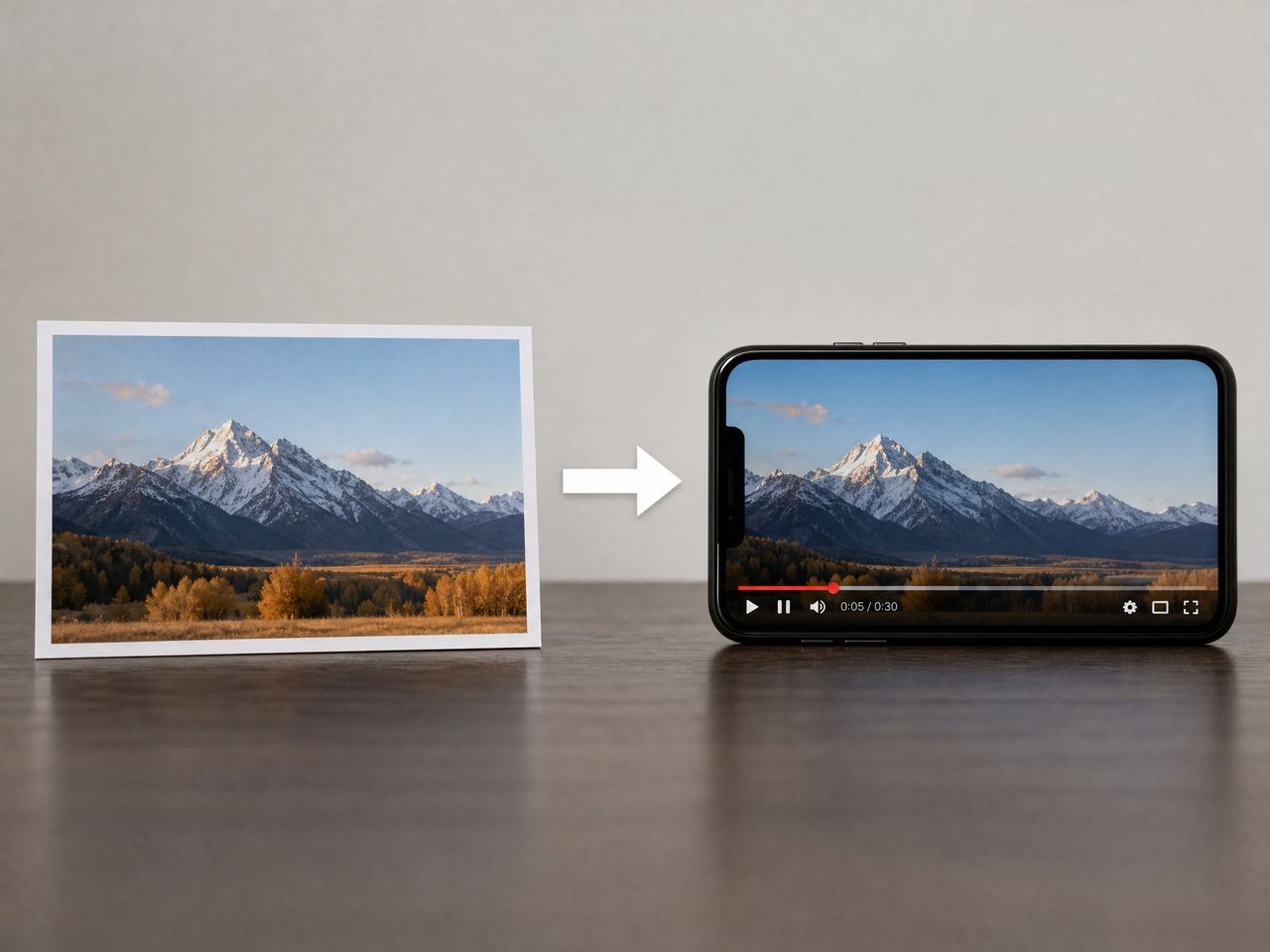
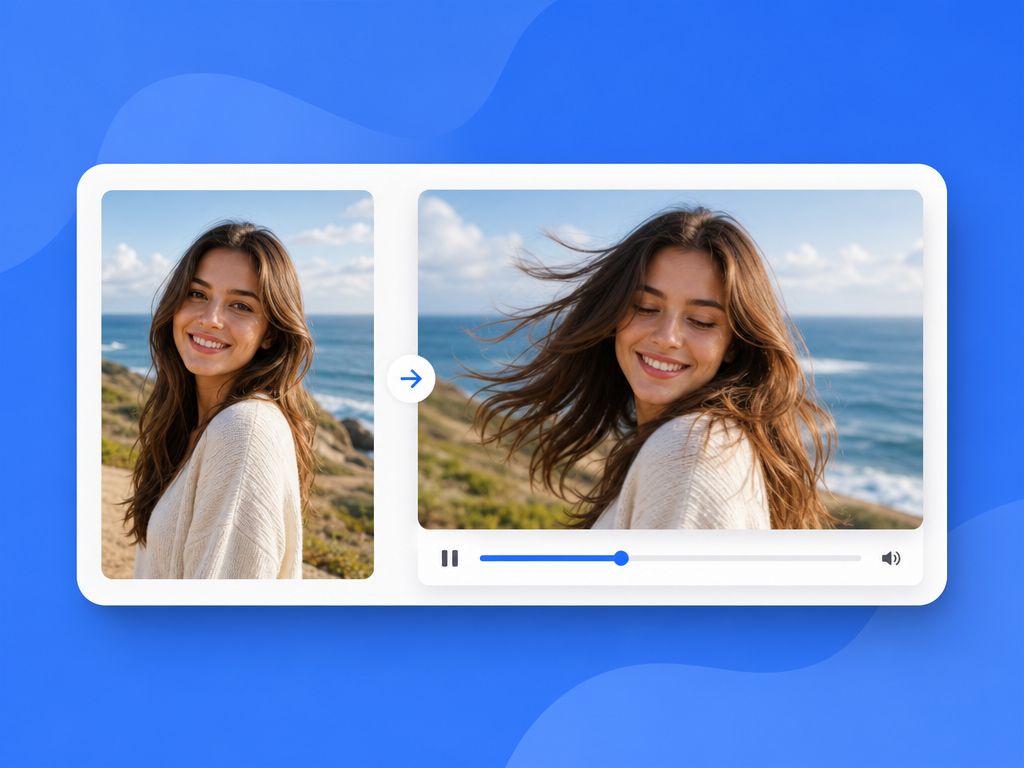
An animated image AI takes a still image and synthesizes motion: camera movement, subject gesture, environmental shift, or some combination of all three. The model doesn't just "play back" the image — it predicts what plausible motion looks like given the input, the prompt, and what it learned from video training data.
The result is a short clip — typically 4 to 8 seconds — where your original image is the starting frame.
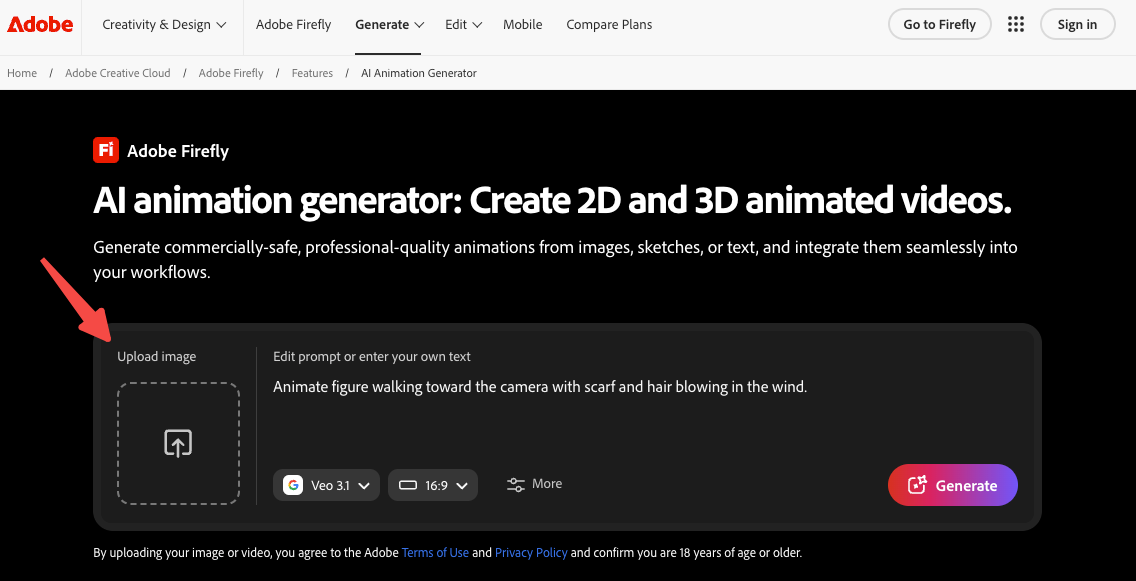
Image animation vs full video generation
These are not the same thing, and mixing them up leads to the wrong expectations.
Full video generation builds scenes from scratch. You're working with a blank slate — text in, footage out. The model handles everything: subject, background, lighting, motion.
An AI animation generator from image works differently — it starts from your still. The model's job is narrower: animate what's already there without breaking it. That constraint is actually useful. It means the output is grounded in your input — a character stays recognizable, a product retains its shape, a background doesn't invent new geometry.
The tradeoff: you're asking the model to respect your image while adding plausible motion. When the image is complex, cluttered, or low-resolution, that task gets harder, and the output starts to drift.
When Creators Should Use Image Animation
Not every situation calls for this approach. In three rounds of testing different input types, some patterns held consistently.
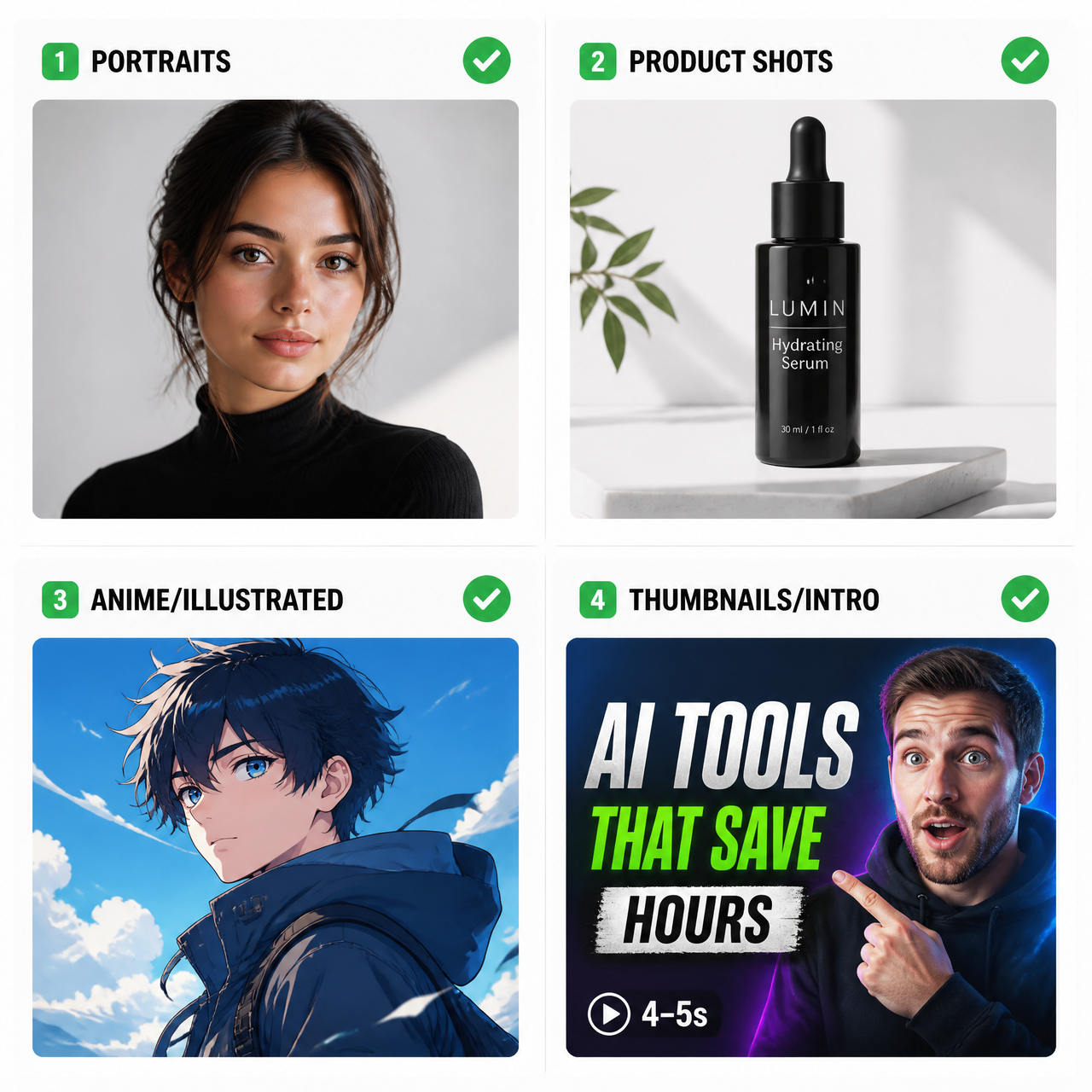
Where it tends to hold:
- Portraits with clear facial structure and a neutral or mildly expressive pose
- Product shots against clean or simple backgrounds
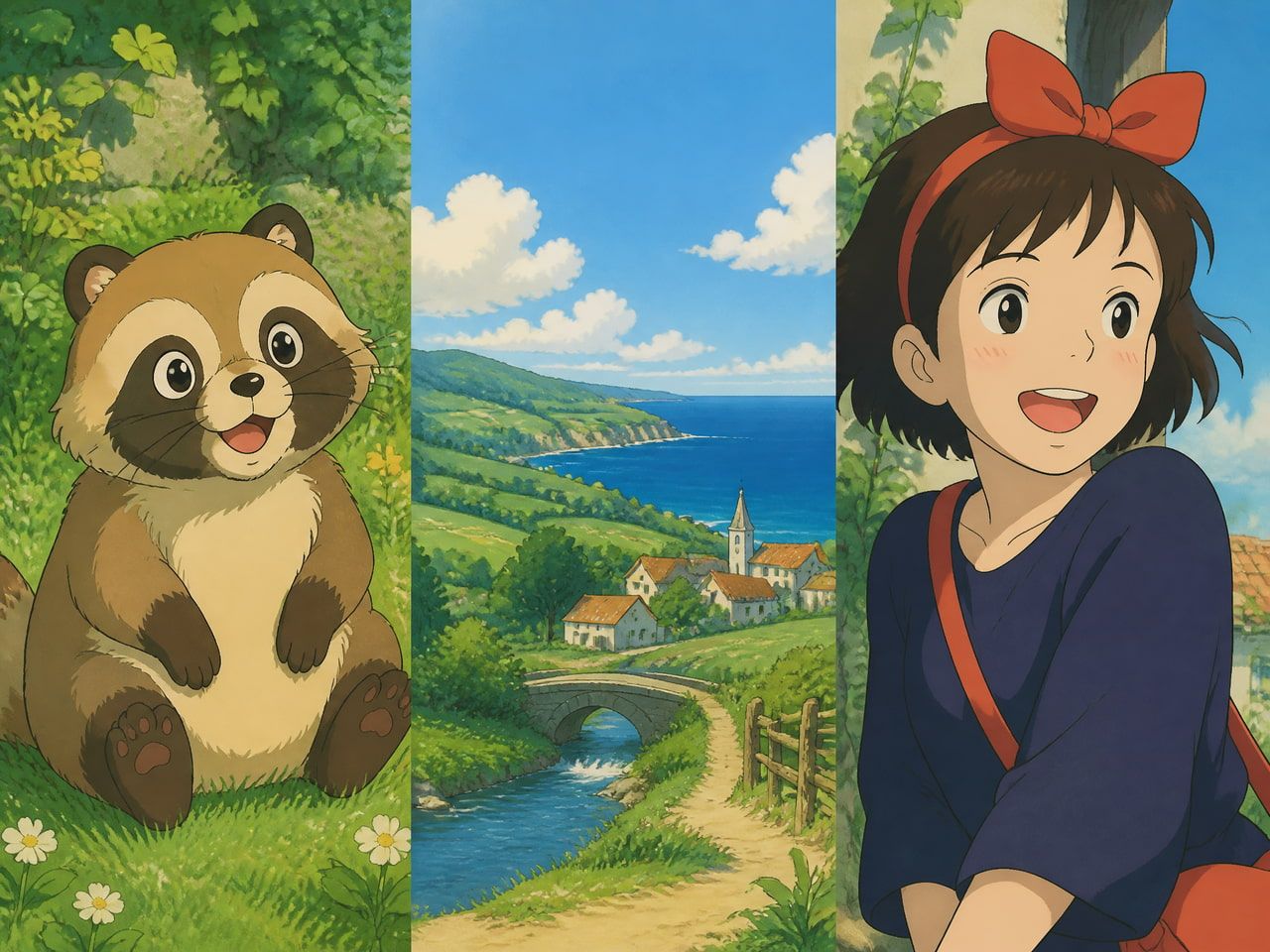
- Anime and illustrated frames — stylized images often generate more stable motion than photorealistic ones
- Thumbnails and intro frames where 4–5 seconds of subtle motion is enough
Where it tends to break:
- Images with multiple overlapping figures (limb interactions start failing around second two or three)
- Dense backgrounds with fine detail — the motion synthesis gets confused about what to move and what to keep still
- Very small or low-resolution source images — details that get lost at the input stage don't come back
Portraits, products, anime frames, thumbnails
These four categories share something: a dominant subject with enough visual separation from the background that the model can reason about what to animate. That's the condition under which image animation stays stable across multiple generation attempts.
If your image doesn't have that — if everything is competing for attention — the output tends to smear or stutter. Not always, but often enough that it's worth trimming your image before uploading.
How to Animate an Image With AI
This isn't a software tutorial. It's what actually changes output quality in practice. Sharp source images with good lighting produce the most stable results, especially across modern Vidu AI video generator workflows where motion consistency depends heavily on image clarity and clean subject separation.
Pick a strong still image
Resolution matters more than style. A blurry or low-contrast image generates blurry, low-contrast motion. If the edges in your source image are soft, the animated version will have the same problem, sometimes amplified.
What tends to work: clear subject separation from background, recognizable structure in the main subject (face, object, or character has distinct features), and a composition that doesn't fight itself.
What tends to fail from the start: low-resolution crops, images with strong motion blur already baked in, and extremely busy backgrounds.
Describe motion without overloading the prompt
This is where most of the drift happens in early attempts. A prompt that asks for too much — "character walks forward while wind blows hair and camera slowly pulls back and light shifts from warm to cool" — gives the model too many variables to hold simultaneously. Something breaks.
In testing, simpler prompts produced more stable outputs across repeated generations. Not because the model can't do complex motion, but because each additional instruction is another place for the output to deviate.
A useful constraint: describe one type of motion. Camera movement or subject movement. Then add a second element only if the first round held.
Check identity, style, and background stability
These are the three places outputs fail in distinct ways:
Identity drift — the face or character gradually becomes someone or something else. This typically shows up in generations two to four seconds in, and gets worse in longer clips. If you're using Vidu's Multi-Reference Consistency feature with multiple reference images, identity tends to hold much longer.
Style drift — the visual treatment starts shifting. An anime illustration might start looking photorealistic. A sketch might gain unwanted texture. This happens when the model doesn't get enough signal from the prompt about maintaining the original style.
Background instability — edges flicker, detail smears, or new objects appear. This is the most common failure mode for images with complex backgrounds.
Run at least two or three generations before making a keep/discard decision. One successful output doesn't confirm stability — it might just be an outlier.
Mistakes That Make Image Animations Look Unstable
Using the first output as the final answer. One usable generation doesn't mean the approach is stable. If you're building a series of clips, run the same prompt five times and check whether the results are consistent. Inconsistent outputs across runs means the prompt-image combination is sitting in an unstable zone.
Ignoring the source image quality. The model can't recover detail that isn't there. If your image is 300px wide or heavily compressed, no prompt will fix the output.
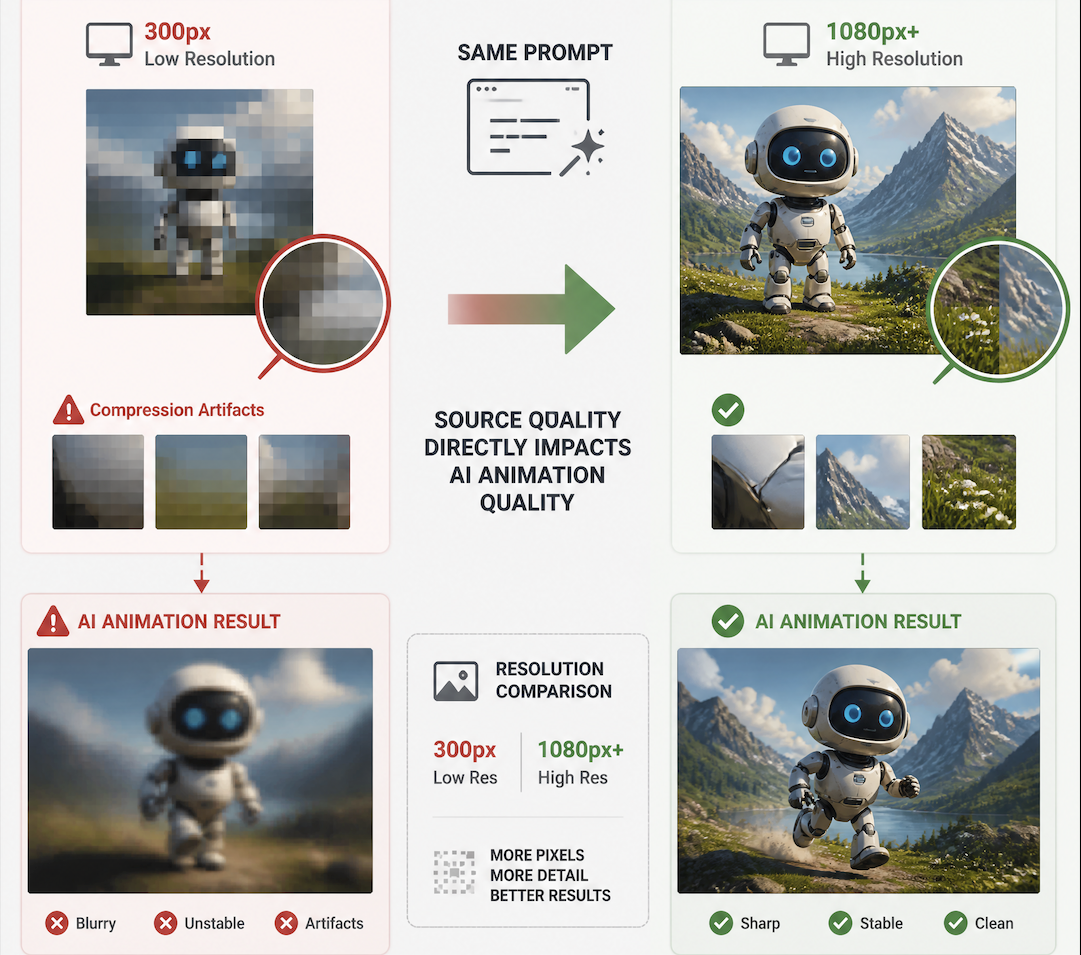
Overloading the prompt to compensate for a weak image. This compounds the problem. A complex prompt on a weak image gives the model permission to invent — and what it invents may not match what you wanted.
Expecting 8-second clips to behave like 4-second clips. They don't. Longer clips accumulate drift. A face that holds for four seconds may not hold for eight. Test at your actual target length, not the shortest option. As noted in Vidu's AI video generator overview, clips can range from 4 to 16 seconds depending on model/settings — but stability requirements scale with duration. Most current image-to-video workflows also support multiple aspect ratios including 16:9, 9:16, 1:1, and 4:3, which makes the format flexible enough for Shorts, TikTok, YouTube thumbnails, and lightweight ad creatives.
Treating a single style as universal. Anime-style images tend to animate more cleanly than photorealistic ones with current models. If you're generating consistently unstable results from a realistic photo, it's worth testing with a more stylized version of the same composition.
Data references and testing: based on repeated generation runs (3–5 attempts per configuration) using image-to-video tools in 2025–2026. All usability assessments reflect results from a specific input type and prompt combination — not universal capability claims.