What an AI Animation Generator From Image Actually Does
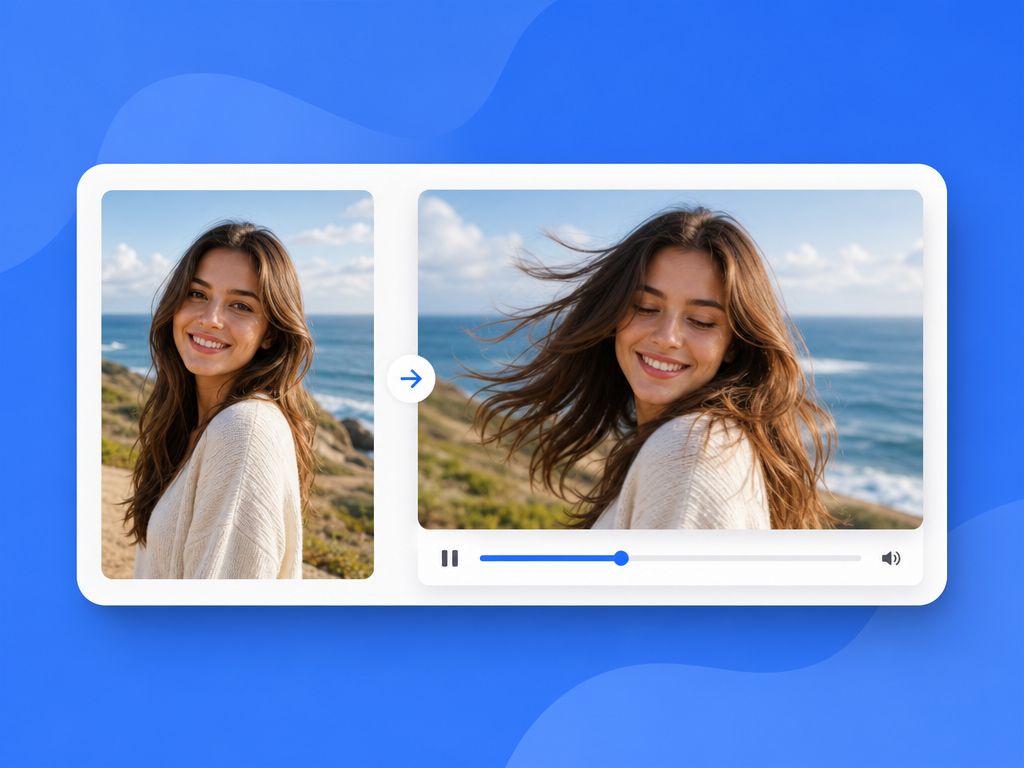
An animated image AI doesn't understand your character. It reads the visual structure — shapes, color regions, edges — and predicts plausible motion frame by frame. The model isn't animating a skeleton. It's interpolating pixel space. This is why a face looks stable at frame 1 and drifts by frame 3: the model fills in probability, not a rig — a behavior common in modern diffusion-based video systems.
You're not directing an animator. You're giving the model better constraints to interpolate within.
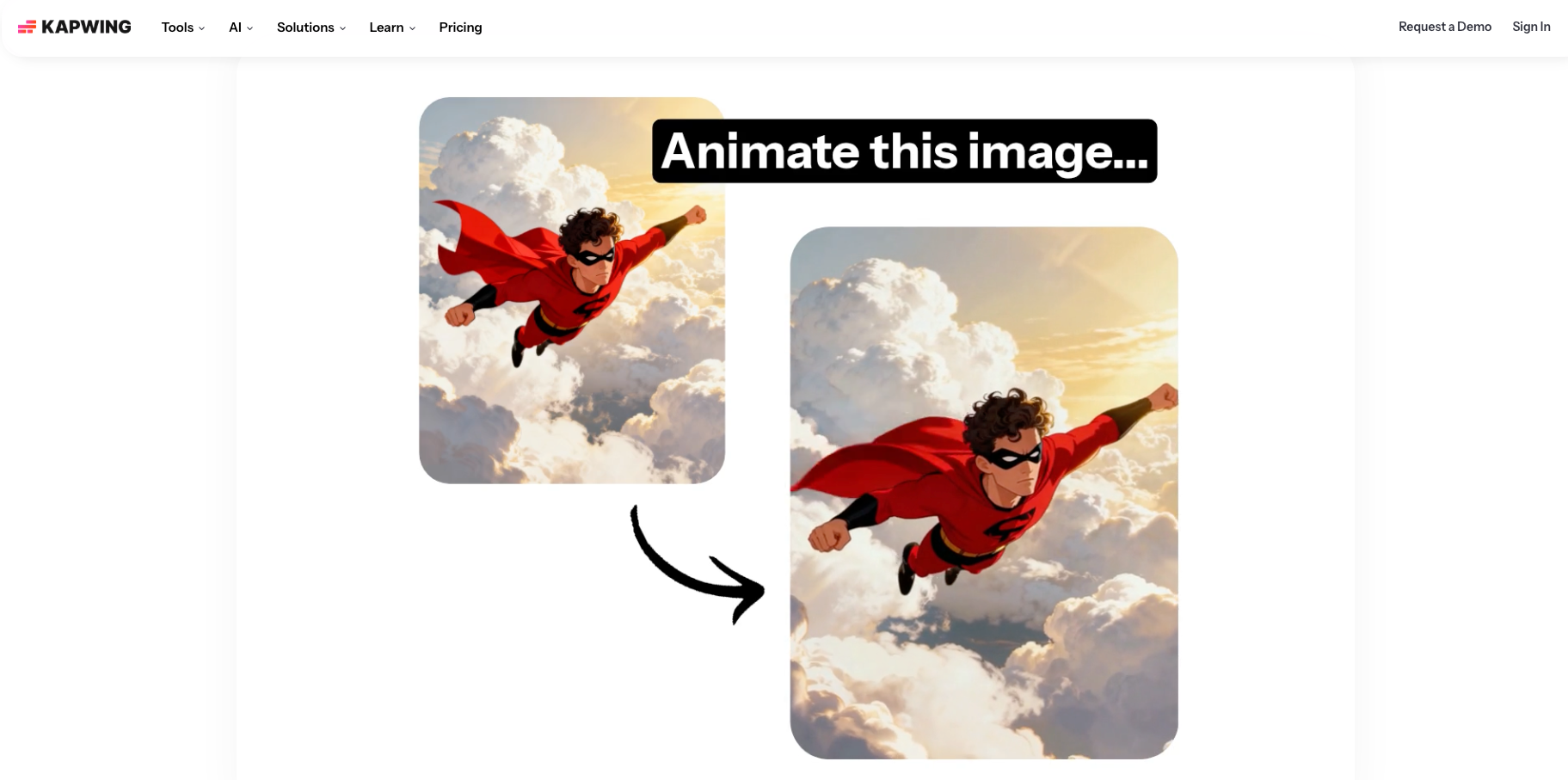
The current generation of image to animation AI tools — including Vidu's Image to Video and Reference to Video — have improved consistency significantly by letting you upload multiple reference images and define first and last frames. That's not a workaround; that's the actual workflow.
What You Need Before Generating
Source image quality
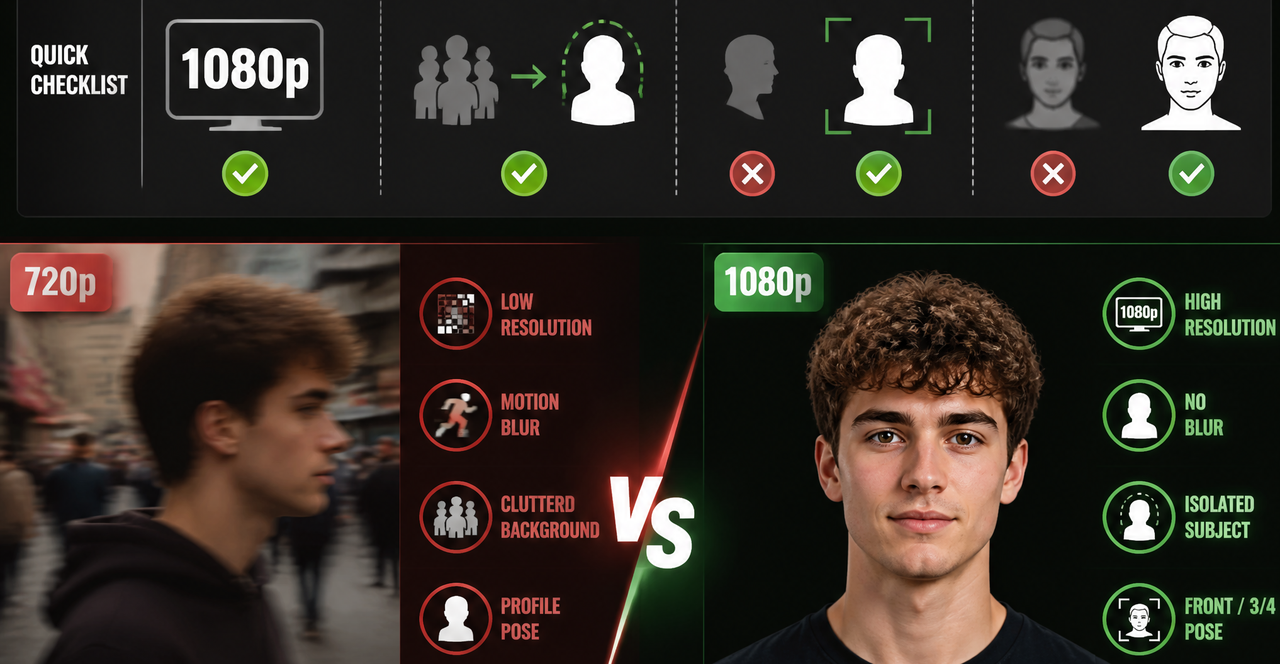
The variable that most affected stability across my tests: image clarity at the edges of subjects.
In 4 consecutive generations from a blurry source image, 3 produced visible face warping by second 2. Same prompt against a cleaner version of the same character: 2 out of 4 runs stayed usable through the full clip.
Before you upload:
- Resolution: 720p minimum. 1080p is better.
- Subject isolation: Clear separation between subject and background.
- Neutral pose: Front-facing or 3/4 view for character work. Profile shots narrow the usable motion range significantly.
- No pre-existing blur: Motion blur in the source image gets amplified, not ignored.
Art style didn't matter much. Anime linework, flat illustration, photorealistic render — similar stability when underlying image quality was consistent.
Motion direction and style references
"Animate this character" is not a motion prompt. Vague prompts produced 1 usable result out of 5 generations in my tests. Specific prompts — camera, subject action, atmosphere — hit 3 out of 5.
Useful structure:
[Camera behavior] + [Subject motion] + [Environmental detail]
Example: "Static camera, slight zoom in. Character blinks once, turns head slightly left. Hair moves gently. Warm light from upper right."
Fewer blank spaces for the model to fill in unpredictably.
Step-by-Step Image Animation Workflow
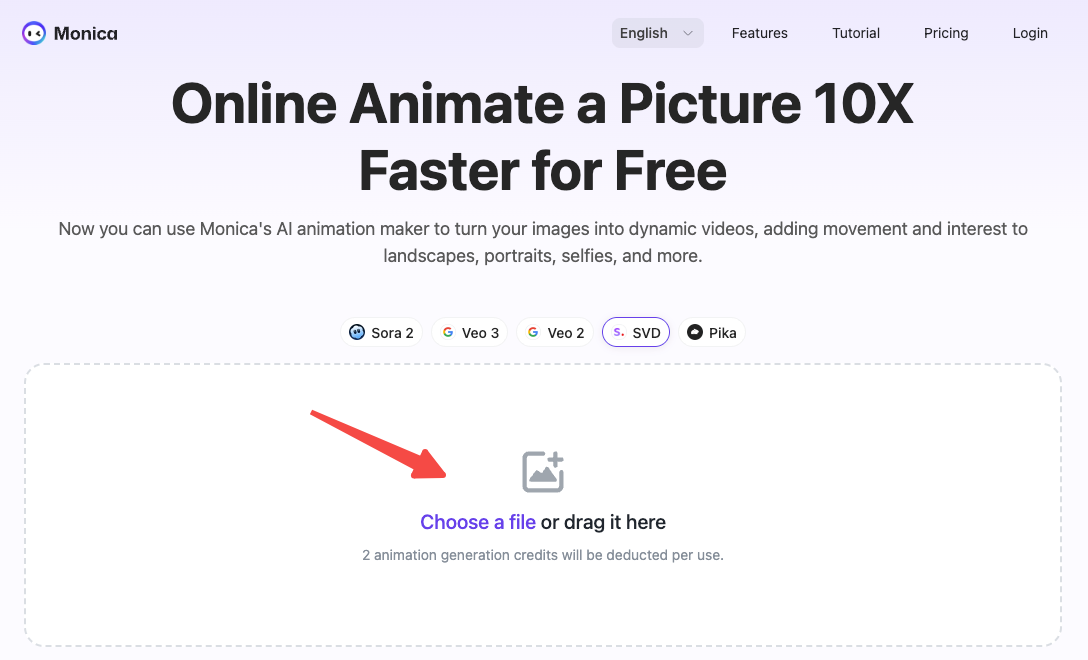
Upload the image
Use Vidu's Reference to Video if you're building a consistent character across multiple clips. For a single clip, Image to Video is faster.
Check the preview before generating — a poorly framed upload wastes a run. If you need the same character across multiple clips, upload multiple angles. Vidu's Q1 update introduced multi-reference support for up to 7 images, designed specifically to reduce identity drift across separate generations. Per the official release, references can also be saved to a personal library for reuse.
Add motion and camera cues
Write the motion prompt before touching the settings panel. Settings constrain what's possible — better to know the output cap before you write a 12-second camera sweep.
First and last frame control is worth using even on simple clips. It removes one of the largest drift sources: the model deciding how to end the motion. On 5-second clips, anchoring both endpoints reduced visible end-of-clip drift from 4 out of 5 runs to 2 out of 5 in my tests. Didn't eliminate the problem — moved the stable zone.
For duration: 4-second clips are consistently more stable than 8-second clips in the AI animation from image workflow.
Regenerate for consistency
Two common mistakes: stopping after one mostly-good generation (that drift moment will bother you in editing), or running 12 generations trying to fix a problem that's actually in the source image.
My rule: if the same problem appears in 3 consecutive generations with no prompt change, it's upstream of the prompt. Fix the source.
For a new character test, I generate 4 times before deciding anything. 3 stable, 1 drift: prompt is fine, keep a good run. All 4 drift in the same spot: structural issue, fix it first.
How to Judge a Good Result
Not "good" — usable. Here's what that actually means for short-form:
Subject stays recognizable through the full clip. Not perfectly consistent. Recognizable. If you can cut around the drift, it's usable.
Both clip ends are clean. Drift concentrates in the first and last 0.5 seconds. Clean ends, minor middle wobble: usually acceptable.
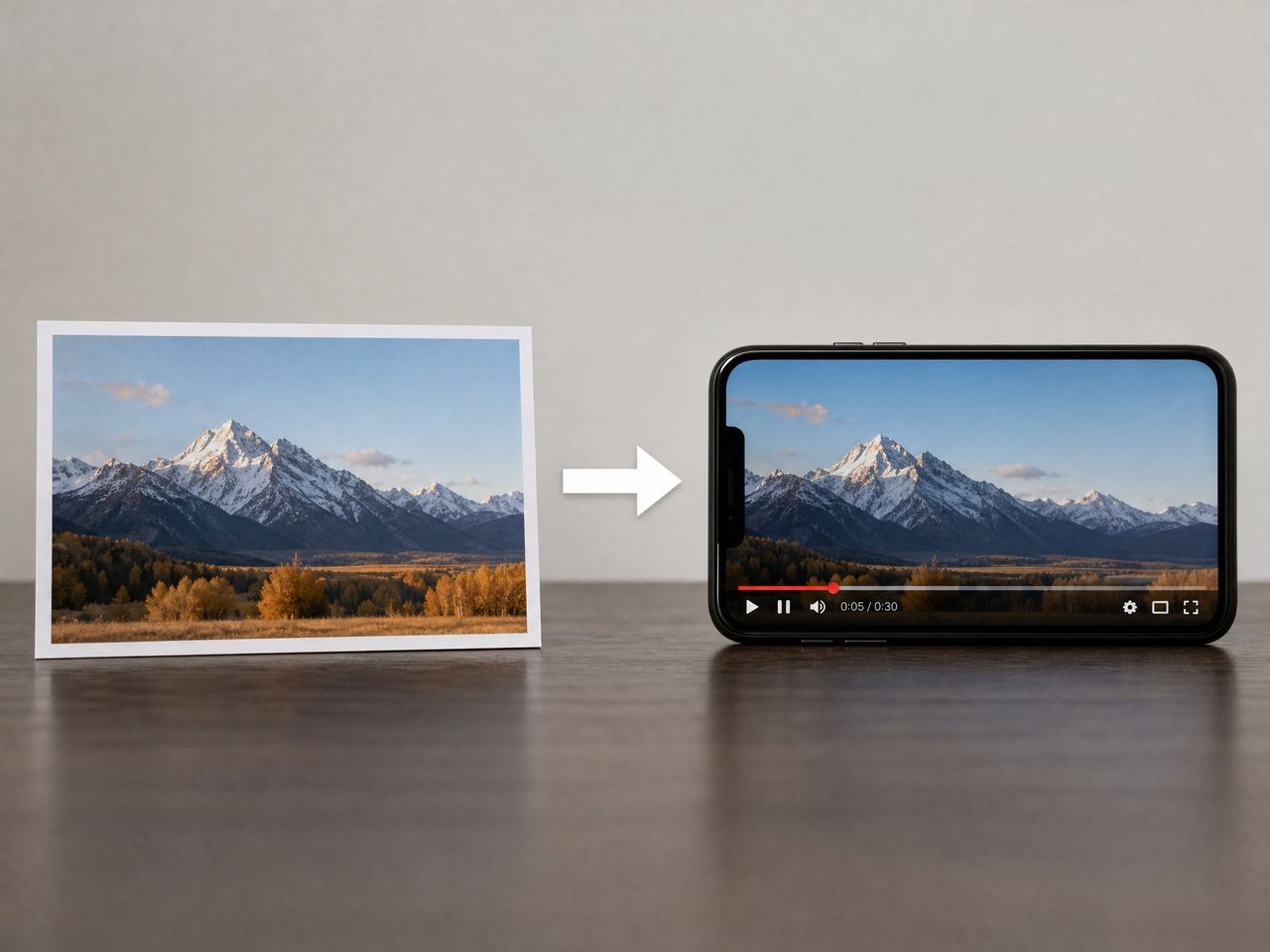
Preview at playback speed. Frame-by-frame drift often disappears at normal speed. The QA that matters is the screen your audience uses — mobile, not a desktop zoom.
What isn't usable: facial structure changing mid-clip, color tone shifting between frame 1 and frame 10, background bleeding into the subject.
The broader pattern in AI photo animation tools is that reliability is highest for short clips, single moving subject, controlled motion. That's a useful constraint to design around — not a bug to wait out. Research on video generation metrics at arXiv gives context for what "temporal consistency" means technically, useful if you're trying to understand why some motion prompts outperform others.