What Animate Photo AI Means
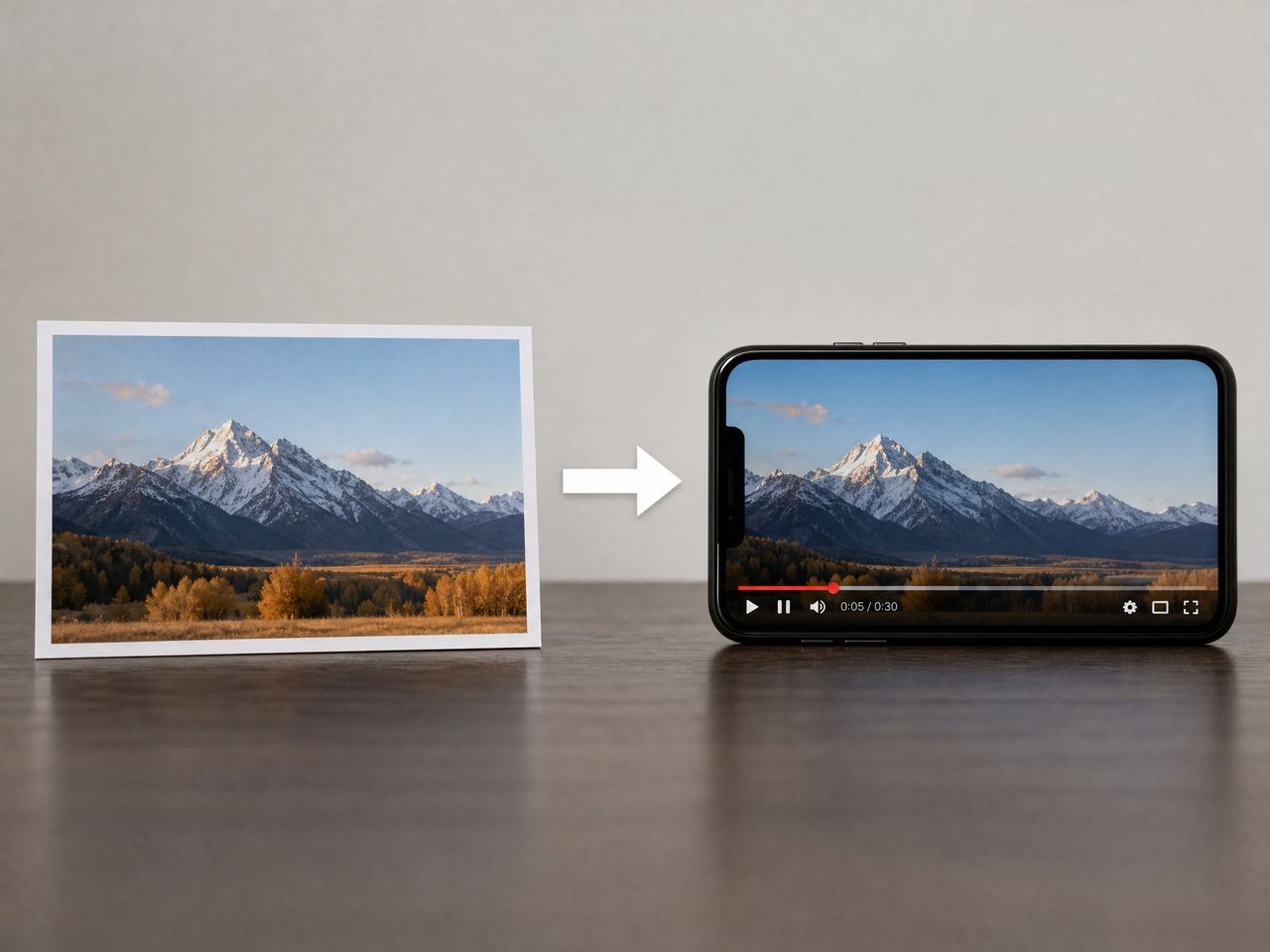
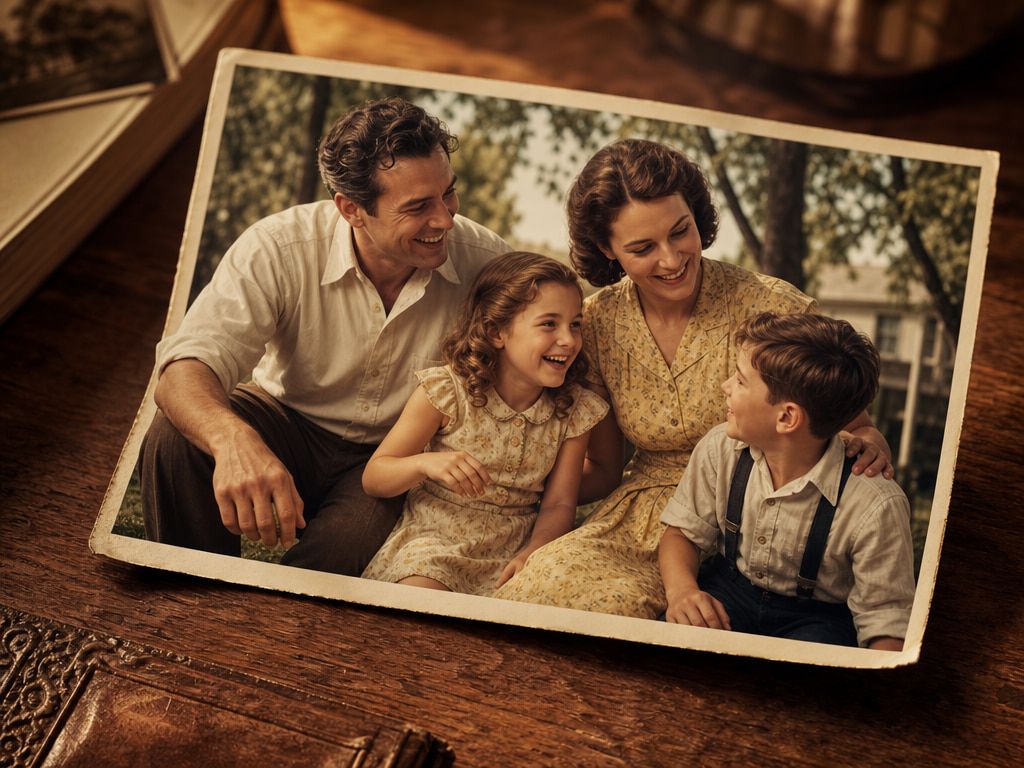
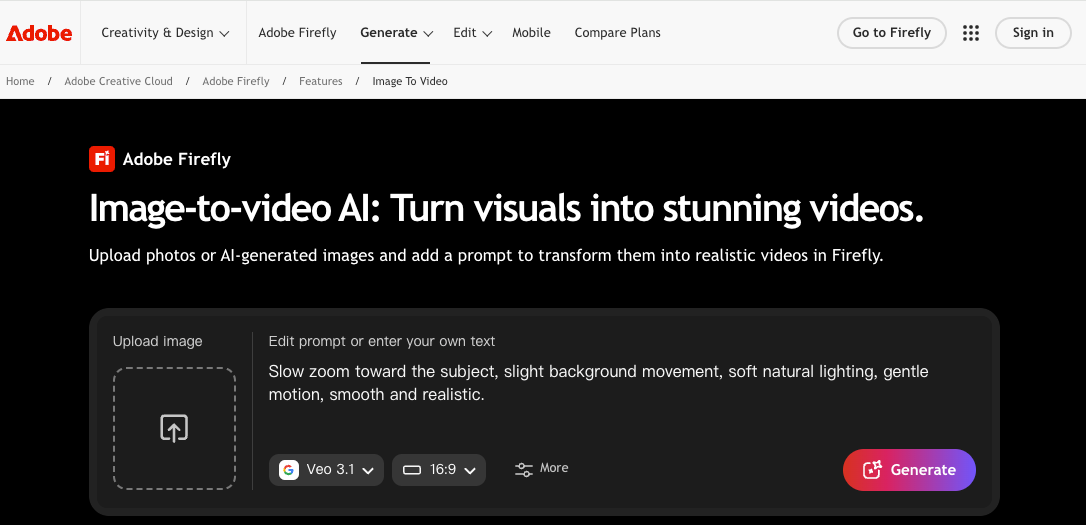
Animate photo AI converts a static image into a short video clip by predicting plausible motion based on your input image and a text prompt. Models like Adobe Firefly image-to-video don't just apply a filter — they generate entirely new frames, which means the system is constantly making decisions about how hair should move, how light should shift, and whether that shoulder is still attached to anything anatomically coherent.
The technical term matters less than the practical result: you upload a photo, describe what you want, and get a 4–16 second clip. The ai photo moving part — the actual frame-by-frame prediction — is where most tools either earn their keep or fall apart.
Two categories of input dominate right now:
- Image to Video — one reference image, prompt describing motion, optional start/end frame control
- Reference to Video — multiple images (up to 7 in Vidu's case) maintaining subject consistency across frames
The difference in output is significant. Single-image generation gives you motion. Multi-reference generation gives you motion with the subject staying recognizably itself. For portrait creators and product teams, that second category is the one worth paying attention to.
On Vidu's AI image animator page, the distinction is spelled out directly: upload multiple angles of a character or object, add a prompt, and the Reference to Video feature maintains visual integrity across perspectives. That's different from "animate this photo and hope it looks right."
Animation photo AI in 2026 is fast enough — Vidu generates clips in roughly 10 seconds — that the real constraint isn't waiting. It's knowing which inputs give you consistent, usable output on the first or second try.
Best Photos to Animate With AI
Not all photos animate equally. After running the same tool across different image types, the stability pattern is pretty clear.
Portraits and Character Shots
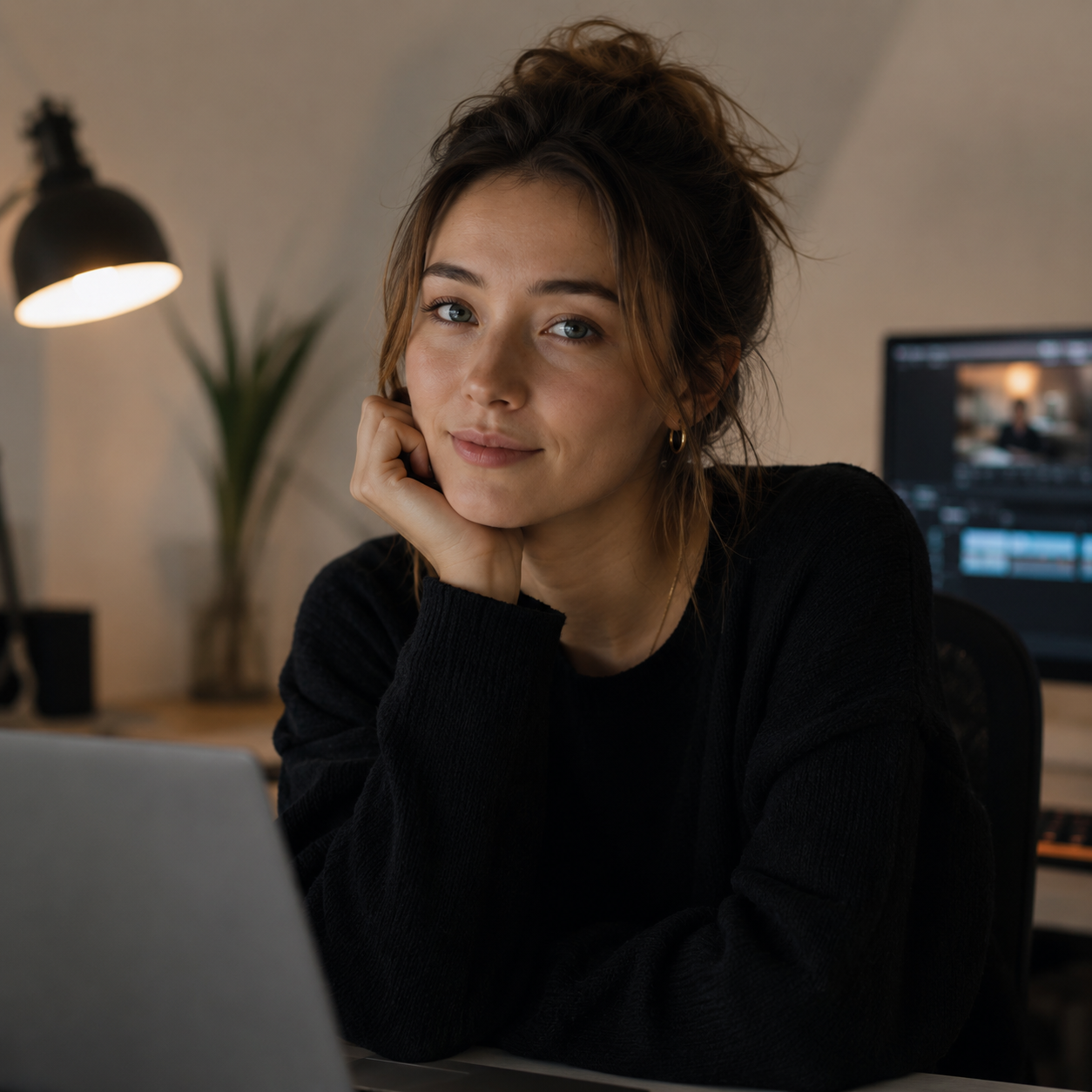
Clean, well-lit portraits with a single subject and a simple background — these are the most predictable to animate. The model has enough information to track the face, predict realistic head movement, and fill in background motion without guessing too hard.
What causes drift in portraits:
- Busy backgrounds — the model tries to move everything, and the edges where subject meets background start to blur and shimmer
- Extreme angles — profiles and three-quarter views generate less stable motion than straight-on or slight-angle shots
- Low contrast between subject and background — the model loses the edge of the face and starts making things up
The first generation on a clean portrait usually gets the face right. The motion prompt is where variation appears — "subtle hair movement" produces tighter, more controllable results than "dynamic motion." I've found that vague motion prompts give the model too much room, and it fills that room inconsistently between runs.
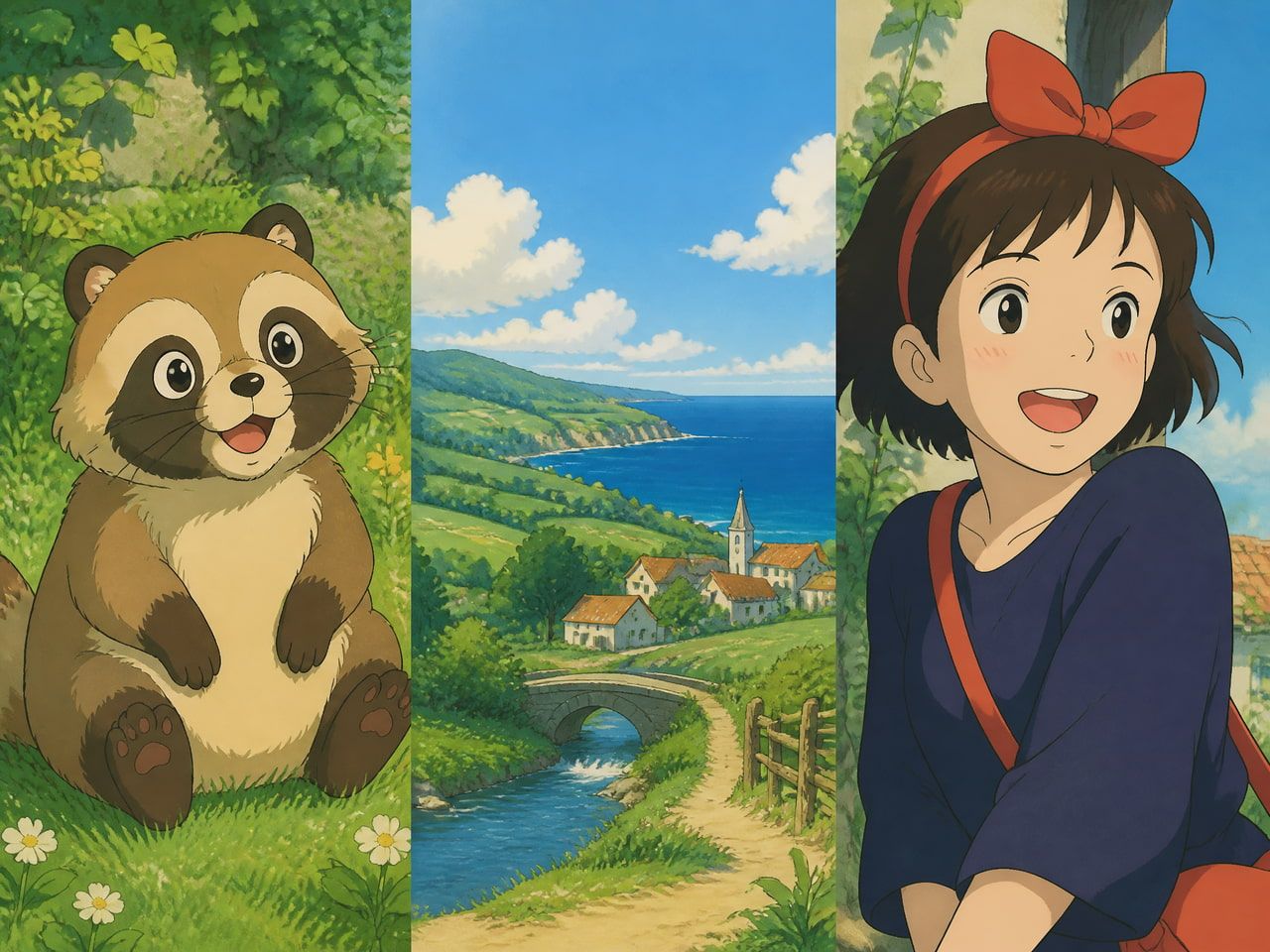
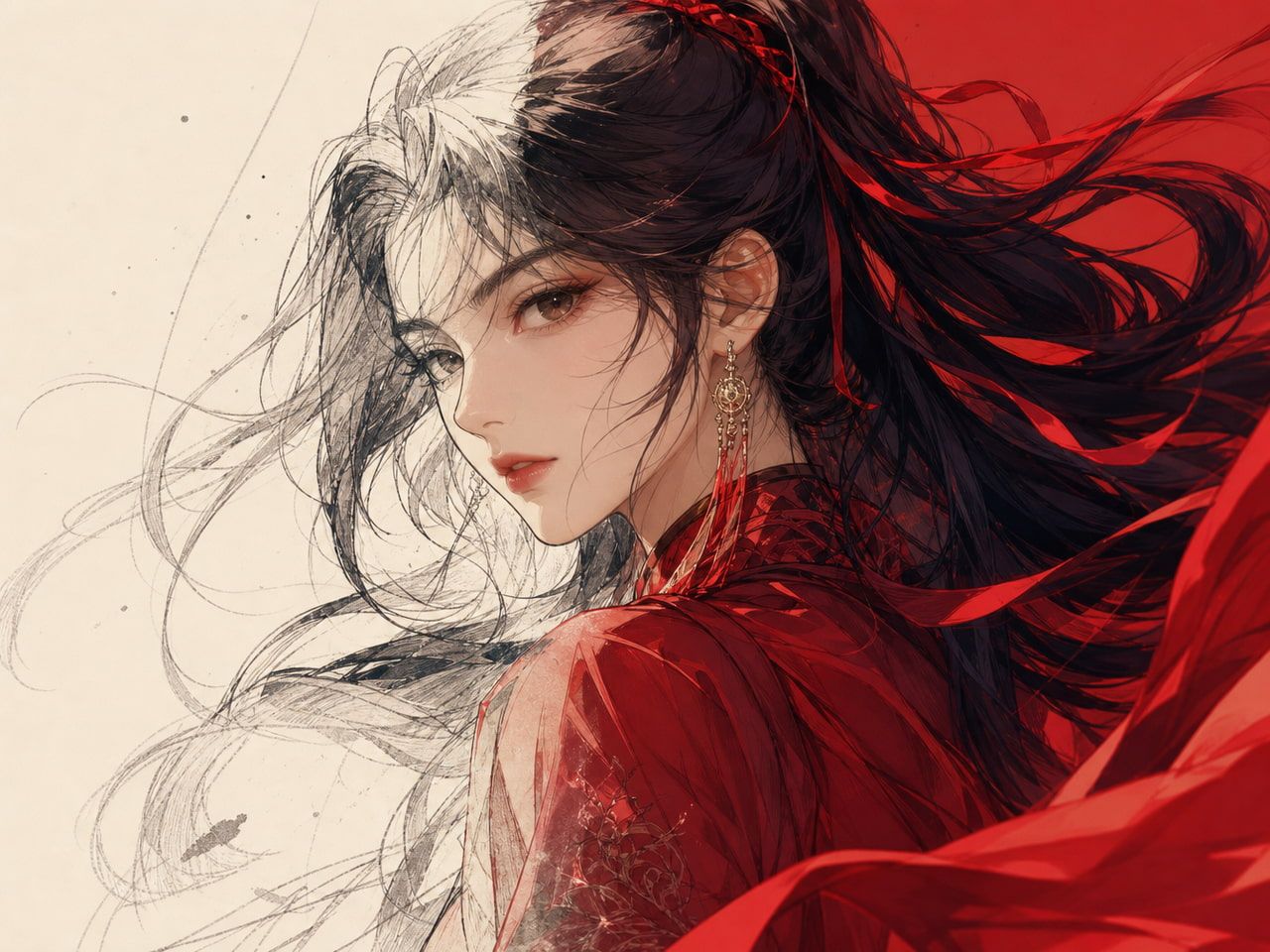
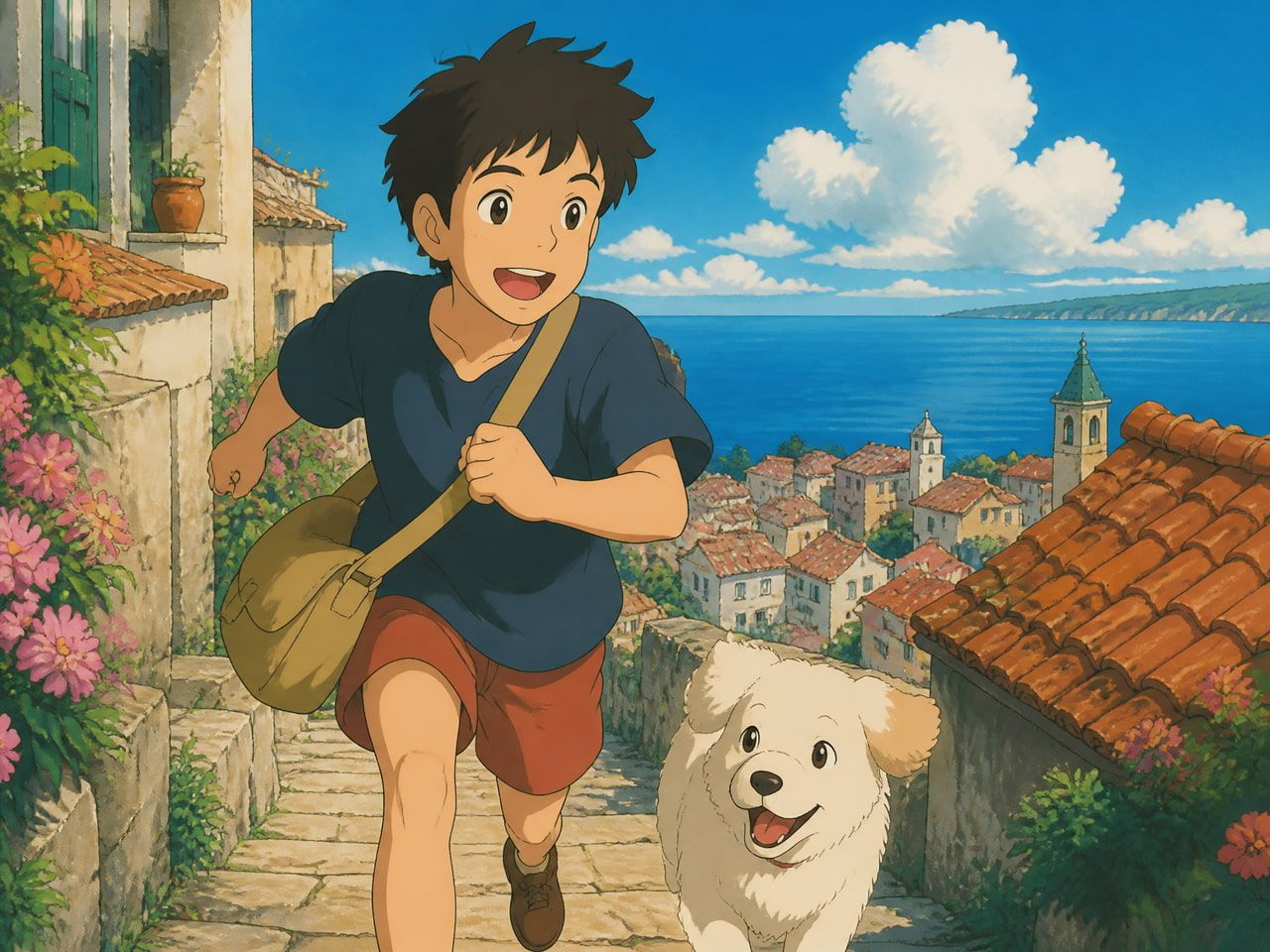
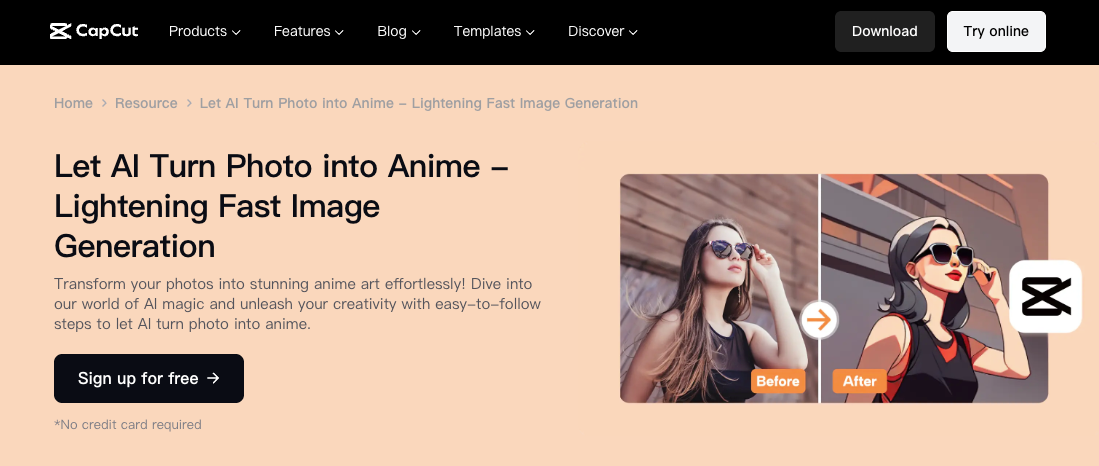
Anime-style and illustrated portraits behave differently. The stylized rendering actually helps: hard edges, clear color separation, and less photographic noise give the model cleaner information to work with. Vidu's anime generation in particular shows tighter consistency across runs on stylized character art than on realistic photography. That's not a criticism of realistic photo animation — it's useful information about where your time is best spent.
Product and Lifestyle Images
Product photos animate well when the motion is physically plausible and the background is simple. A rotating product, a pour, a subtle camera pull — these generate cleanly because the motion is constrained and predictable.
Where product animation gets complicated:
- Complex textures — fabric, liquid, and fine detail (jewelry, typography) generate artifacts at the edges during motion
- Multiple products in frame — the model struggles to decide what moves and what doesn't
- Lifestyle context — a product with a hand holding it is harder than a product alone, because the model has to animate the hand too, and hands are notoriously difficult
Stability begins around the second generation for most product shots, once you've adjusted the motion prompt to match what the image can actually support. If a prompt like "product rotates 45 degrees" comes back with something that spins too fast or distorts, pulling back to "gentle camera push toward the product" usually produces something usable on the next try.
How to Animate a Photo
The process is three steps, but most of the work happens in the first one.
Clean Up the Source Photo
Output quality is directly proportional to input quality. Blurry or low-resolution images make the resulting video unclear — details get lost, and motion looks rough. Vidu's own image to video documentation flags this explicitly: sharp images with clear lighting produce clean, stable results.
Practically, this means:
- Crop tightly on your subject before uploading — extra empty space at the frame edges gives the model more to guess about
- Check that the face or main object is in focus, not the background
- Remove distracting elements that you don't want moving
This is the step most people skip, and it's the one that most directly affects how many attempts you'll need.
Add Motion, Camera, and Style Prompts
The prompt does three things: describes subject motion, describes camera motion, and (optionally) specifies style or mood. Separating these in your prompt gives the model clearer instructions.
Instead of: "animate this portrait dramatically"
Try: "subtle head turn to the right, slow zoom in, cinematic lighting"
Shorter, more specific prompts produce more consistent outputs. The model has enough information from the image — it doesn't need the prompt to re-describe what's already visible. Save the words for what you actually want to happen.
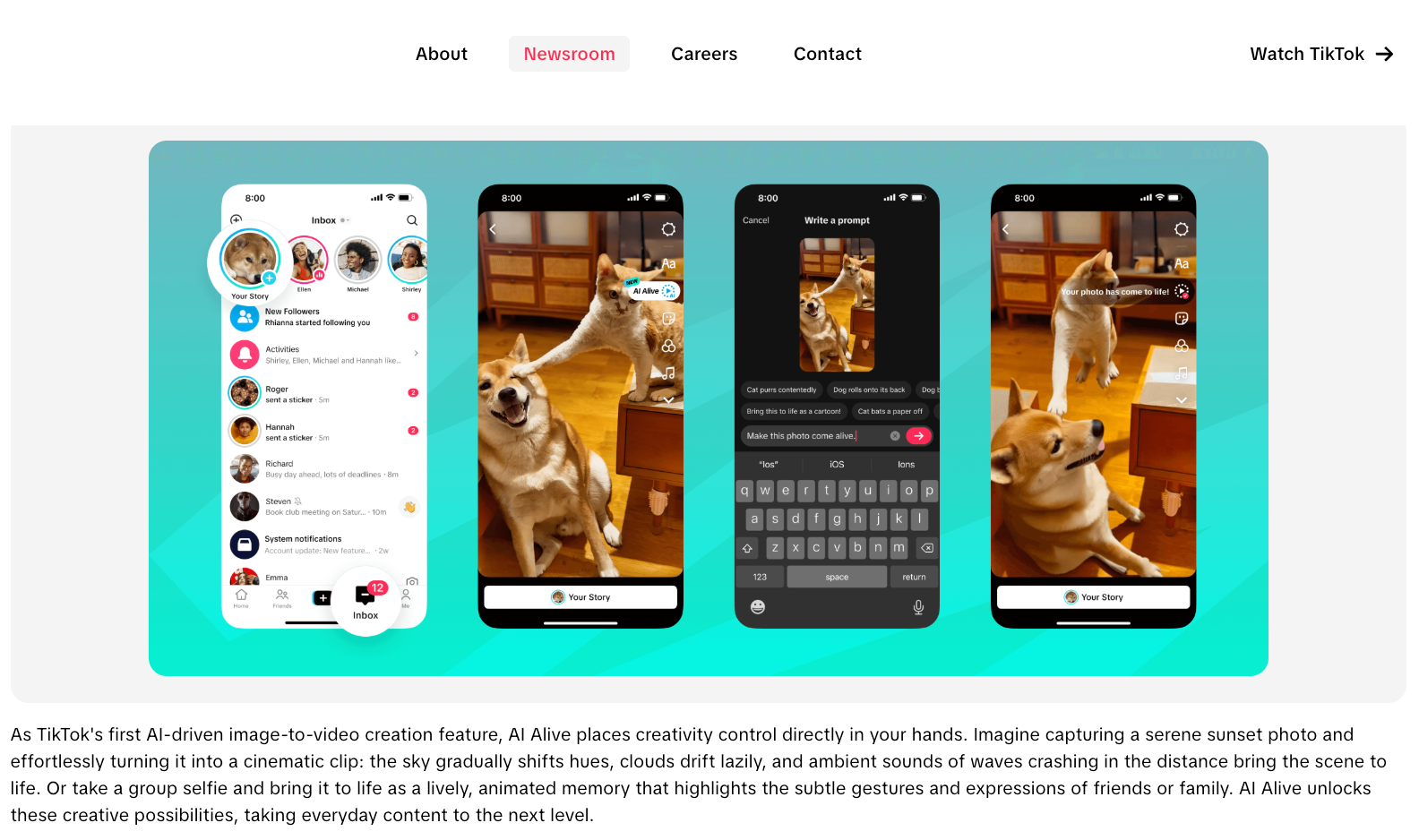
When using AI animation photo for social clips specifically, match your prompt to the platform's pacing. A TikTok clip needs motion in the first second — especially now that features like TikTok AI Alive are pushing more dynamic AI-native storytelling formats into short-form feeds. A Reel can breathe a little longer.
Keep Faces and Objects Consistent
Single-image animation introduces drift over longer clips. The model is predicting forward from one reference, and by second 8 or 10, it starts making creative decisions that don't always match the original.
The practical ceiling for stable single-image animation is around 5–6 seconds. Past that, faces change subtly, object edges soften, and the clip starts to look like a related video rather than the original photo animated.
For anything requiring longer clips or multiple shots with the same character or product, Vidu's Multi-Reference Consistency — where you upload up to 7 reference images — produces noticeably more stable output across frames. The character or object looks like itself in each generation, rather than a plausible interpretation of itself.
This is also where the difference between "animate photos ai" workflows and "reference-based generation" workflows becomes practically meaningful. If you're building a content series around one character or product, multi-reference input saves significant time across the whole batch.
Common Photo Animation Problems
These appear frequently enough to be worth naming directly.
Face drift in portraits. The face looks right in frame 1 and progressively less like the source image as the clip continues. Fix: shorten the clip, add the original image as a reference frame, or use a less extreme motion prompt.
Edge shimmer on subjects. The boundary between subject and background flickers. Fix: source images with higher contrast between subject and background. A plain or blurred background dramatically reduces this.
Motion that looks mechanical. The animation is technically correct but reads as artificial — like a cardboard cutout sliding rather than a person moving. Fix: prompts that describe secondary motion (hair, clothing, breath) in addition to primary movement tend to produce more organic results.
Inconsistency across multiple generations. You run the same prompt twice and get meaningfully different results. This is normal — AI animation involves sampling, and results vary. The stability pattern I've consistently seen: attempts 1 and 2 vary more, and by attempt 3 or 4, the outputs begin to converge toward something reproducible. If you're still seeing high variance after 5 attempts, the input image or prompt is likely the issue, not the tool.
Long clips losing coherence. Past 8 seconds, most single-image animations start to show drift or artifacts. This isn't a bug — it's the model operating at the edge of its predictive confidence. Keep clips short and let editing assemble the story.