What It Means to Create Animated Video With AI
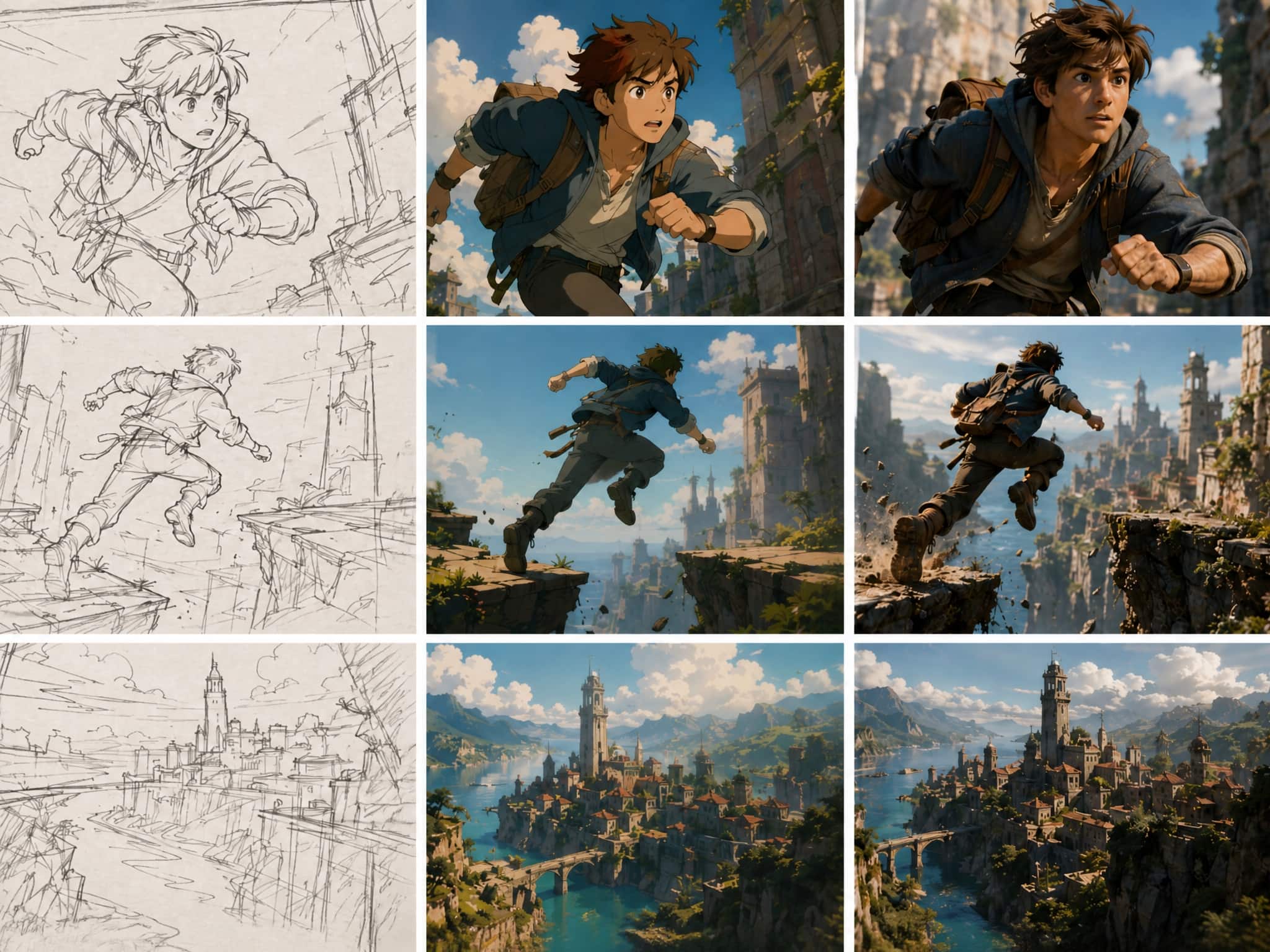
"Animation" means different things depending on who's asking. There's the 12-month studio pipeline — storyboards, rigging, compositing. And then there's what most solo creators actually need: a 4–8 second clip where something moves convincingly, the character holds its look, and the output is ready by tomorrow.
An animation video creator powered by AI is not trying to replace the first thing. What it does is compress the second one. You describe a scene, upload a reference image, and the model handles the motion. The 12 principles of animation — squash-and-stretch, anticipation, follow-through — still apply to what you're watching; they're just no longer your technical job.
Your job shifts to: give a clear brief, then judge whether the result is usable. That shift is what most people underestimate.
Choose Your Starting Point
This is the first decision, and it affects everything downstream. There are three real entry points when you want to create moving pictures with AI.
Text Prompt
You have an idea but no visual source material. You describe the scene — subject, action, camera direction — and the model generates from scratch.
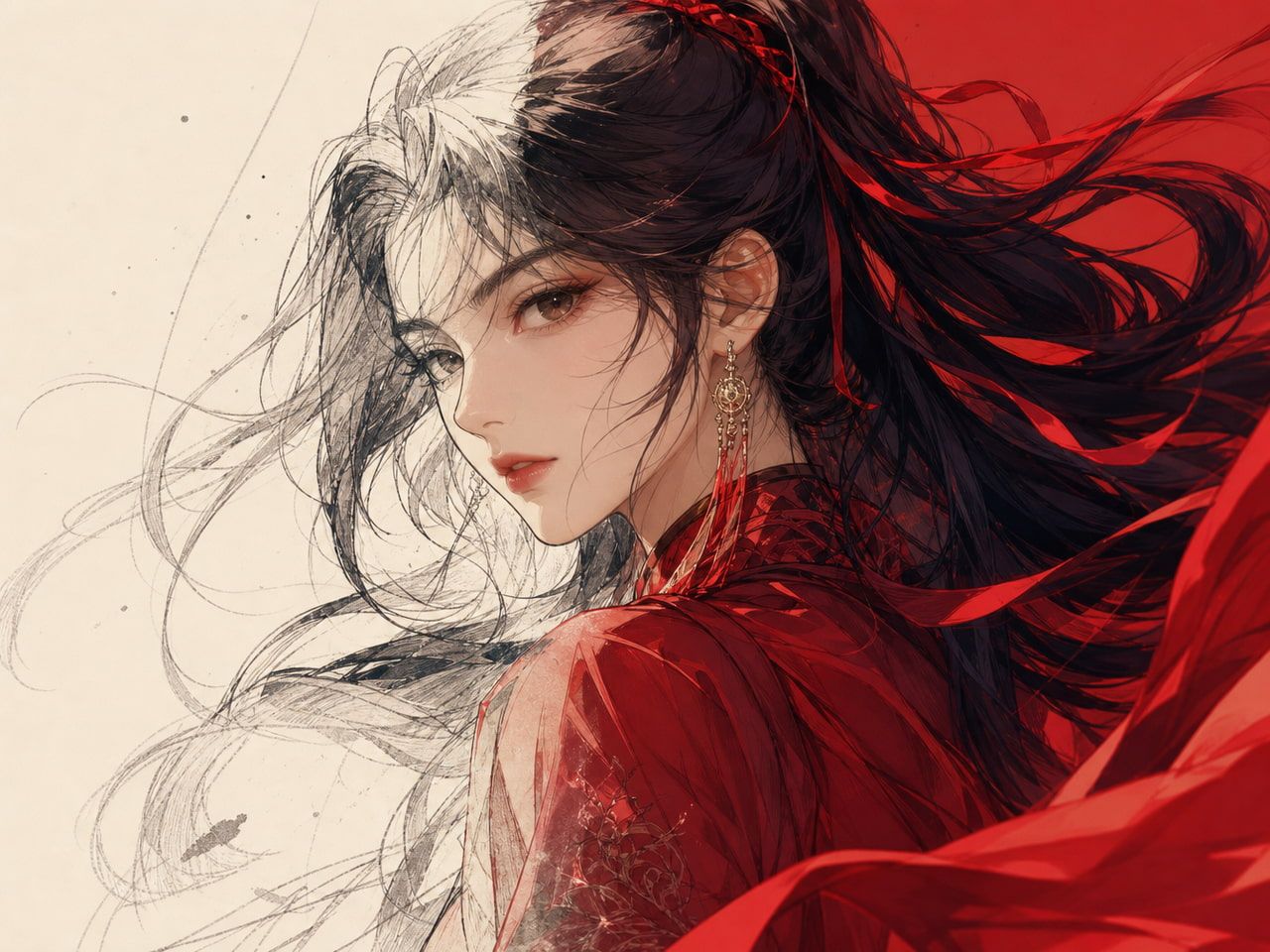
Fast to start, harder to control. I've found text-to-video works well when you need one self-contained clip and aren't matching it to anything else. Vidu's Text to Video is built for this: quick ideation from a prompt, adjustable clip duration and motion intensity. Specificity matters more than length — "a woman with a dark braid tilts her head slowly in soft morning light" generates more predictably than "a woman moves."
Image or Reference
You already have a character design, product photo, or scene composition. This is where consistency becomes possible.
Your uploaded image anchors the generation — the model animates around it rather than inventing from scratch. Vidu's Image to Video handles single-image animation; Reference to Video extends this to multi-image inputs for scenes that need to hold across more than one shot.
In my braid-girl test: first generation drifted at the edges. Second was cleaner. Third was the keeper. Single-image-to-video is not a one-shot operation — build in at least two or three rounds.
Template or Existing Asset
You don't have a specific character — you want something that works fast and looks finished. Templates give you pre-built motion you can customize.
Underrated entry point for creators producing content at volume. For short social clips, compressing decision-making often matters more than originality. If you're turning a product photo into a Reels post, a template starting point is frequently faster than prompting motion from scratch.
Step-by-Step Animated Video Workflow
Plan the Scene
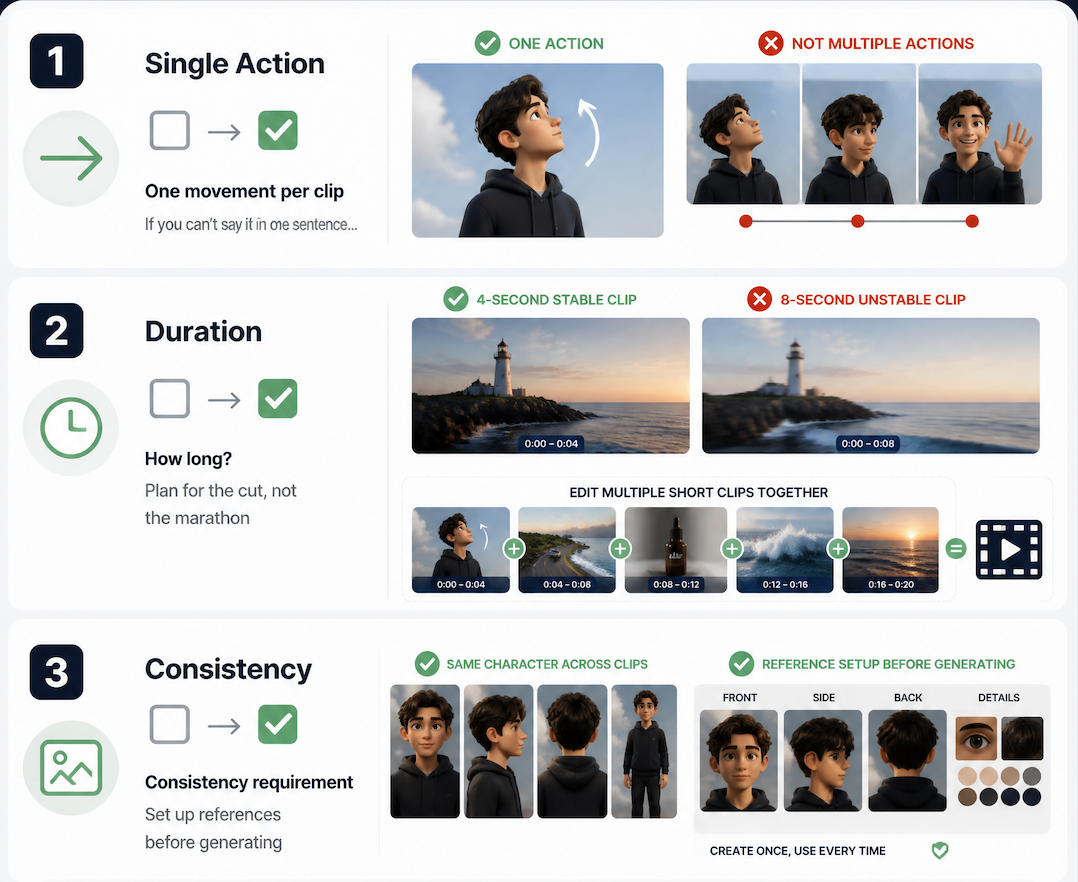
Before generating, answer three questions:
What's the single action? One movement per clip. "Character looks up" or "product rotates 90 degrees." If you can't say it in one sentence, you're fitting two clips into one.
How long? 4-second clips are more stable than 8-second ones. For longer output, plan a sequence of shorter clips and edit them together — more reliable than generating the whole thing at once. This is standard short-form video production logic: plan for the cut, not the marathon.
What's the consistency requirement? If this clip needs to match others — same character, same location — set up your references before generating. Don't generate three clips and discover they don't cut together.
Generate the First Draft
Run the first generation without expectation. The goal is a baseline, not a keeper.
Watch it once with sound off. Does the motion start and end correctly? Does the subject hold its shape, or drift? Is there anything visually wrong — morphing edges, flickering, faces going off-model?
Write down one specific thing to change before generating again. "The motion is too fast." "The face loses definition at the 2-second mark." One variable at a time. That's where you start learning what the model responds to.
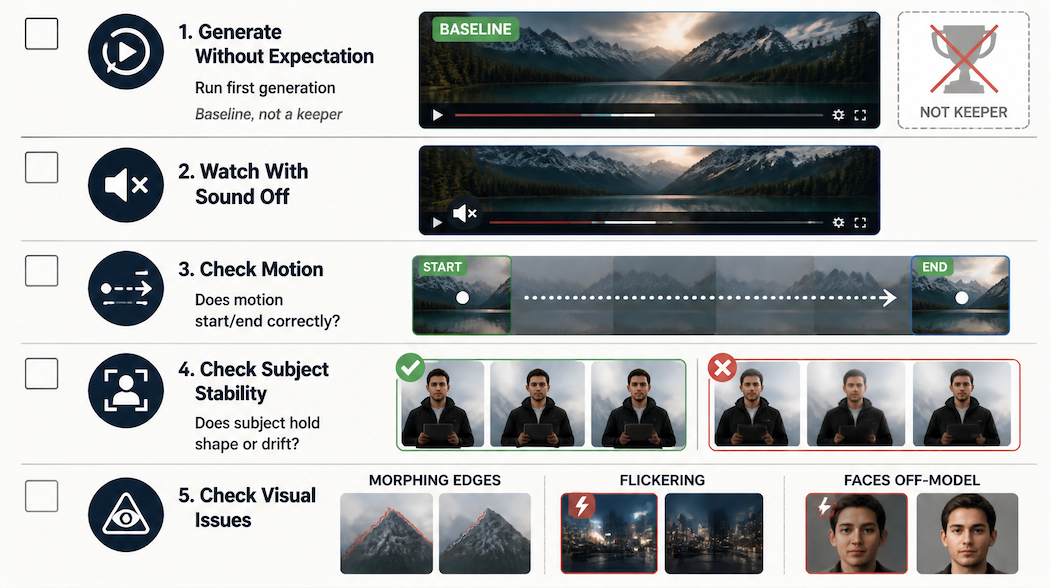
Check Motion and Consistency
Three questions before deciding whether a clip is usable:
Does the motion read correctly — not perfect, but does it communicate the intended action? Is the main subject stable across the clip? Does the background break the read? Backgrounds are where AI video goes soft at the edges. If the center holds and the background is slightly imprecise, that's usually acceptable.
If a clip passes those three checks at a basic level, I keep it. If subject stability fails specifically, I regenerate. That one is the hardest to fix in post.
Where AI Animation Fits in Creator Work
The honest answer: it fits best as a production accelerator for short, repeatable output — not as a replacement for everything upstream.
What changes: the cost of trying something drops to near zero. You can test whether a character works before committing to a visual direction. You can generate animated assets for social posts without a dedicated motion designer. For free AI animation tools and lower tiers, the tradeoff is quality versus volume — free credits are enough to test whether an idea works, not always enough to produce polished clips reliably.
What doesn't change: you still need to know what you want. The model is fast, but it's not a creative director. If your brief is vague, the output will be vague.