
What Counts as Vertical Video?
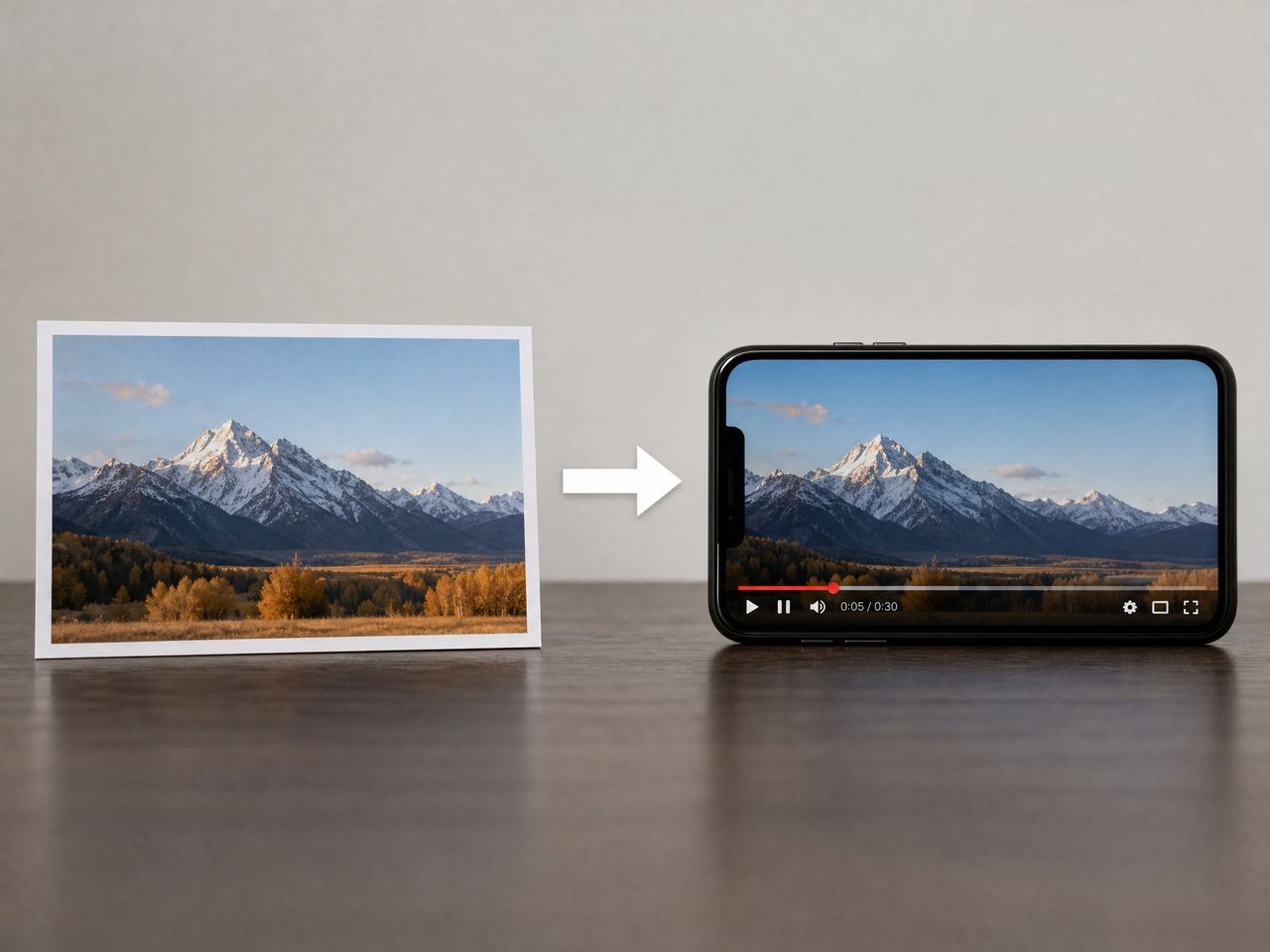
A clip generated in portrait orientation — taller than it is wide — at a 9:16 aspect ratio (1080 × 1920 pixels). That's the native format for TikTok, Instagram Reels, and YouTube Shorts. Every one of those platforms accepts other ratios, but they'll letterbox or crop anything that isn't 9:16, and that cropping rarely ends well.
A 4:5 ratio (1080 × 1350) exists and performs well in Instagram feed posts. Square 1:1 shows up occasionally for cross-platform reposts. But if your content is headed for a short-form feed, the working definition of vertical video is: 9:16, full height, composed that way from the start. Each major platform's exact specs differ slightly in duration and file limits, but the ratio stays the same.
Why AI Creators Should Plan Vertical First
The correction happens at the end if you don't plan it at the beginning. Generate a 16:9 clip, crop to 9:16 — and the subject drifts to one side, or the background becomes the main character.
Generating in portrait from the start skips that entirely.
Framing, Captions, and Motion Direction
Three things change when you go vertical-first at the generation stage.
Framing. AI video models make composition decisions based on the canvas shape you give them. In a 9:16 input, the generator places subjects vertically — the character fills height, not width, reflecting the composition priorities common in modern vertical-video workflows. In a 16:9 canvas, the same prompt tends to produce a horizontally anchored composition. When you crop that down later, you often lose the edges of motion — an arm swing, a turn, a reaction that read fine in wide but disappear in the narrow frame.
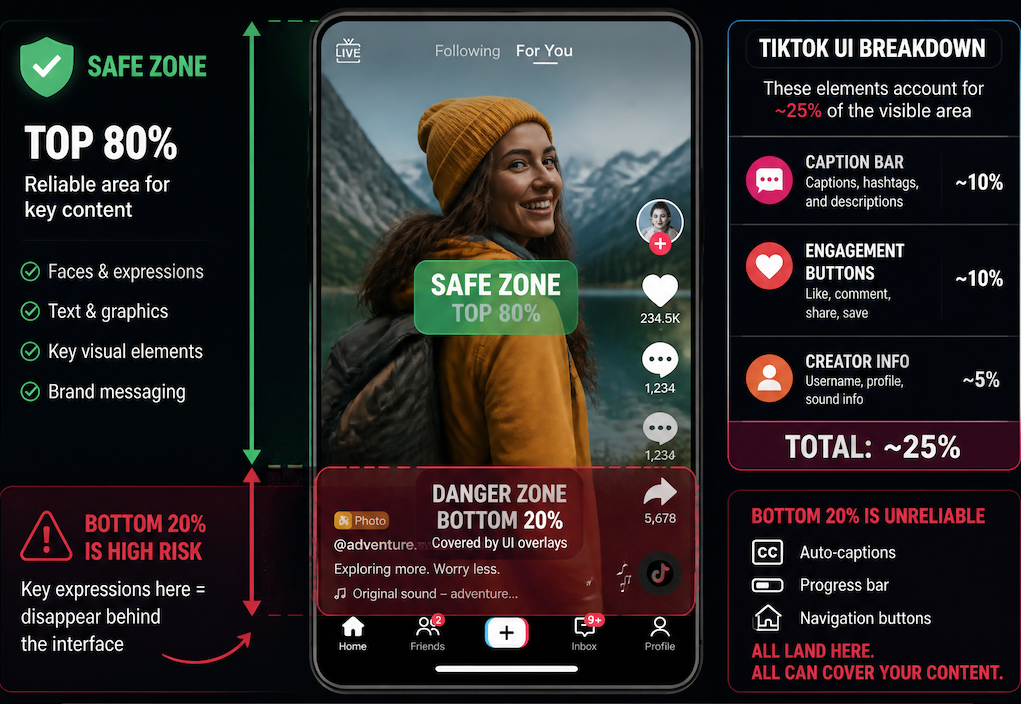
Captions. Platform UI overlays cover a consistent portion of your 9:16 frame regardless of what's in it. TikTok's caption bar, engagement buttons, and creator info together account for roughly 25% of the visible area. The bottom 20% of the frame is particularly unreliable — auto-captions, the progress bar, and navigation buttons all land there. If a generated character has a key expression in the bottom third, it disappears behind the platform's own interface. Platform-by-platform safe zone specs shift slightly with each UI update, but the bottom 20% has stayed dangerous across all of them. Safe zone awareness is easier to build into generation prompts than to fix in post.
Motion direction. Horizontal pans work in 16:9. In a 9:16 frame, the same camera move reads as chaotic — the subject exits frame sideways almost immediately. Vertical movement (slow upward tilts, subject walking toward camera) reads better in portrait. Across three generation tests with the same motion prompt in both ratios, the horizontal pan version showed drift and partial frame loss in 2 of 3 runs in the 9:16 output. The vertical tilt version stayed stable in all three.
How to Create Vertical Video With AI
Pick the Platform Format First
Aspect ratio is set before generation, not after. In Vidu's image-to-video and reference-to-video workflows, the ratio selector appears before you hit generate. Setting it to 9:16 at that stage tells the model to compose for portrait — the difference in subject placement is visible in the output, not just in the canvas shape.
The selection matters because different platforms have slightly different safe zones even within 9:16. TikTok's UI elements and Instagram Reels overlaps are similar but not identical. Composing for the specific platform's overlay pattern — rather than a generic vertical crop — produces fewer corrections downstream.
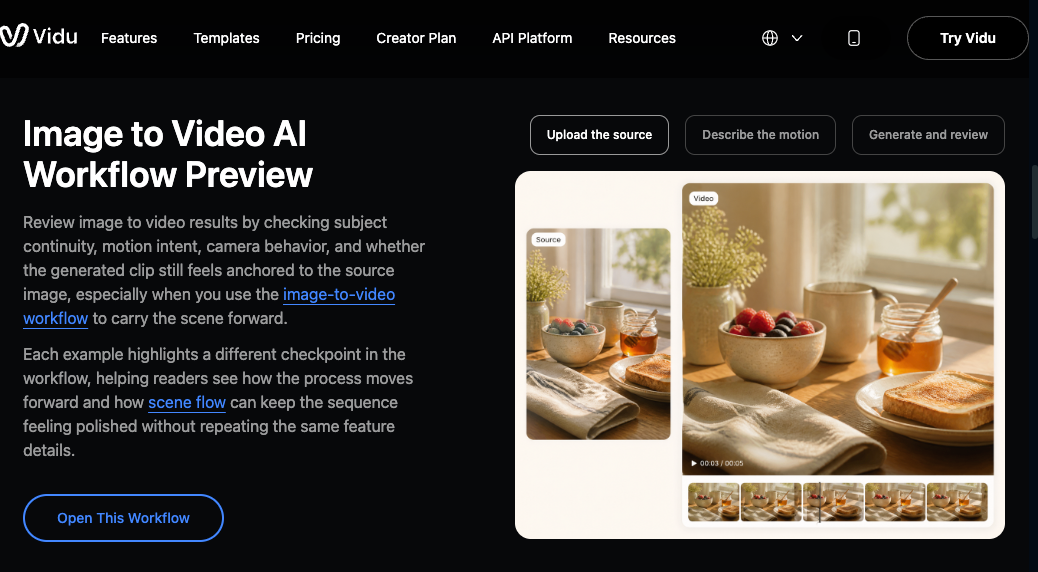
If you're starting from a still image instead of generating directly from text, an image to video AI workflow gives you more control over framing before motion is introduced, making it easier to keep subjects inside the usable vertical area.
Use Vertical Reference Images
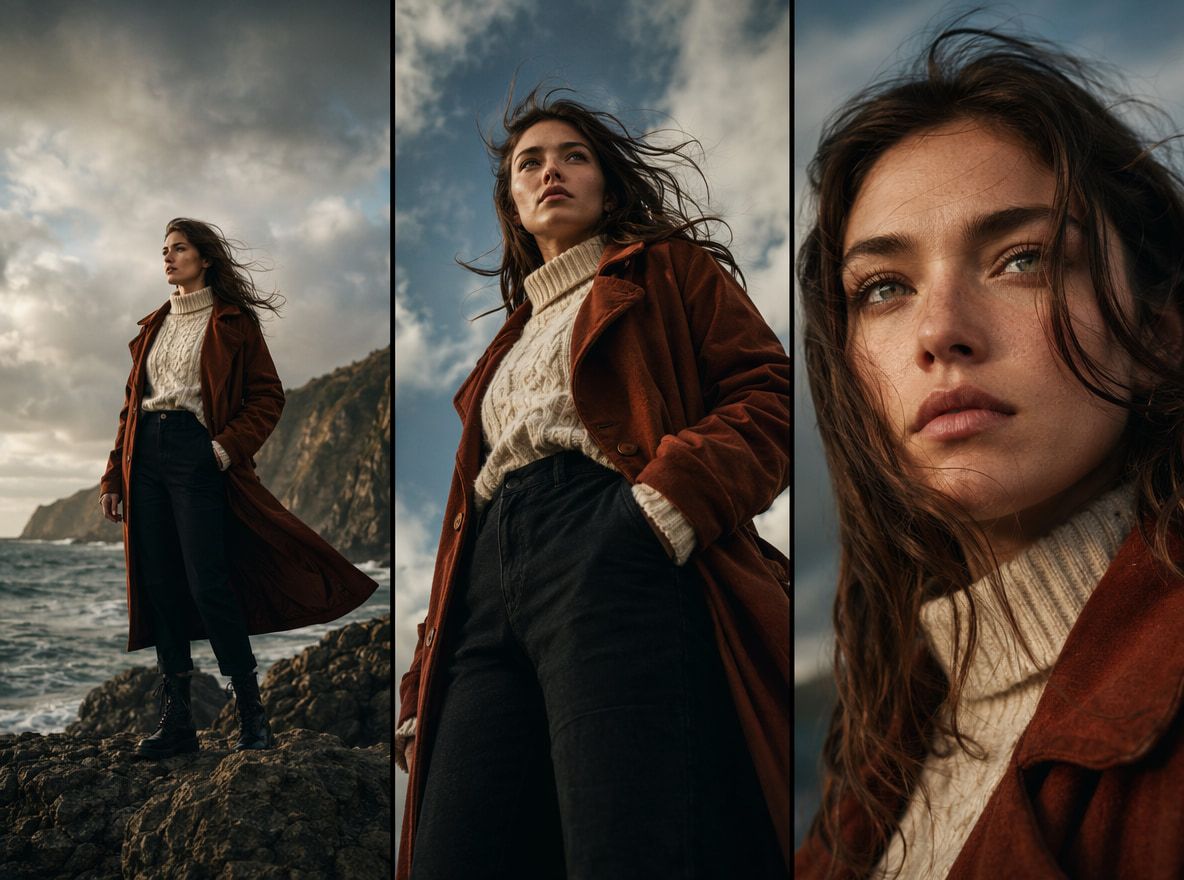
Reference images inform how Vidu positions a character within the frame. If you upload a horizontal reference photo and request a 9:16 output, the model has to reconcile the two — and it doesn't always resolve that tension cleanly. In two of four tests, uploading a portrait-oriented reference (character filling height, shot from roughly chin to hip) produced more stable framing in the vertical output than uploading a landscape reference for the same prompt.
This isn't always possible — you may not have portrait reference photos. But when you do, matching the reference orientation to the output ratio reduces the rounds needed to land a usable result.
Review Safe Zones Before Downloading
The clip Vidu generates is clean — no UI elements, no overlays. The problem appears after upload. Every platform places its interface on top of your video across the same regions every time: bottom bar, right-side engagement buttons, top-left creator info.
Before downloading, mentally map where your key content sits relative to those zones. A character whose face appears in the bottom third will often be partially obscured by captions on TikTok. A text overlay in the right quarter will conflict with the like/comment/share stack. The center vertical band — roughly middle 60% horizontally, upper 80% vertically — is the region that survives platform UI without modification across TikTok, Reels, and Shorts. TikTok's safe zone dimensions are the most restrictive of the three, so framing for TikTok typically covers the other platforms without additional adjustment.
When to Convert Horizontal Video to Vertical
If you've already generated a 16:9 clip and need a 9:16 version, a vertical video converter or AI reframe tool can help — but results vary depending on the original composition.
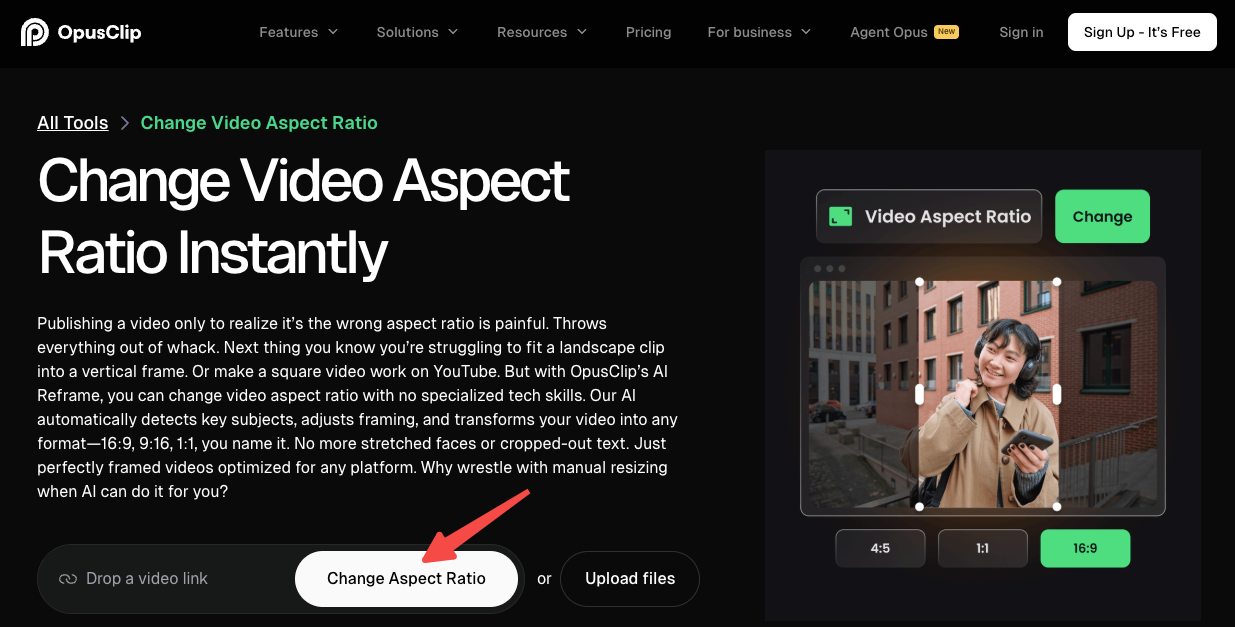
The core issue is that converting from 16:9 to 9:16 removes approximately 56% of the original frame width. A subject centered in a wide shot may survive that crop. A subject at the edge of frame, or a two-character scene with horizontal spacing, typically doesn't. AI reframe tools that track subjects can compensate somewhat, but they introduce their own instability when multiple subjects move independently.
A vertical video editor works best under specific conditions: the original clip has a centered subject, limited horizontal motion, and a static or near-static background. When those conditions aren't present, the conversion usually requires multiple review passes before the main subject reliably stays in the usable zone.
For AI-generated content specifically, the cleaner path is to regenerate at the target ratio. Generation is faster than manual reframe correction, and Vidu's reference consistency features mean regenerating at 9:16 with the same reference images typically produces a character-stable output — same face, same costume — without cropping artifacts.
The exception: footage that can't be regenerated — a live capture, a client video, a clip from an external source. In those cases, use a tool with subject-tracking reframe and review the result at the critical zones before posting.