What Is a Wedding Invitation Video?
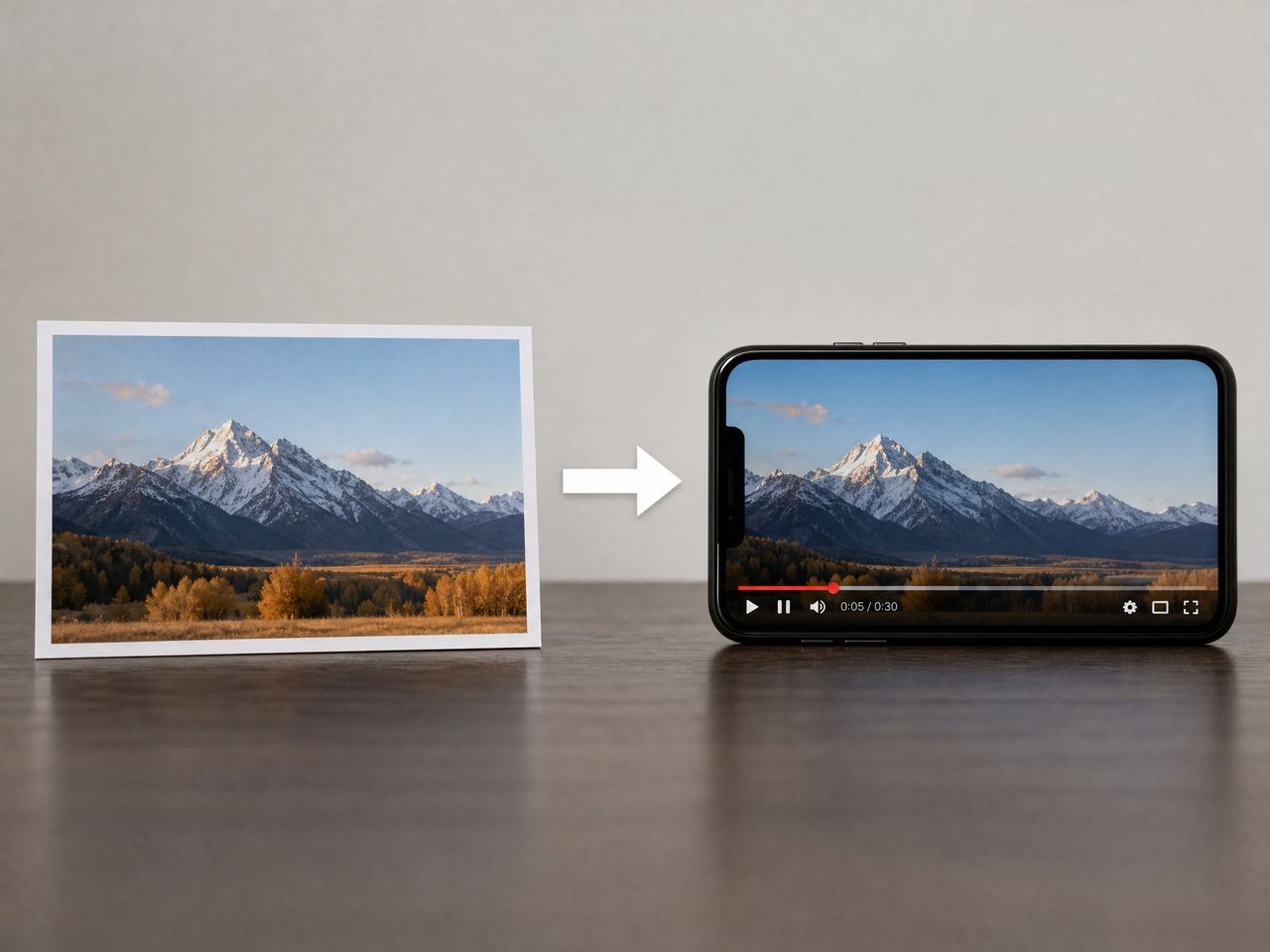
A wedding invitation video is a short digital clip — typically 20 to 60 seconds — that delivers the same core information as a printed invite: couple names, date, time, venue, and RSVP details. It does that through motion, music, and visual style instead of paper.
A wedding invite video maker powered by AI can animate still photos or generate scenes from a text description without requiring any video editing experience. The output is a shareable MP4 that guests receive by WhatsApp, email, or social media — and watch in the same context they watch everything else.
The format shifted from novelty to practical option once image-to-video tools became genuinely accessible. The production barrier dropped. The consistency question didn't fully disappear, but it became manageable.
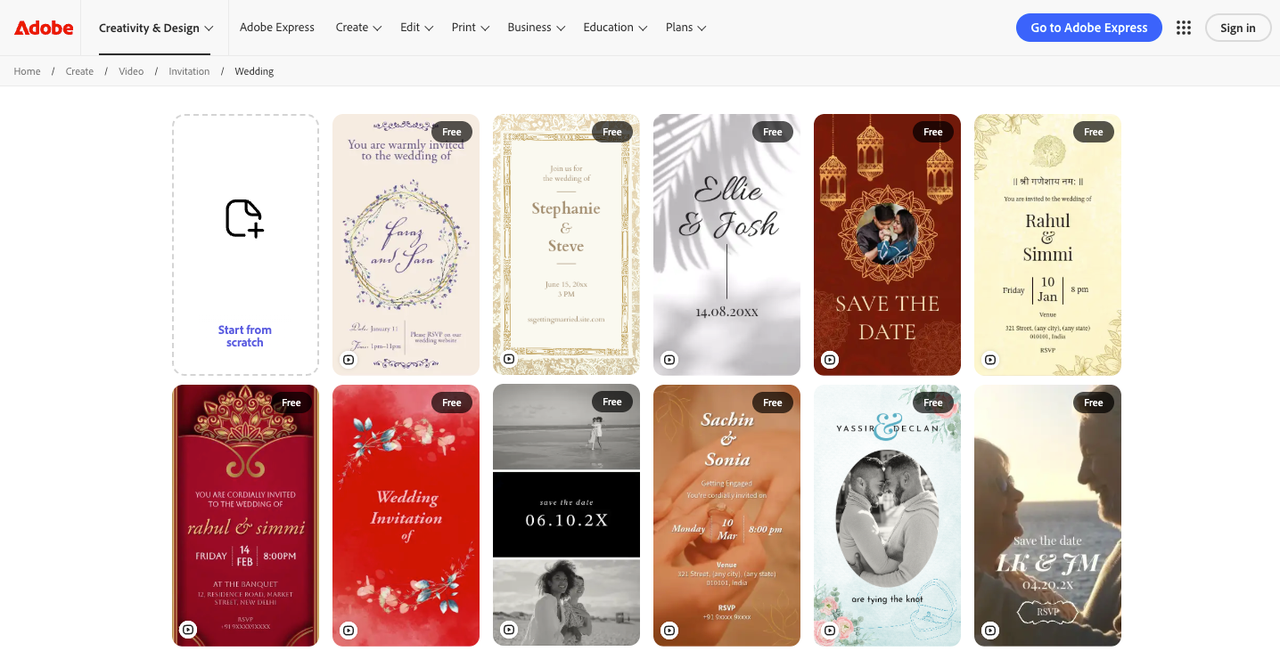
AI Wedding Invitation Video Ideas
Three formats came up consistently when working through an ai wedding invitation video from start to finish. Each has a clearer use case than it might seem, and each fails in a different place.
Animated Couple Portrait
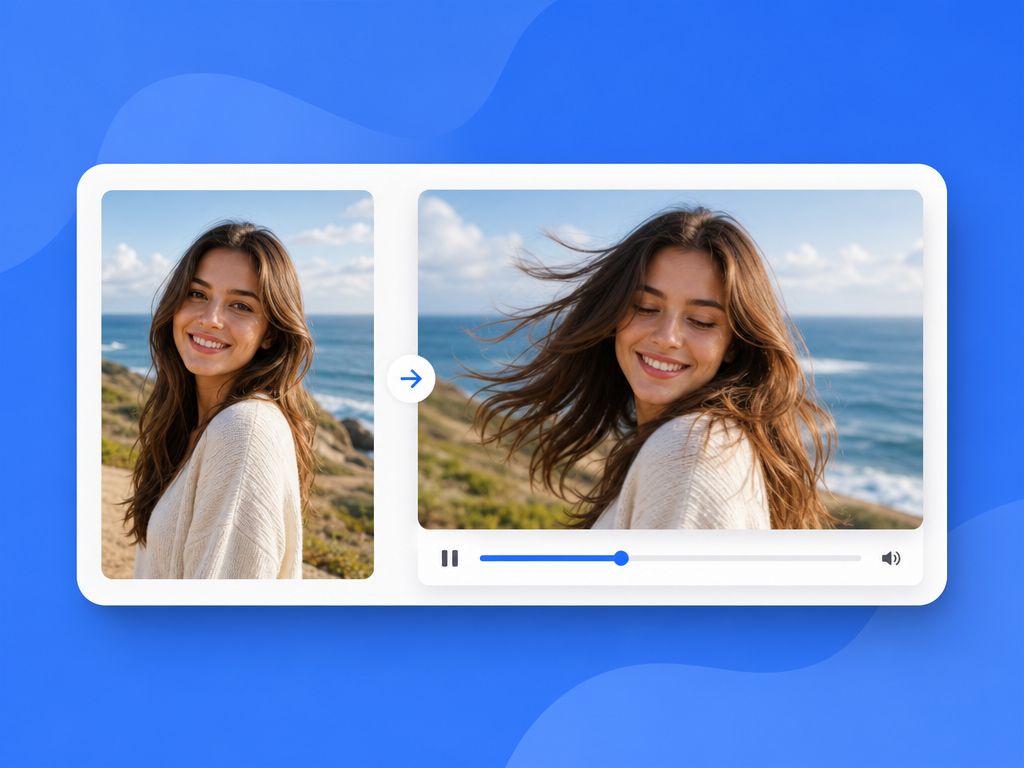
Upload one or two photos, and the generator renders movement — soft camera drift, fabric shifting, background bokeh that pulses gently. This is the most common starting point and the most unpredictable one.
Stability depends on the source photo. Front-facing portraits with good lighting stayed readable across multiple generations. Side-angle shots introduced face drift around the second attempt. Divergence starts appearing when the model tries to animate both subjects at once — single-subject inputs were noticeably more stable.
Usable range: 5–8 second clips as a portrait reveal inside a longer sequence. Not reliable as a standalone 30-second piece.
Cinematic Save-the-Date
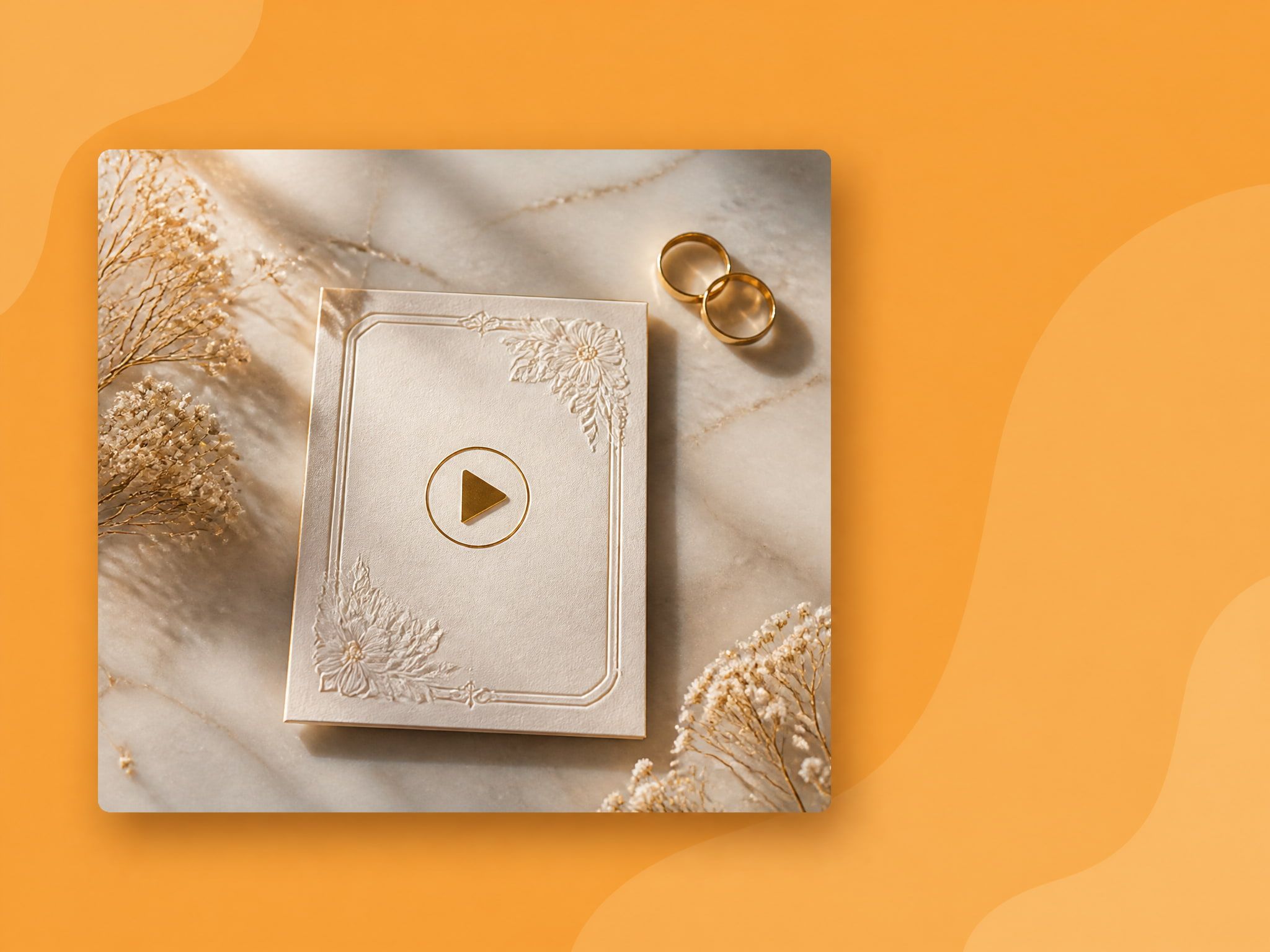
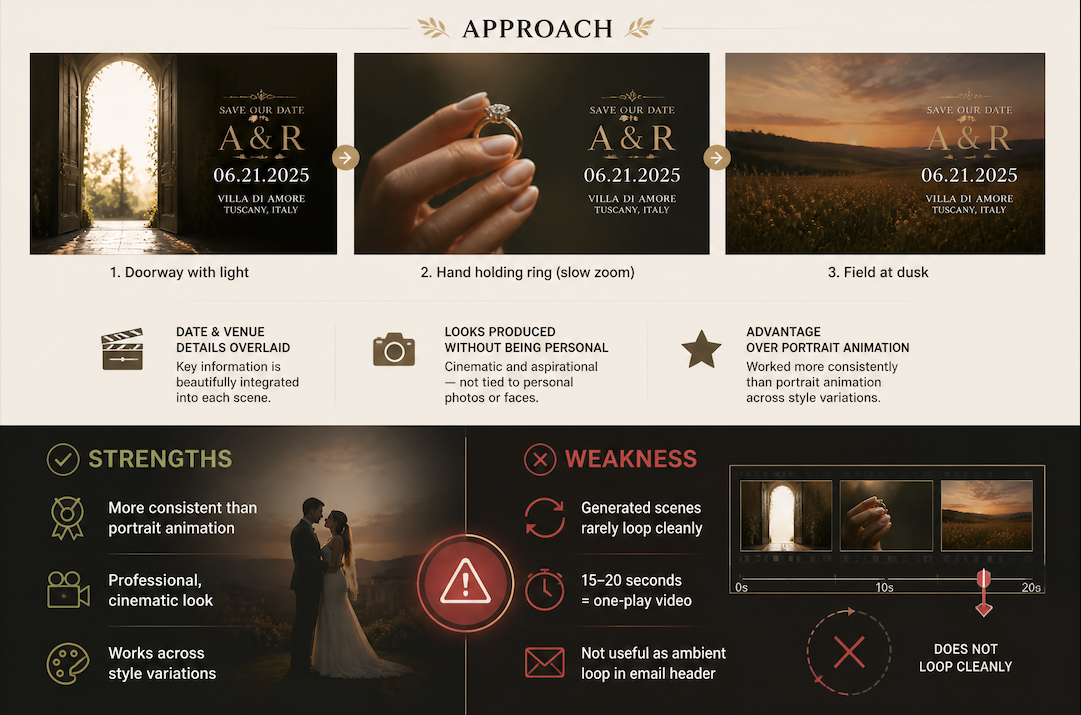
This approach generates a short scene — a doorway with light flooding through, a slow zoom on a hand holding a ring, a field at dusk — with date and venue details overlaid. It looks produced without being personal, and that worked more consistently than portrait animation across the three style variations I compared.
The weakness: generated scenes rarely loop cleanly. At 15–20 seconds, they function as a one-play video. Not useful as an ambient loop in an email header.
Floral or Anime-Style Invitation
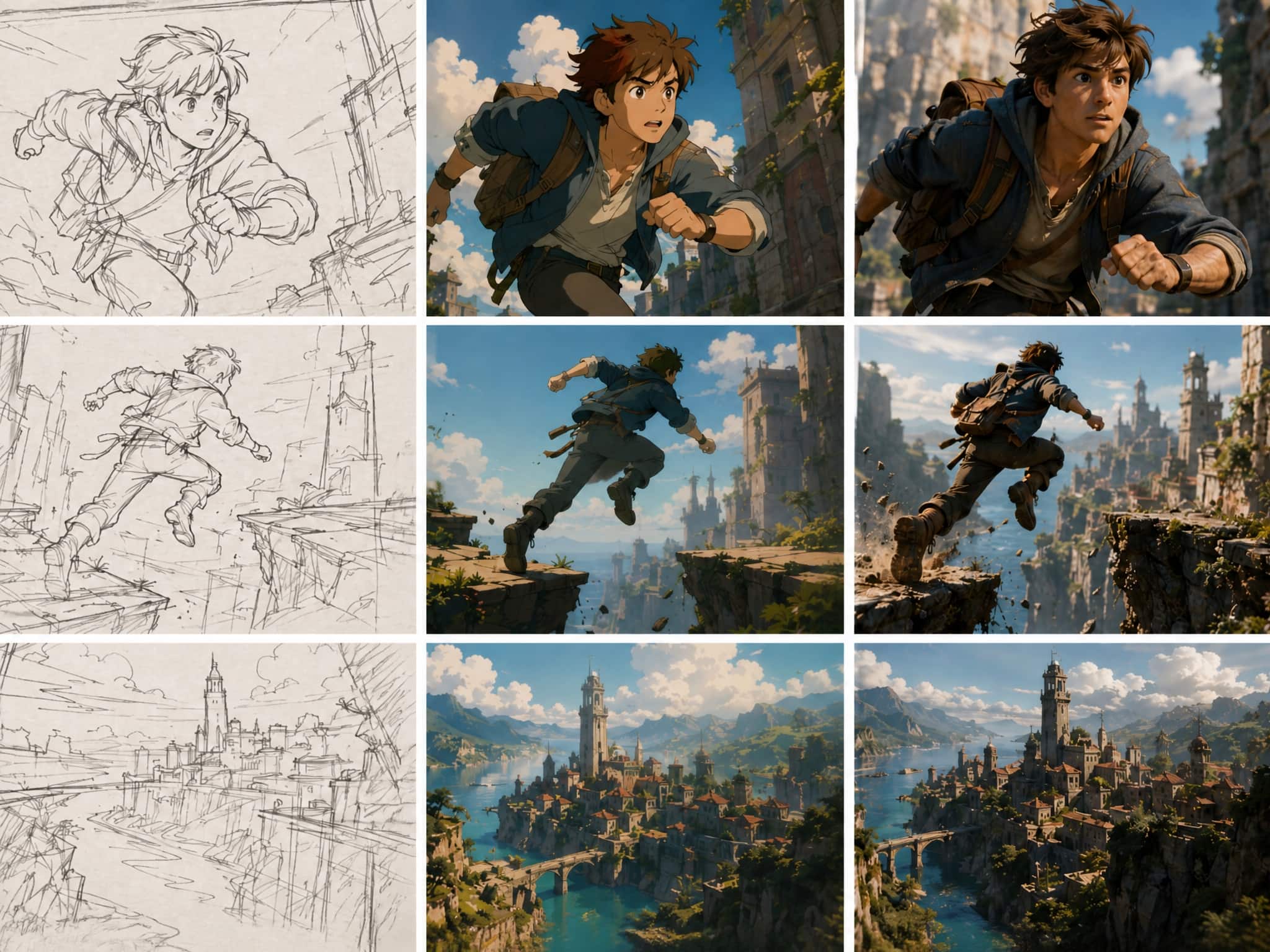
Running a photo through an illustrated or anime style before animating it sidesteps the uncanny valley problem that portrait animation introduces. The result doesn't try to be photorealistic, so generation imperfections read as style rather than failure.
Floral frame animations — petals falling across a portrait, vines growing around a date card — were the most consistently usable output across all my tests. Motion is contained, the subject stays centered, and the clip holds at both 5 and 12 seconds. For creators working across different client aesthetics, this format absorbs the most variation without breaking.
How to Create a Wedding Invitation Video
Gather Photos and Text
Input quality matters more than tool choice. For the video: one or two clear portraits, front-facing when possible. For the text overlay: the six essentials every wedding invitation video must carry — couple names, ceremony date and time, venue name and location, and RSVP method with deadline.
Standard wedding invitation wording guidelines apply here: registry links and accommodation details belong on a wedding website, not on the invite itself. The same rule holds for video. Five or six lines of text, cleanly timed into the clip, works better than a scrolling block of information.
Pick Visual Style and Format
Decide the output ratio before generating. Square (1:1) works across most messaging platforms. Vertical (9:16) is the format for Stories and Reels. Landscape (16:9) suits email embeds and wedding website headers. Most AI tools default to landscape — if the destination is Instagram or WhatsApp Status, confirm ratio options before starting a generation run.
Vidu's ready-made template library includes preset wedding-scene formats with motion and timing already configured, which removes the style decision entirely and gets to a shareable output faster.
Generate and Review Details
Run the generation once, then check the text before watching the motion. Names misspelled, dates transposed, venue names truncated — these are the errors most likely to survive into a sent version because the visual draws attention away from the text.
After the text check: watch the clip on a phone screen, not a desktop. Motion that looks smooth at full size can appear jittery on mobile. If the output passes both checks, it's ready — especially when generated with a wedding invitation video tool that supports previewing motion before export.
If the first generation shows portrait drift or awkward motion, one adjustment — simpler prompt, tighter crop, or a template with more constrained movement — usually resolves it in the second or third attempt.
What Details Must Stay Accurate
This is where the format introduces a risk that printed invites don't: the visual is engaging enough that a factual error in the text overlay gets missed. A digital wedding invitation is shared instantly and can't be recalled once it lands on someone's phone.
Before exporting, verify:
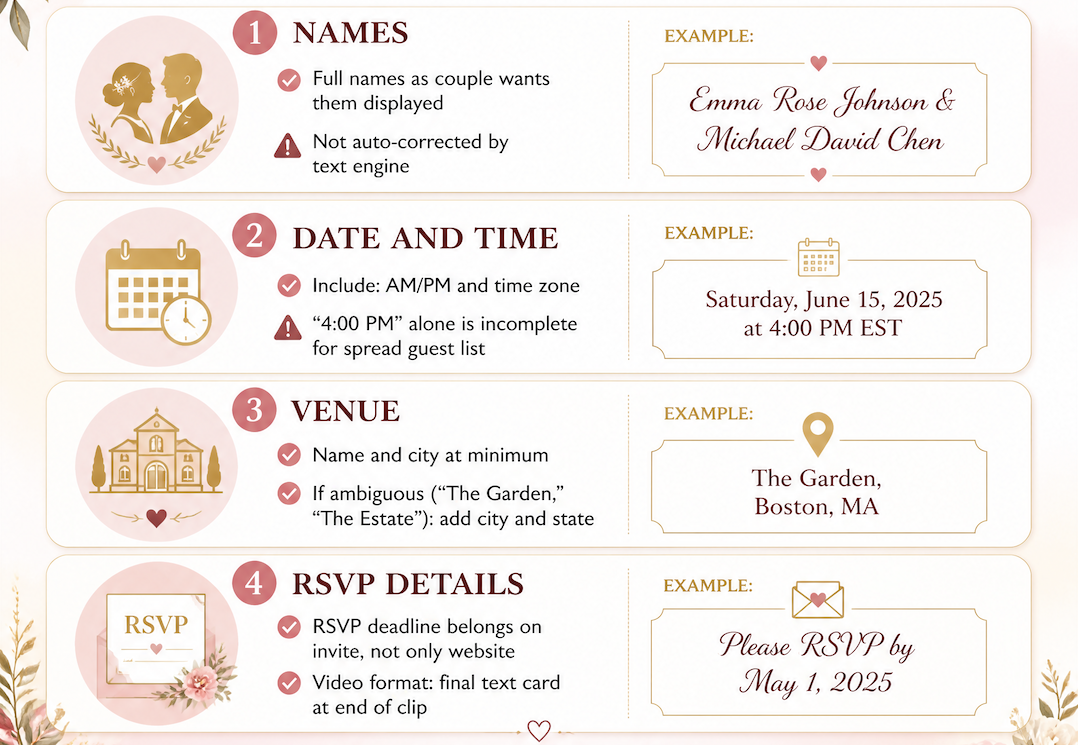
Names. Full names as the couple wants them displayed — not auto-corrected by the tool's text engine.
Date and time. With AM/PM and time zone if guests are in different regions. "4:00 PM" alone is incomplete for a geographically spread guest list.
Venue. Name and city at minimum. If the venue name is ambiguous — "The Garden," "The Estate" — add city and state.
RSVP details. Per wedding invitation etiquette guides, the RSVP deadline belongs on the invite, not only on a linked website. In video format, this usually means a final text card at the end of the clip.
Once shared, a detail error means regenerating and resending. Catching it before export is the faster path.